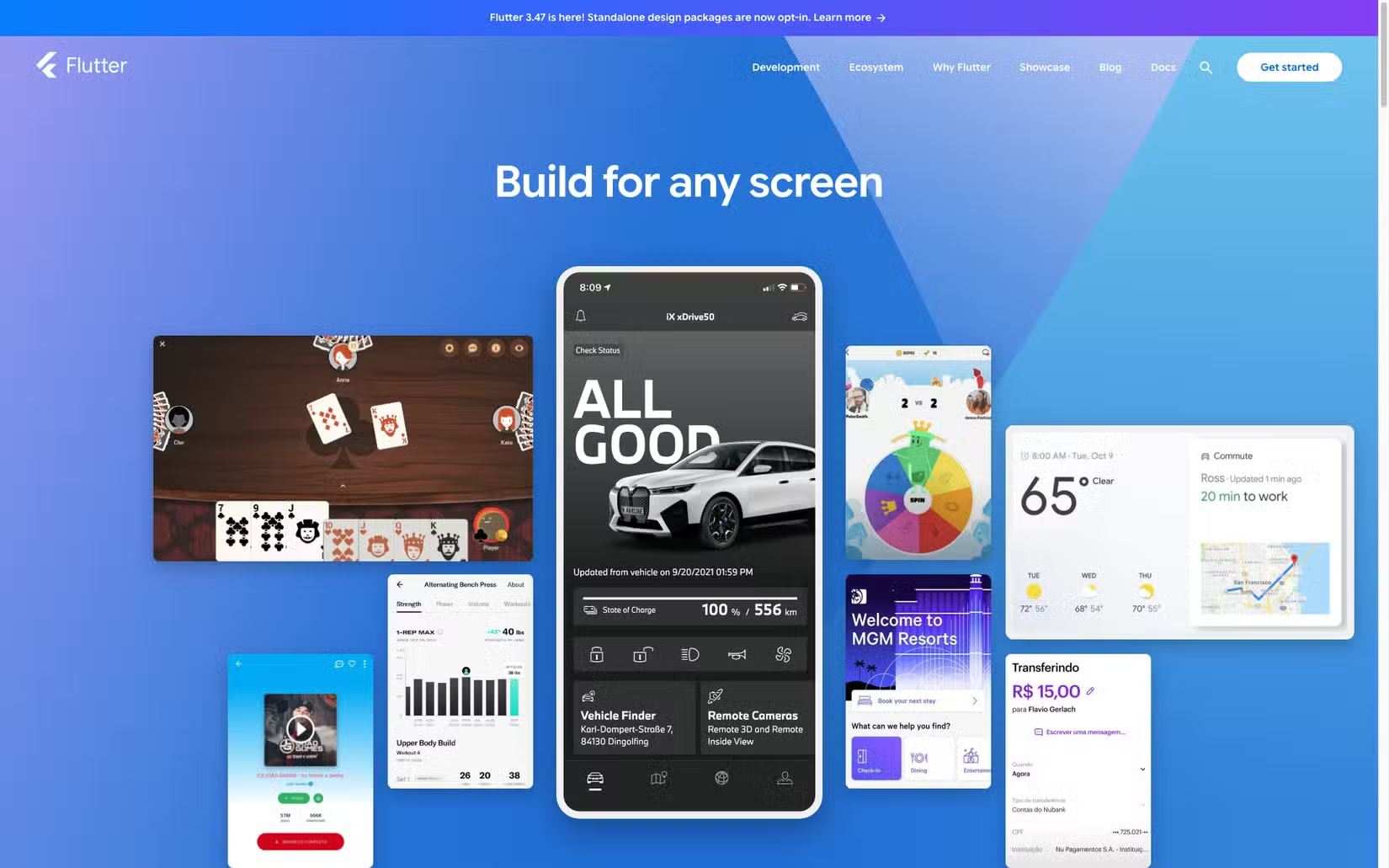
From React Native to Kotlin Multiplatform, cross-platform frameworks are popular for their promise of “write once, run everywhere” software. Google’s Flutter is another such framework, with a few key differences.
Using Flutter, you can target not only mobile platforms, but desktops and the web too. Its native UI makes apps truly platform-independent, and Flutter’s strong support for Visual Studio Code makes it an excellent place to begin.
What is Flutter?
A cross-platform, open-source, UI-agnostic framework

Launched in 2017 as a challenger to React Native, Flutter has grown in popularity since, and now has a slightly greater share of the cross-platform market. Like its competitor, it’s an open-source framework that originally targeted mobile apps developed for both Android and iOS.
Today, Flutter also supports desktop apps on Windows, macOS, and Linux, as well as the web. Flutter apps are written in Dart (a language that’s much less popular than React’s JavaScript) and avoid using native UI components, favoring a lower-level rendering engine.
Because Flutter opts for high-performance, low-level rendering, it has even seen use in game engines like Flame.
Installation is straightforward
VS Code is the recommended route because it’s so very easy
Right from the get-go, Flutter’s quick installation recommends VS Code. This IDE is undoubtedly one of the best for your day-to-day work, and using it ensures installation is quick, without even any need for a command line.
Instructions are available for Windows, macOS, Linux, and even ChromeOS. You’ll need access to git because the process downloads the Flutter repo directly from GitHub, but it gives you an installation that’s easy to update in a directory of your choice.
The tutorial makes use of a sample project that is heavily commented for ease of understanding, and it should only take about 10–20 minutes to get a sample app up and running for testing via a browser and on your native platform.
Flutter’s sample project is perfect
With everything set up to show off the framework at its best

The sample project that comes with Flutter is, of course, very simple: press the button to increase a number. It’s essentially the “hello world” of GUI apps.
But as a sample, this project is perfect. It ensures you have all the necessary scaffolding set up to develop Flutter apps in VS Code. It demonstrates how to run your code in either web mode or as a native standalone app. The code also has excellent comments, which really help you understand the underlying architecture.
There are plenty more sample apps in the flutter/samples repo, covering everything from image handling and form processing to animation showcases.
Cross-platform support accelerates the learning curve
A solid base on which to build your apps

Nobody starts programming with a cross-platform mentality, but it can yield real benefits, like a deeper understanding of architectural differences and a stronger appreciation for accessibility needs.
Flutter’s entire motivation revolves around cross-platform development, and it’s an interesting combination of two approaches: support for native plugins and platform API integration, with a custom platform-independent UI layer in front.
There are many useful plugins on Flutter’s official package repository, pub.dev.
Hot reload speeds up experimentation and development
Instant feedback on changes encourages experimentation

To be honest, it’s just as well that Flutter features hot reload because it helps to mitigate one of its few flaws: startup time. When you build and run an app from scratch, it can take a good few seconds, so you don’t want to be doing it all the time.
Hot reload does exactly what it sounds like: it lets you reload a running app to reflect the latest changes without a full build cycle. In many cases, this happens automatically, as in the sample project, letting you change a component’s color simply by updating and saving the source code.
Hot reload helps mitigate one of the biggest frustrations many beginner programmers face: waiting for code to compile — or even remembering to do so in the first place!
With pixel-precise interfaces, regardless of platform

Although Flutter apps are platform-agnostic, you can still target a specific platform if you want. More importantly, you can target a specific platform’s design style.
Historically, there has been support for Google’s Material design language, and Apple’s UI guidelines (named “Cupertino” here, presumably for trademark reasons). Currently, there is unofficial support for Microsoft’s Fluent UI framework, although the playing field is leveling out as Cupertino and Material decouple from Flutter itself.
Flutter is a perfect place to begin your programming journey
Flutter is a great introduction to modern programming techniques, letting you produce high-quality, cross-platform apps right out of the box. With excellent VS Code support and an open-source model, it’s accessible and fully featured.