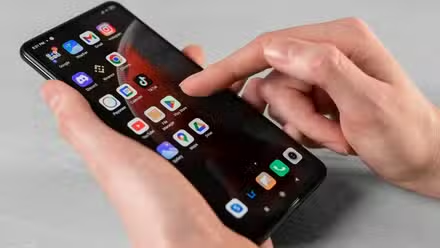
I don’t think swiping apps away is a bad habit. I don’t do it often, but when I do, I’m done with the apps. Android already does a decent job of handling apps in the background, and you don’t really need to close background apps for your Android phone to work smoothly.
But plenty of apps on my phone sit untouched for weeks while Chrome, YouTube, WhatsApp, and maybe a few other apps get all my attention. What bothered me wasn’t that they were on my phone; it was not knowing what they were doing while I wasn’t looking. And that led me to SuperFreezZ.
Instead of swiping an app away, SuperFreezZ lets me freeze it outright. The app stays installed, but its background activity is stopped until I decide to unfreeze it. I’ve used it on my Pixel 4XL (Android 13) and Samsung Galaxy Tab A11 (Android 16), and the two gave me surprisingly different experiences.
I started with the apps I never use
The easy ones to leave behind
I started with the obvious apps on my list. Vidmate, alternative browsers, banking apps, F-Droid apps, and a couple of social apps I’d mostly forgotten I had. Twenty-two apps were frozen on the Pixel and fifteen on the tablet. If I’m not touching an app, I don’t see a reason it should get to do whatever it wants in the background.
Spotify was an easy call since most of my listening happens on the tablet now anyway, and I’m clearly not the only one rethinking the big streaming apps. WhatsApp and Telegram also made the list since I don’t use them often on the Pixel.
Chrome, YouTube, Gmail, and other Google-essential apps never appeared as options to freeze on either device. I couldn’t find the reason for the exemption. Honestly, that worked out fine, since they are my most used apps anyway, and I wasn’t trying to squeeze battery savings out of every app on my phone. I just wanted the ones gathering dust to stay out of the way rather than pretending they weren’t there.
Frozen apps really stay frozen
Until you need them
The reality of this was shocking in the apps I actually use. I use the tablet as my main device, so a speech-to-text app like Wispr Flow is a no-brainer for easier typing. I froze it anyway, out of curiosity, and the background pop-up and constant listening disappeared immediately. That’s when I realized SuperFreezZ wasn’t just a fancier way to clear recent apps. Of course, I had to unfreeze it within the hour because I couldn’t use the features I bank on daily, but it made the point.
WhatsApp, Telegram, and Discord took it a little further. I could still use them normally, especially on the tablet, but no notifications or messages came through at all while frozen. That’s a nice kind of quiet for apps you don’t care about. For WhatsApp, that’s a hard no. I need to know the second someone needs me, so I unfroze it right away.
That’s the actual difference from swiping an app away. Swiping tells Android to manage the background apps; freezing tells the apps to stop doing anything until I say otherwise.
The Pixel got the better version
The tablet, not so much
This is where Android 13 vs. Android 16 started to matter. On the Pixel, I could give SuperFreezZ every permission it needed for its advanced features. I enabled automatic freezing and freezing whenever the phone’s screen turns off.
The part I liked most was the UsageStats access, which enabled intelligent freezing. It could flag apps I hadn’t used in the past seven days and recommend freezing them on its own. That was genuinely useful, since I’m not the type to remember to go check a freezing app every day. I just want the phone to do it for me.
Android 16’s advanced security, on the other hand, was a different story. The tablet wouldn’t grant permissions, as all the accessibility toggles were greyed out. It flagged SuperFreezZ as untrusted since it’s sideloaded from F-Droid. There’s a “learn more” option to lift the restrictions, but I wasn’t willing to override a security warning, especially after disabling Auto Blocker and allowing unknown-source installs just to get this far. So I had to manage the freezing myself.


Funny enough, the tablet was a smoother experience when I opened frozen apps. Everything reopened cleanly without hanging.
While the Pixel offered better automation, it was annoying sometimes. Some frozen apps would occasionally allow notifications and return to pending freeze, meaning I had to re-freeze them repeatedly; WhatsApp was guilty of this. LinkedIn, Pi Browser, and the streaming apps were worse, sometimes hanging the phone for up to a minute before working. Beyond those hiccups, it was a smooth experience.
The battery difference wasn’t everything
But the quiet felt good
I didn’t turn either battery into a miracle, but the small gains caught my attention. Usually, the tablet loses around 4–8% overnight with my data on. Since I started using SuperFreezZ, it hasn’t lost anything. Even the Pixel dropped from its usual 10-15% to under 7%, although its battery is already old. Also, I charged the Pixel less, which is good.
I can’t say SuperFreezZ did all that alone. I’ve been paying closer attention to both phones, which maybe changed how I use them too.
Chrome was still my biggest battery drainer because I was actually using it for research. So freezing an app I don’t use won’t stop Chrome from eating its own battery, though I’ve seen people stop Chrome’s background use to save battery.
For me, though, the battery wasn’t a big deal. I liked the feeling of knowing the apps I wasn’t using weren’t quietly doing something. That’s all the appeal, if I’m honest.
I’d freeze the apps I don’t need
Not everything else
I’m not freezing WhatsApp or Wispr Flow. Chrome, YouTube, and Gmail aren’t freezable anyway, and I’m definitely not spending my day manually refreezing every essential app I just finished using.
The tablet would have been better if Android 16 didn’t restrict so much of SuperFreezZ’s automation. The Pixel’s Android 13 lets it do more, with minor headaches to match.
So, moving forward, my sweet spot is freezing the apps I don’t use often and leaving the daily essentials alone. I’d happily let SuperFreezZ deal with the apps I haven’t used in a week, but I’ll be more selective on the tablet because I have to manage it myself.
Swiping apps away wasn’t really the problem. I just wanted the apps I don’t use to stay out of the way, instead of doing things I never asked them to do.