On desktop operating systems, you can usually look up exactly which apps and services are currently running on your device. Utilities like htop or Task Manager let you monitor what processes are actually running on the machine, either in the foreground or the background. However, Android (by default) doesn’t have anything like this. This is how you can set one up.
What can an Android task manager do, and why you might want to use it
It lets you dig into system and user processes for diagnostics or privacy audits
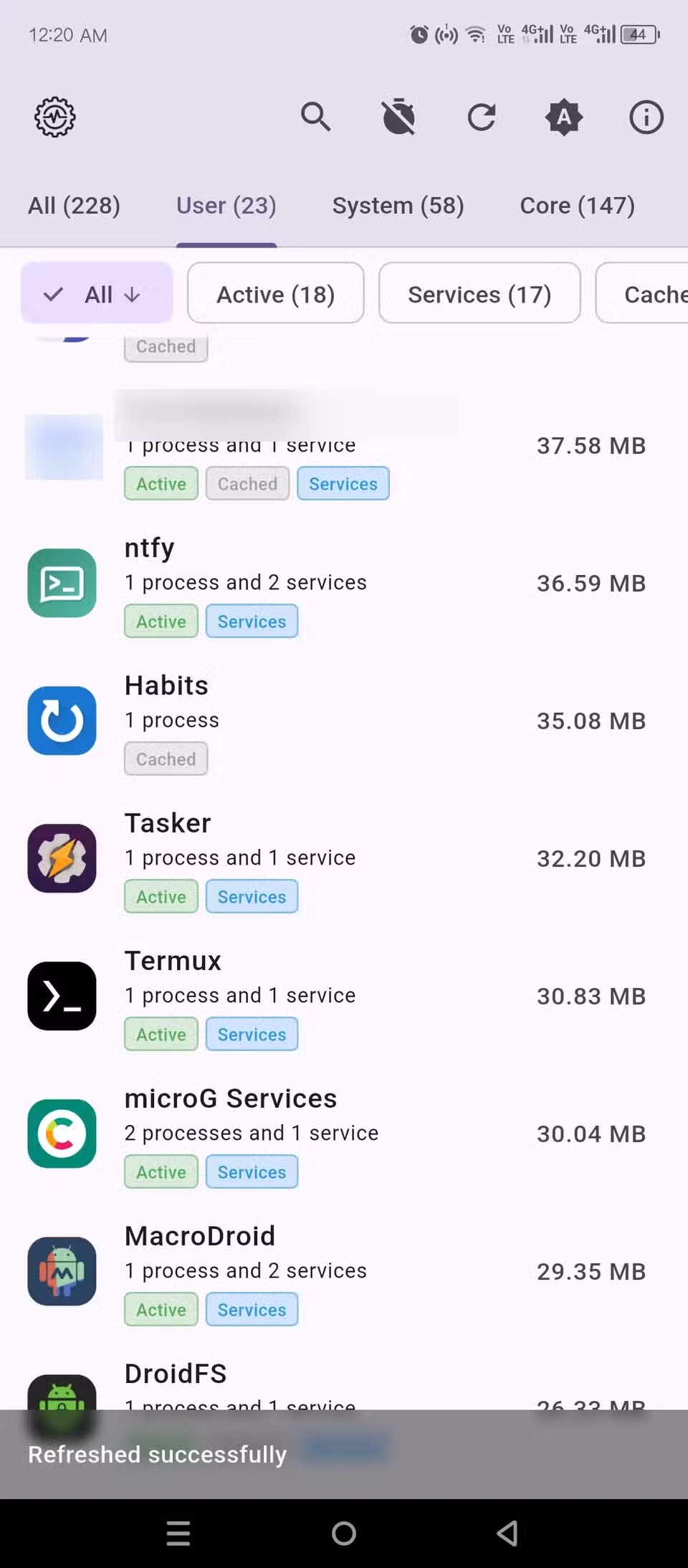
The app is called Running Services Monitor. It requires some elevated privileges, which you can grant via Shizuku (I’ll explain how to do that.) The elevated access allows this app to monitor and stop not just user apps, but also system services.
You can see a detailed breakdown of memory usage. You can sort apps and services by “user” and “system” filters. Tapping an app gives you a comprehensive overview of the services and processes it’s running. You can view raw console output from each of these active services, process IDs, and their RAM consumption.

Then there’s a Memory Info tab where you can look up even more detailed technical information about RAM usage.
You can run helpful ADB dumpsys commands on individual apps and services to find useful info like battery stats, network stats, CPU stats, and appopps (a log of what exact permissions an app has and when it uses them.)

Finally, you can stop all running services and kill all processes of an app with a single tap.
Technically, there is a “Running Services” feature hidden inside Developer Options, but I don’t count it because it’s pretty basic. It only shows active user apps (no system services) without any specific details.
Most people will probably not need a full-fat task monitor on Android, but there are times when it can come in handy.
If your phone has started overheating or the battery is draining too fast because of apps running in the background, this will be a precise and in-depth diagnostics tool.
Also, if you suspect an app has spyware or malware, you can monitor its background activity with this tool. The same is true if you’re privacy-conscious and want to check which apps are phoning home. Once you discover offending apps, you can either delete them or freeze them with a dedicated tool.
Set up Running Services Monitor
Using Shizuku to grant access
Since Running Services Monitor requires elevated privileges, which Android doesn’t grant by default. You either need to root your device or use Shizuku on non-rooted devices. Shizuku is a special app that uses Android’s wireless debugging feature to start a background service. This background service can provide elevated access to apps that would otherwise be restricted.
Start the Shizuku service
To start, install Shizuku from the Google Play Store. You’ll also want to enable Developer Options, if they’re not already on. Go to Settings > About Phone and tap Build Number 7 times until you see the “You’re now a developer!” message.
Now open the Shizuku app and tap “Pairing.” Shizuku will show you a shortcut to open Developer Options. Tap it and scroll down to “Wireless debugging” to switch it on. Then tap the Wireless Debugging text (not the toggle) and tap Pair device with pairing code. It should show you a 6-digit key.
Swipe down from the notification shade, and you’ll see a notification pop up from Shizuku. It’ll ask you to enter the 6-digit code you saw earlier. Punch that in and tap Pair.
Once it’s paired, open Shizuku and tap Start. The Shizuku service should start right away.
Since this service requires wireless debugging, you need to be connected to a Wi-Fi network for it to launch. Also, you only need to pair Shizuku once, and you only need to hit the Start button to launch the service every time. Shizuku will keep running as long as you’re connected to the same Wi-Fi and the phone doesn’t shutdown.
Install and use Running Services Monitor
Now we’re ready to install the task manager utility. You can install it from Google Play Store, F-Droid, or the official GitHub repo. On the first launch (provided Shizuku is active in the background), you’ll see a prompt to allow Running Services Monitor to access Shizuku. Select Allow all the time. Give it a second to scan the apps and services, and you’re good to go.
The rest of the interface is pretty straightforward. However, there is one feature I’d like to flag. To run dumpsys (or any ADB command on a target app), Tap to expand it, and then click the little play icon at the top. You’ll see a list of default commands here. Battery stats, for example, give you wake lock details in the output console—this is a time-stamped log of when this app was using your CPU (even with the screen off) and why.
Be careful when managing core or system services because you can easily crash your phone if you stop the wrong process or service.


9/10
- Battery
-
4700 mAh
- Ports
-
USB-C
- Operating System
-
Android 14 (at launch)
- Front camera
-
10.5 MP Dual PD, ƒ/2.2 aperture, 95° field of view
Fix battery drain and catch shady apps with this beautiful diagnostics tool
If you’re trying to fix battery or overheating problems, this tool is a great place to start before considering hardware issues. Also, if you want to detect apps abusing permissions, Running Services Monitor is perfect for that too.