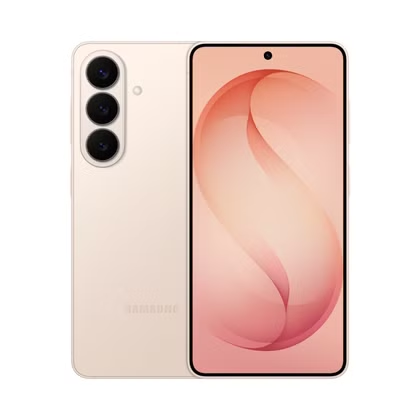
Secure Folder is an old Samsung feature that most people probably don’t think they need. It sounds like something for CEOs or spies. However, there’s one part of Secure Folder that often gets overlooked, and it can be useful to anyone.
As part of Samsung’s Knox security suite, Secure Folder has been around for so long that it’s not really talked about much anymore. But it’s still an incredibly powerful tool that’s useful for much more than locking and hiding apps. A byproduct of how it works is that you can clone apps that are already on your phone.

- SoC
-
Snapdragon 8 Elite Gen 5
- Display
-
6.3-inch Dynamic AMOLED 2x
How Secure Folder works
A phone inside your phone
The name “Secure Folder” greatly undermines what this feature actually does. It is far more than simply a folder of apps that you can put a lock on. In fact, it’s not really a folder at all—it’s essentially a sandboxed phone inside your phone.
After you successfully set up your Secure Folder, you can start adding apps to it. Apps can be downloaded from the Play Store or Galaxy Store, but either way, you’ll be asked to sign in. That’s because they’re separate instances or “clones” of the versions you already signed into when setting up the phone for the first time.
Now, someone who’s using the Secure Folder for work purposes may sign in with a secondary account, but there’s no reason you can’t sign in with your primary account again. This allows you to download apps that you’re already using on your phone a second time. And like the app stores, they’re new instances with no connection to the apps outside of the Secure Folder.
Google Wallet vs. Samsung Wallet: Which Should You Use?
If you have an iPhone, you use Apple Pay. On most Android phones, you use Google Wallet. On Galaxy phones, you actually have a choice: Google Wallet or Samsung Wallet—and there isn’t a clear winner.
Why is this useful?
Setting boundaries and easy account switching
There are a few reasons why cloning apps in the Secure Folder can be useful. First, the obvious reason: keeping work and personal life separate. Sure, there’s Do Not Disturb, Focus Mode, multiple accounts in Gmail, and other ways to keep work from infringing on your personal life, but a secondary space is even better. You can simply turn off notifications from everything in the Secure Folder with one swift move.
The second reason is a little more interesting. Apps such as Facebook, Bluesky, Chrome, and the aforementioned Gmail support multiple accounts, but not all apps do. Banking and shopping apps, Pokémon GO, and Snapchat are a few common examples. Logging in and out all the time is a huge pain, not to mention you will always miss notifications from the inactive account.


So, just “clone” the app by downloading it in the Secure Folder and sign in with your secondary account. Since privacy might not be a concern in this case, you can save yourself some time and disable Secure Folder’s locking features. That way, it will be easy to get in and out of the multiple apps without entering a PIN or scanning your fingerprint every time.
Lastly, if you happen to be a developer, the Secure Folder is a great place to store apps that you’re currently working on. The stable, polished app can remain untouched while you make changes to an in-progress version in the Secure Folder.
Look for unintended purposes for standard features
The main takeaway here is you don’t have to use a feature only for its intended purpose. Samsung surely didn’t create Secure Folder so you can play Pokémon GO with two accounts on the same device, but here we are.
Android phones—especially Samsung Galaxy phones—are loaded with features that have sneakily great secondary purposes. Like creating a “minimal phone” for the weekend with Android’s multi-user profiles. Always be on the lookout for out-of-the-box ways to utilize “boring” features.
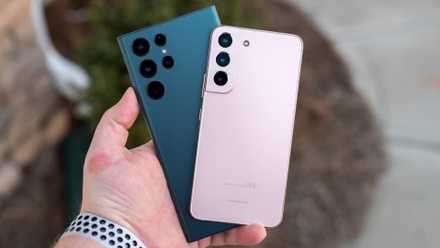
The 6 best Samsung Galaxy phones of all time, ranked
Samsung makes some of the best Android phones, which is why I’ve been buying and reviewing Galaxy devices for over 14 years. From the early days of TouchWiz and curved screens to the feature-packed One UI software, capable cameras, and fancy, cutting-edge designs, here are my favorite Galaxy phones of all time. Honestly, it’s hard to mention all the best Samsung Galaxy phones. Not just because the company has delivered stellar phones year after year, but because there are so many to choose from: top-selling budget models like the Galaxy A12, premium folding phones, and everything in between. So, here are some of the models I loved the most.