Do you envy the Apple ecosystem and wish you had something similar between your Windows PC and Android phone? Or maybe you’ve wanted your phone to show up as a window on your desktop, so you can poke at it with your mouse and type on it with your keyboard instead of picking it up every two minutes? If so, boy, do I have the perfect app for you — and yes, it’s completely free and open source.
Meet Sefirah
It’s Phone Link, scrcpy, and KDE Connect combined
If you’ve gone down the rabbit hole of pairing your Android phone with your Windows PC, you probably already know about Phone Link. It’s an official app from Microsoft and usually comes preinstalled on Windows. You just need to install the companion app on your Android phone. Once paired, you can see your phone’s call log, messages, app notifications, and photos on your Windows PC. You can also control media playback, sync the clipboard, and even wirelessly send files between the two devices.
Overall, it’s a pretty solid app, but most of its powerful features require you to pair it with the right smartphone (typically a Samsung). For example, my Google Pixel 10 can’t use Phone Link to mirror its screen or apps to the Windows desktop.
Now, if you’re looking for a more open platform for pairing your phone and your PC, KDE Connect is the go-to option. It doesn’t look as polished as Phone Link, but it does offer a lot of the same features and then some. For instance, with KDE Connect, you can control your phone with your PC’s mouse and keyboard, run terminal commands on your PC from your phone, and do a lot more. What KDE Connect doesn’t offer is the ability to mirror your Android phone on your PC. For that, you want scrcpy, a very popular and reliable tool for this workflow.
That’s a lot of apps to juggle if you want the best possible synergy between your Android phone and Windows PC. Now, picture Steve Jobs on stage doing the whole “an iPod, a phone, an internet communicator” bit, except it’s Phone Link, scrcpy, and KDE Connect — Phone Link, scrcpy, KDE Connect — Phone Link, scrcpy, KDE Connect.
That’s basically Sefirah.
It brings the graphical polish of Phone Link and feels like a modern Windows-native app, all while offering many of the advanced features you get with KDE Connect. It also offers native support for scrcpy, saving you the trouble of opening the terminal every time you want to mirror your phone. With Sefirah, you simply click the phone icon inside the app, and it opens a new window mirroring your phone. You can also have multiple instances open simultaneously, each running a different app, which opens up a whole new paradigm of multitasking.
KDE Connect lets you control your phone from your PC and your PC from your phone. Sefirah mostly focuses on controlling your phone from your PC. It does not include features like using your phone as a touchpad to control your PC. For that, you’d still need KDE Connect. Fortunately, you can run KDE Connect and Sefirah simultaneously, and it shouldn’t cause any issues — at least, it didn’t in my testing.
How to install and set up Sefirah
It’ll barely take you 10 minutes
For as capable as it is, setting Sefirah up is pretty painless and straightforward. Although you will need to open the terminal, you’ll only need to do it once and never again.
First, install Sefirah on your phone and PC. The source code is available on GitHub. However, I downloaded it from the Microsoft Store on Windows, and it works perfectly. On Android, you can get it from the Google Play Store.
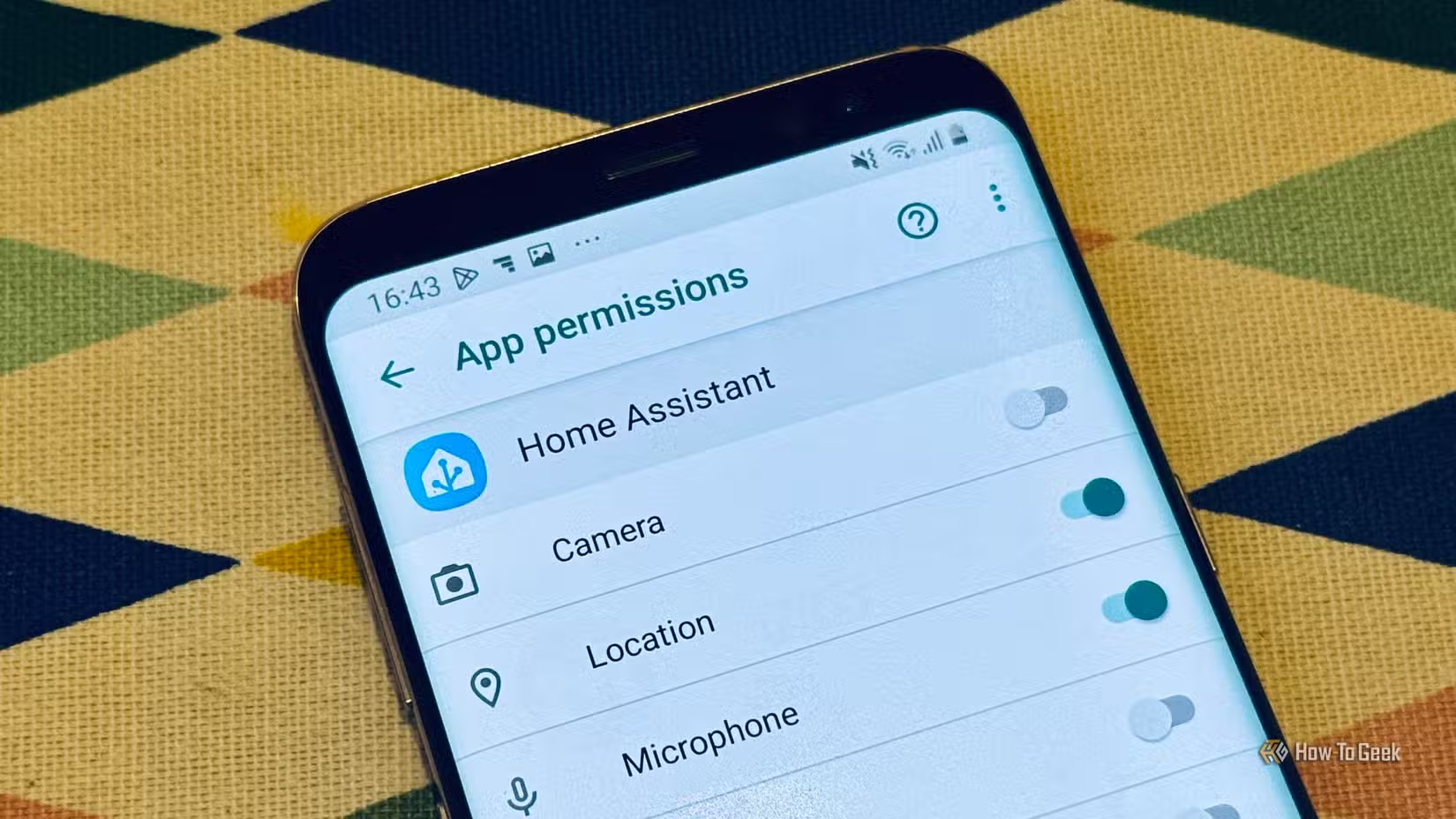
Once installed, open both apps, walk through the setup wizard, grant the permissions they ask for, and pair the two devices. Make sure your PC and phone are on the same Wi-Fi network — all the communication happens over your LAN, so if they’re not on the same network, this won’t work.
At this point, your phone and PC are paired, and most things already work. You can see your phone notifications on your PC, share your clipboard, share files, take calls on your PC, and more. What you don’t have yet is screen mirroring. For that, you need to setup scrcpy with Sefirah.
To get that, go to the scrcpy GitHub releases page and download the Win64 asset. It comes as a ZIP file. Extract it to a folder somewhere on your computer that you’ll remember. Then open Sefirah, go to Settings, find the scrcpy location option, and select the folder where you just extracted scrcpy.
Next, you need to enable ADB on your phone. To do this:
- Open the Settings app on your phone and go to the About phone option.
- Tap the Build number seven times, and it should say something like “You’re now a developer.”
- Go back to the main Settings page, locate and open Developer options.
- Scroll down until you see USB debugging and enable it.
- Below it, you should see Wireless debugging — enable it as well.
- Plug your phone into your PC with a USB cable.
- A pop-up will appear on your phone asking whether to allow USB debugging from this computer. Check the Always allow box and accept it.
And that’s it.
Now, open the Sefirah app on your Windows PC, click the phone icon, and a new window should appear, mirroring your phone. Whatever happens on your phone shows up here. You can also use your mouse to click around and interact with your phone. Sefirah also has an app launcher that lists every app on your phone. You can use it to launch any of them in its own window.
By now, you’ve got everything set up — almost. There’s still one minor annoyance: the moment you unplug the USB cable connecting your phone and PC, the mirroring stops. To fix this, open the Sefirah Windows app and go to Settings > Devices, select your Android phone, and click the gear icon to open its settings. Inside, go to ADB settings and enable TCP/IP mode. Once that’s enabled, you can unplug the USB cable, and Sefirah should reconnect wirelessly on its own.
Is Sefirah safe?
As far as I can tell — yes

Sefirah is a fairly new project that’s asking for a lot of permissions: notification access, accessibility permissions, full storage access, ADB, the works. As such, it’s wise to make sure the app is safe and isn’t phoning home with all that data.
Now, on its Play Store page, the developer claims that no data is collected and nothing is shared with third parties. I also ran Sefirah with Portmaster — an application-level firewall that shows exactly what each app on your system is communicating with. I used Sefirah normally for a while, and every connection request I saw was LAN-only. Nothing was trying to reach an external server.
So personally, I trust it.
That said, if you’ve got genuinely sensitive or mission-critical stuff on your phone and you’re careful about installing random apps from the internet, I’d advise you to do your due diligence. The source code is publicly available on GitHub — it’s an open-source app, after all. You can audit it yourself or have an LLM check it for anything suspicious before committing.
Sefirah has become a crucial part of my Windows-Android ecosystem
I’m very open about the fact that I’m jealous of Apple’s ecosystem features and have spent a lot of time trying to build something equivalent for myself. I’ve gotten pretty far with that project, using apps like KDE Connect, LocalSend, Spacedesk, and Nextcloud to maximize synergy between my devices. And now Sefirah has joined that list and has become a core part of how the whole thing works.