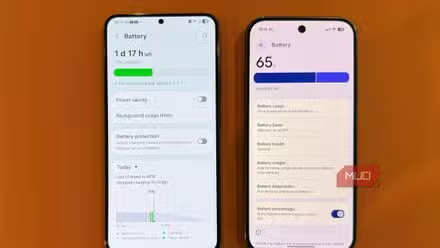
I see it all the time: people swipe away their apps after using them, as if it’s a magic ritual that restores their phone to maximum speed while preserving battery life. What if I told you the opposite is true — that regularly swiping all your apps away actually makes your phone’s performance and battery life worse, and that there’s a better way to handle misbehaving apps?
The myth about swiping away apps
It’s trying to solve one problem while causing another

Most people think that swiping away apps on a phone is akin to quitting apps on a PC to relieve the computer of apps and processes that are using a lot of system resources.
The problem is that phones are high-frequency-use devices that you interact with, sometimes multiple times an hour. It’s in your benefit for your phone to use its RAM to keep apps and processes in memory so that performance stays strong. Also, unlike a PC (unless it’s a laptop), power is at a premium, and you don’t want to do things that make battery life worse, like wholesale force-closing apps.
So what is actually happening when you swipe away an app?
What’s really happening when you force close apps
You’re spiking your CPU on every cold start

When you swipe away an app in Android, you end the app’s process, which stops the app itself and all related components. It also frees up any RAM that was used for the app itself, which might be a good thing if you need to free up RAM, but with a downside.
In doing this, you’re trying to manage Android’s resources, but Android does this automatically: Android constantly puts apps and processes to sleep that are not actively being used in an effort to free up resources to optimize apps and processes you’ve recently used or are currently using.
There’s another downside to swiping apps away, which you can see firsthand if you enable or install a CPU monitoring overlay.
These monitoring tools show us that your phone has to work very hard to open an app from a cold open (meaning, open it from a fully-closed state versus opening it from a hibernated state). All this work uses a significant amount of power which impacts your battery life negatively but also slows things down and causes your phone to heat up more. This is compared to launching an app that Android has put into a lower-power state where it’s still in RAM, but it’s not active in the foreground. From what I’ve observed, starting an app from a closed state momentarily spikes the CPU to nearly 100%, whereas re-starting an app from a hibernated state spikes the CPU only to about 50%, depending on which processor your phone has.
Here’s what to do instead of swiping if you’re intent on making an app use less background resources.
What you should do instead
Android already has the solution

Most people swipe-close apps when they suspect the app is running in the background and not properly hibernating. While that can indeed sometimes happen (for example, I’ve seen social media apps fail to upload new content then try in the background, only to heat up my phone in my pocket as it keeps trying to connect to servers), overall it’s rare since Android does a good job of destroying background processes.
But Android already gives you the tools to avoid apps working in the background by disabling background app usage on a per-app basis. Doing this is easy, just go to Settings > Apps > Open the app in question > Battery > Disable “Allow background usage” (or, if you’re on a Samsung Galaxy, follow the same steps but change Battery to “Restricted.)“
Just a caveat: if you disable an app’s ability to run in the background, there might be repercussions. The app might misbehave, and you might even miss some notifications associated with the app. So only use this option when you suspect that a particular app is running in the background undesirably, robbing you of battery and performance. As an example, perhaps you recently found out about Amazon’s unlimited storage for prime members, and so you want to switch from Google Photos to Prime photos. In that case, you no longer need Google Photos to run in the background, trying to backup your photos, so you might want to turn off background usage on Google Photos.
There is one exception where it’s ok to swipe away an app.
The one exception: forcing a misbehaving app to reload
Then you have my permission to swipe

Assuming you have a relatively modern Android phone with at least 8GB of RAM, you don’t really need to manage Android’s memory allocation by swiping apps away, because the system is doing this automatically. Plus, as mentioned, swiping apps away and forcing them to relaunch from a cold state is bad for your phone’s performance and battery life.
But there is one exception, and it’s similar to using “End Task” on Windows (which you can make faster with this utility) or Force Quit on Mac: if an app is misbehaving, like if it’s frozen or lagging or glitching, then it makes sense to swipe it away so that Android can reload it from the ground up, which often fixes most app issues.
But if you’re a habitual app-closer, it’s time to consider your choices and consider letting Android do its job.