A lot of people who use Android Auto probably stick to the tried-and-true apps available as part of the service. Those include Google Maps, Messages, Google Assistant, and various media streaming apps like Spotify and Pandora. The newer versions of Android Auto got a useful new supported app, as well, allowing you to read PDF documents, like user manuals, in your car. What’s there is usually enough for most, offering everything you’d need. But did you know it’s entirely possible to sideload apps to unlock more functionality? For example, you can install an app called CarStream to play YouTube videos in your car even though YouTube itself is not available as an Android Auto app.
There’s a trick to get it all working, and it’s pretty simple. But in order to sideload, you’ll first need to unlock Developer Mode on your Android phone if you haven’t already. This is also a required step to access Android Auto’s secret menu, which is what we’re really trying to get to. Android’s core Developer Mode is intended for platform developers and software engineers, giving them access to otherwise hidden features that can help with their coding endeavors. In this case, it allows us to unlock the same mode for Android Auto. The correct process requires several steps, but it could be worth the effort if you’re interested in boosting your Auto experience.
How to sideload apps in Android Auto step-by-step
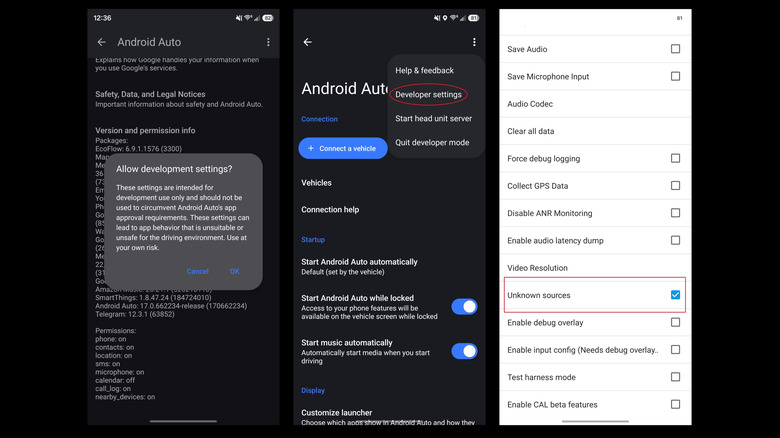
To begin, navigate to Settings, then click into About and tap the software build number seven times. You’ll get a warning around tap four with a countdown, and after all seven taps, a notification will reveal that Developer Mode is enabled. You may want to do some additional reading if you plan to adjust any of the settings beyond turning on sideloading.
Otherwise, next we’re going to enable the same mode in Android Auto. There, go to Settings, then Apps, and finally, Android Auto, to open the information panel for the app. Scroll down and tap either Additional Settings in the app or Configure in Android Auto on Samsung devices. In the window that appears, scroll down to Version and tap, and it will expand to show more details. Continue tapping ten times. Like before, a notification will tell you when you’re three taps away. However, in this case, a final confirmation window will pop up after the ten full taps asking if you want to enable Developer Mode. Select OK to access those settings. Finally, without leaving the Android Auto window, tap the three-dot menu in the top right, select Developer Settings, and enable the Unknown Sources setting. This allows you to install third-party apps for Android Auto.
The last part requires installing Android Auto Apps Downloader (AAAD) manually. You can grab the APK (Android Package Kit) from the developer’s GitHub page. To install, you may also need to enable unknown sources for your Android, just as you did for Android Auto. Once AAAD is ready, open it up and follow the prompts to initialize everything, as it requires some extra permissions and will ask you to disable Google Play Protect.
AAAD is an unofficial app storefront for added functionality
AAAD is free to install with in-app purchases, but you’re only allowed one download every 30 days. If you want to download more than one app at a time, you’ll need the PRO version, which costs a one-time payment of €3.5 (about $4 USD).
When you have access to AAAD, you can download a variety of third-party and unofficial apps for the Android Auto experience. That’s how you get your hands on CarStream and other apps like browsers to surf the web, screen casters to share your phone’s screen directly on your dash display, vehicle performance monitors, and more advanced media players. Those who have gone through this process tend to really enjoy being able to make Android Auto their own. It’s also how you can truly unlock some added uses for your system that Google doesn’t allow, which can be a solid option for advanced users. Even so, you should be aware that the AAAD developer says Oppo, Realme, OnePlus, and Google Pixel devices may require some extra fixes and tinkering.
That brings up another important point, namely that this whole setup is intended for advanced users. Most people probably shouldn’t go through the trouble, especially those unwilling to deal with potential hiccups, including apps that don’t work or malfunction — future Android updates could always potentially remove or block access, as well. Even if you pay for AAAD PRO, that could still happen. Alternatively, you could turn your old Android tablet or device into an Android Auto car head unit and avoid those updates.