Samsung wants to make its own software, but it’s also required to ship Google apps if it wants access to the Play Store. This means Galaxy devices come with an overabundance of icons, some of which run in the background regardless of whether you ever open them. Here’s what’s safe to purge.
Bixby
A secondary voice assistant, even on Samsung phones
You can be forgiven for not knowing about Bixby, even as someone carrying a Samsung Galaxy phone. Despite Samsung creating its own voice assistant, the company nudges you towards Gemini more often than not. If you prefer Gemini or you don’t care for AI assistance at all, it’s absolutely safe to get rid of Bixby the same way you uninstall or disable any other Android app.
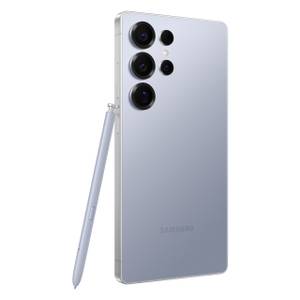
- Brand
-
Samsung
- SoC
-
Snapdragon 8 Elite Gen 5
Get the new Galaxy S26 Ultra with AI smarts and an all-new privacy display. It’s big, powerful, packed with AI, and you’ll love the S-Pen stylus.
SmartThings
Samsung smart home platform of choice
SmartThings is Samsung’s platform for controlling Samsung appliances, Matter-enabled devices, and select other smart home devices throughout your home. While I eventually settled on using a Homey hub to control my smart home, SmartThings was my first, and it remains a good option. If you don’t have any smart home devices or if you’ve also settled on a different choice, then you’re free to do without SmartThings entirely.
Samsung Wallet
Samsung’s preferred way to tap-to-pay
There are three major options for making mobile payments with your phone in the US: Apple Pay, Google Wallet, and Samsung Wallet. Each is useful for reasons beyond financial transactions. You can use any of them to store your loyalty cards, transit cards, or digital keys. While the least popular of the three, there are reasons to use Samsung over Google Wallet. If you choose not to, you might as well remove it.
Samsung Health
A great fitness app, but only if you want it
Samsung Health is an app for monitoring your physical activity and various biometrics. You can use it to keep track of your steps, how well you sleep at night, and how much energy you wake up with in the morning. If you enjoy tracking all of the things, you can use Samsung Health to keep tabs on your calorie intake and how much water you drink. It can also help with your medications.
While some of these features work well enough with only a phone, many are at their best when paired with a Samsung wearable such as a Galaxy Watch or Galaxy Ring. If you don’t own those devices, or you’re simply not interested in this type of data, then the app might as well go.
Galaxy Wearables
For those Galaxy accessories you may not even own
On the subject of wearables, we come to Samsung’s app for controlling its various accessories. There has been a time in my life where I managed many of my devices through this app. I wore a Galaxy Watch on my wrist, had a Galaxy Ring on my finger, and had Galaxy Buds in my ear. I ultimately found the Galaxy Ring uncomfortable and didn’t stick with it for long. If you only have a Galaxy phone and none of the other devices in Samsung’s ecosystem, then this is one app you can easily give the boot.
Samsung Flow
Samsung’s take on Apple continuity

I concentrate most of my computing on a single device, a book-style foldable phone that I use as my PC. For most of us, our digital lives are scattered about. We need to interact with our phones, laptops, and tablets. Samsung Flow is an app for connecting your devices together, allowing notifications, phone calls, and files to move seamlessly between them. You can think of it as Samsung’s version of Apple’s Continuity, which connects various devices in the Apple ecosystem. If you don’t have a Windows PC that you’re trying to connect to your Samsung phone, or you’re simply not interested in the feature, then you’re free to turn Flow off without missing out on anything.
Secure Folder
A place for files and apps that are best kept separate
Secure Folder is a place to stash private files as well as apps you want to keep separate from your daily smartphone use. It also allows you to have multiple versions of an app, so just if you have two YouTube accounts that you’d like to sign in to. I use the secure folder as a place to sequester apps that I don’t trust, like Instagram, WhatsApp, or anything else from Meta. But if you’re not using this special hiding spot, feel free to disable it.
Smart Switch
A vital app that you’ll rarely use
Smart Switch is the kind of app that you only use once or twice over the life of your phone. It transfers data from your previous phone to your new one. That means you’re most likely to use it when you’ve just bought your phone, and you probably won’t think of it again for a few years until it’s time to get a new one. During the time in between, you don’t need to have it installed.
With the right knowledge, you can remove any app
The above apps may be options that Samsung allows you to uninstall or disable, but that doesn’t mean you have to resign yourself to other Samsung background apps that you wish to get rid of. If you’re comfortable with connecting your phone to a PC and using ADB, then you can disable any app you wish. While certain features may stop working, unless you venture toward core system apps, your phone will still boot even after a thorough purge of the apps you consider bloatware.