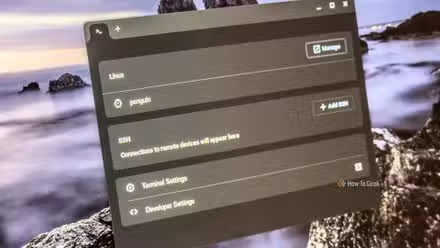
Installing programs on Linux is a fairly simple process. Using a package manager and an installation command ( sudo apt install [program name] for example) in your terminal installs an application, assuming it’s available in your distro’s repositories. As I grew more experienced with the operating system, I stopped installing Linux apps the traditional way, largely because the other options offer more control, variety, and customization.
Here’s why and what I do instead.
How to Install and Use Linux Apps on a Chromebook
Turns out, Chromebooks are more capable than I thought.
I still love package managers
But I wanted some apps that weren’t available in mine

I use Mint (primary work), Termux (not a Linux distro, but it lives on all my Android devices), Ubuntu (servers and hobbies), and Fedora (at the office).
Package managers like zypper and dnf are used in some distros, the terminal emulator Termux uses pkg and Mint uses the common apt package manager. Arch Linux uses a unique one called pacman . Gentoo uses portage.
They’re often tailored to a particular distro, not to mention being secure.
Packages have everything an application needs to run, so using the package manager is sometimes the quickest way to install a program. A package manager can handle installing a DEB file you download from a website in addition to the standard repository apps. For example, I downloaded a DEB version of Vivaldi from their official website:

Later, I can install it via the command line using sudo dpkg -i vivaldi.deb. Package managers are only the beginning. Some distros might not have certain apps, or you may want to compile your own. Sometimes you might want a specialized tool. That’s where other installation methods come in handy.
Flatpak is great for GUI apps
For those times when apps aren’t available in your repositories

I know some people who can’t stand Flatpak. Others think they make Linux better and more exciting. I tend to like them more often than not.
Some of my most-used apps were installed via Flatpak: Shotcut, DosBox, OBS Studio, Pinta, and Obsidian. Flatpak is universal, so it isn’t tied to a specific distro. Flatpak apps run inside a sandbox environment and do take up a little more space than typical packages.

Even so, Flatpak offers a large variety of software that’s compatible across multiple Linux distros. There’s an online repository called Flathub, where you can find new Flatpak apps frequently.
Learn to manage your Flatpaks with the command line in your terminal, with commands like flatpak update to update your packages and spend some time on Flathub finding new apps to try.
Software manager offers a quick search function
A GUI-based alternative to the terminal
I switched to Linux Mint Cinnamon after my Windows 11 bricked my desktop post-update. It’s beginner-friendly, sure, but it also works as a daily driver. The built-in software Manager is a graphical front end for package management.
In Linux Mint, it’s accessible via Menu > Software Manager. From there, you can see a list of popular apps, can search for the app you want, and manage your packages in one place with the benefit of a GUI.
Although I recommend getting comfortable with the terminal, software manager is a great alternative for those who aren’t quite there yet.
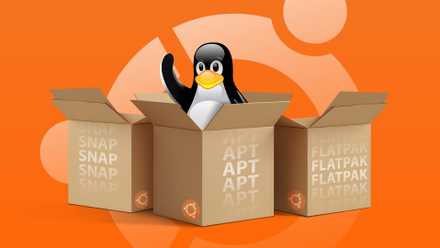
APT vs Snap vs Flatpak: Ubuntu Package Managers Explained (and When to Use Each)
If there’s one thing you get with Linux distros, it’s choice.
Snap and Docker
Use containerized images for your apps

I’m a relatively new convert to Docker, but I’ve found it to be one of the simplest, versatile, and lightweight methods of installing programs on my Linux machine.
Docker uses containers, which contain an image, software dependencies, and everything else required to make a program run independently on your system. Containerized applications are self-hosted and can be updated, changed, and purged with ease.
Installing applications this way creates an isolated environment and a place for all of an application’s dependencies, keeping your primary system completely clean. When you’re done with the application, you can simply get rid of it if you like.
Snap is another way to install containerized applications. Like Flatpak, Snaps are also universal and self-contained software containers for Linux. A snap has the app, necessary libraries, and required dependencies inside it. Snap is useful for server applications, like Nextcloud (which I installed from a Snap container).
I use them occasionally and tend to like them. Snap packages tend to run well on servers, so they’re absolutely on my radar for further exploration down the line.
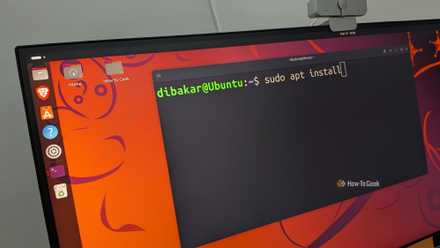
Stop installing Ubuntu apps one at a time—here are 3 faster ways
Setting up Linux shouldn’t take the entire day—here’s the shortcut.
Alternative methods should augment traditional ones

Package managers are fantastic, and they’re ideal for installing core utilities. Using other installation methods doesn’t change how powerful they are, but it does expand your tools.
By using the package manager for the basics and letting Docker, Snap, or Flatpak handle a bit of the heavy lifting, it unlocks a world of stability and extensive customization.
You can also install programs using scripts, which is a bit more complicated than the above methods. I didn’t talk about it here, but don’t worry; I’ll give that one a shot very soon.

- OS
-
Windows, macOS, Linux
- Brand
-
Docker
Docker is an application that makes it easy to develop new apps.