Often, I end up using open-source apps as a free alternative to a paid app on Windows, and that’s one of the biggest benefits of open-source software is affordability. However, free apps often lack the polish of their paid counterparts. They either lack an intuitive UI, are too complex to use, miss a critical feature, or simply don’t receive updates fast enough.
But that’s not true for every open-source app. Over the years, I’ve come across a handful of free tools that are so well built, I’d happily pay for them if the developers ever asked. They don’t just match their paid alternatives; they often do the job better. Here are the five I rely on every day.
ShareX
A screenshot tool with no paid equal on Windows

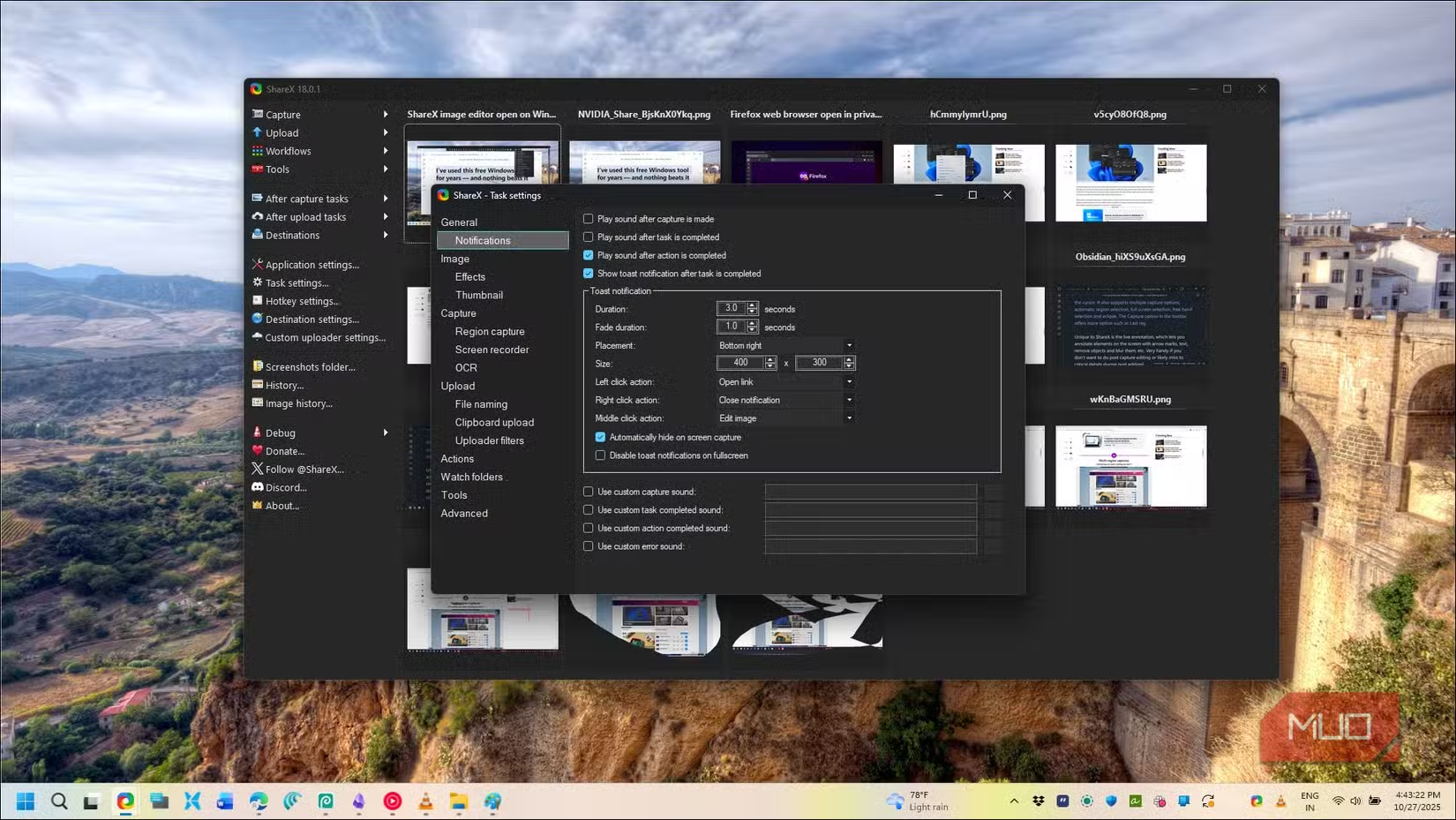
ShareX is a great example of an open-source app done right. It’s a feature-packed screen capture utility that takes screenshots, creates GIFs, and even records short clips of your screen. I’ve tried PicPick, Greenshot, and the paid Snagit over the years, but nothing comes close to what ShareX does for free.
The capture options alone are worth the install. You can grab a window, a region, a freehand selection, or an auto-detected UI element, with a magnified cursor preview that lets you pick the exact pixel you want. Auto Capture periodically saves a region of your screen, which is great for documenting a long process without sitting at your desk.
What keeps me on ShareX is the built-in image editor. You get arrows, step counters, speech bubbles, blurs, and a smart eraser that matches the background pattern when you hide sensitive text. Most paid screenshot tools don’t go this deep. You can also chain actions, so a single hotkey can capture, watermark, upload to your cloud of choice, and copy the link to your clipboard.
The interface looks bloated at first, but day to day, you only need the tray icon.
Duplicati
Encrypted cloud backups without the subscription
Most good backup apps charge a premium, except Duplicati. If you need a solid open-source app to back up your files to cloud storage or local drives and restore them with version history, Duplicati handles it without asking for a card.
Duplicati runs on Windows, Linux, and macOS, and even inside a Docker container if you want to host it on a home server. It supports more than 20 storage destinations, including OneDrive, Google Drive, Dropbox, FTP, and local folders. I point mine at the 1TB of OneDrive that comes with my Microsoft 365 Personal plan.
Backups are encrypted with AES-256 by default before they leave your machine, so the cloud provider only ever sees an encrypted blob. You can also pick GnuPG, an external tool, or no encryption if you trust the destination. The web-based interface walks you through setup in clear steps, which is rare for backup software.
What I like the most is the granular control. You can schedule incremental backups, set retention rules, exclude hidden or temporary files, and cap the volume size. Just keep your encryption passphrase somewhere safe, because without it, your backups are unrecoverable.
Super Productivity
A task manager and time tracker that respects your data
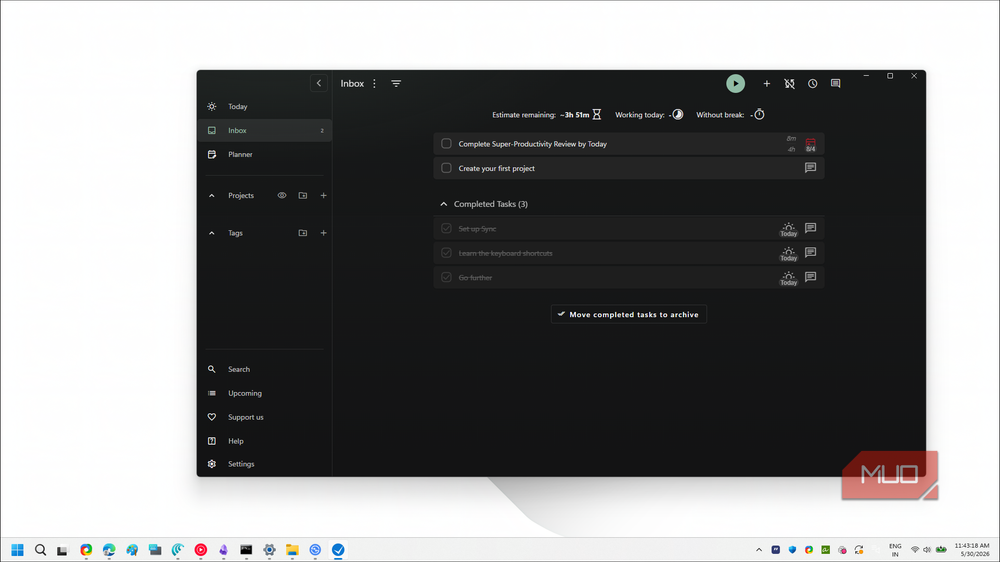
I’ve cycled through several productivity tools over the years, including Koncentro, an open-source app that bundles a task manager, website blocker, and Pomodoro timer into one window. It’s neat, but I needed something with sync across my phone and laptop, and a deeper feature set. Super Productivity hits that mark.
Super Productivity is a free, open-source task manager that runs on Windows, macOS, Linux, Android, iOS, and as an offline-capable web app. There’s no sign-up, no email field, and no cloud lock-in. Your data stays on your device by default, and the code is public if you want to verify the claim.
The feature list reads like a paid app. You get projects with nested subtasks, time estimates, deadlines, markdown notes, file attachments, tags, and repeating tasks. The focus tools cover Pomodoro, Flowtime, and Countdown modes. Idle detection is the standout for me. When you step away from your PC, the app prompts you to log the time as a break, assign it to a task, or ignore it, which gives a more honest view of your day than typical time trackers.
Sync is optional and entirely under your control. You can use SuperSync, Dropbox, or a self-hosted Nextcloud instance. The setup flow can feel overwhelming on first launch, but once you settle on a workflow, the app stops asking for attention.
OBS Studio
Free streaming and recording software that pros actually use

I tried becoming a game streamer once, and that experiment didn’t last long. The one tool from that phase that stuck with me is OBS Studio, a cross-platform live streaming and screen recording app that has no real match, paid or otherwise. Twitch and YouTube creators with millions of subscribers use the same OBS you can download today, and it costs nothing.
OBS streams to YouTube, Twitch, Facebook, and any RTMP target you want, including a private server. It also doubles as a screen and webcam recorder, which is what I use it for now when I’m capturing a software walkthrough for an article.
The setup looks intimidating, but the basics are straightforward. You create scenes, add sources (display capture, webcam, media files, browser windows), and switch between them while live. For local recording, you can set a much higher bitrate than streaming allows. I run mine at around 50,000 to 60,000 kbps for crisp 1080p footage that holds up well in post.
It can’t edit your videos, but DaVinci Resolve handles that, also for free. Between OBS for capture and Resolve for editing, you’ve got a video pipeline that paid suites struggle to beat.
LibreOffice
A complete Office suite that runs offline
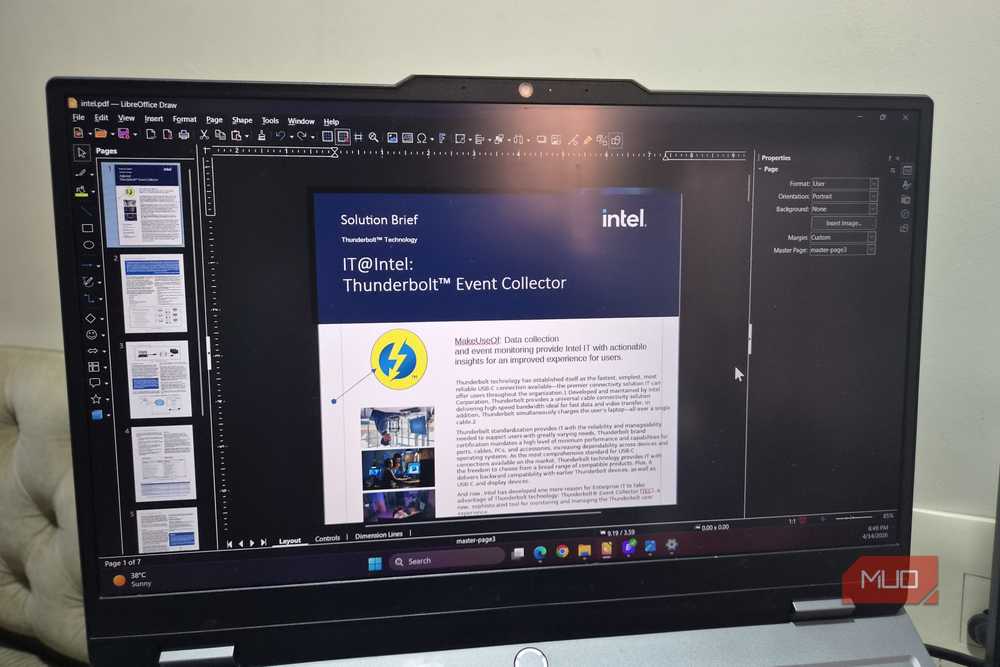
I recently stopped paying for Microsoft 365, and for anything that genuinely needs Microsoft’s office suite, I stick to the free web version. For everything else, LibreOffice is my desktop office suite of choice. It’s a free, open-source bundle that includes Writer, Calc, Impress, Draw, Math, and Base for documents, spreadsheets, presentations, diagrams, formulas, and databases.
LibreOffice runs natively on Windows, macOS, and Linux, and it opens DOCX, XLSX, and PPTX files without much fuss. Heavy formatting can sometimes shift slightly when documents bounce between LibreOffice and Microsoft Office, but for typical work, it’s a non-issue.
The interface is the other reason I like it. You get a classic toolbar layout, or you can switch to the NotebookBar, which mimics Microsoft’s ribbon for anyone migrating from Office. Templates are bundled minimally, but the online repository has plenty of free ones to download.
There’s no native cloud sync and no real-time collaboration like Microsoft 365, which are real limitations. But for offline writing, spreadsheets, and the occasional slide deck, LibreOffice has been more than enough.
Free doesn’t have to mean second-best
None of these apps are perfect. ShareX has an intimidating UI, Duplicati needs a passphrase you can’t afford to lose, LibreOffice trips on heavily formatted Office files, and Super Productivity’s first-run flow could be clearer. But each one solves its problem so well that the paid alternatives feel hard to justify.
What ties them together is that they respect your time, your data, and your wallet. You’re not being upsold to a Pro tier, nudged toward a cloud account, or shown ads inside the menus. If your workflow involves screenshots, backups, tasks, screen recording, or office documents, this combination will replace four or five subscriptions without asking for anything in return.