Staying productive is never easy. There are distractions all around us, from social media apps to Netflix movies. Fortunately, there’s a new way to get work done and all it takes is a quick Android operating system update to start using it.
With the latest Pixel Drop for March, Google has decided to go all in on Android Desktop – a desktop mode that works a bit like a Mac or Microsoft Windows and rivals Samsung’s own DeX mode. Previously available as a more limited developer option and in beta, Android Desktop is now a full workstation mode to help you stay productive using a keyboard, mouse, and monitor.
You don’t need to enable any settings and it’s available for Pixel 8 or later devices. Once you connect an HDMI cable from your phone to a monitor using a USB-C adapter like this one, Android will recognize the connection and offer to use Android Desktop mode automatically. You just select Desktop mode on your phone.
I decided to test it for an entire workday and found there are still some pros and cons. It’s mostly helpful for those who travel with a phone and expect to connect up at a remote office or even a TV in a hotel room. I also used Android Desktop at a coffee shop with a portable monitor, and there are still a few hiccups that might deter you from leaving the laptop behind.
1. Pro: Windowing actually works
Windowing on Android Desktop
John Brandon
I’m familiar with the previous beta that tended to behave oddly. I’ve tested it multiple times, and desktop mode worked okay, but the mouse would sometimes fly around erratically.
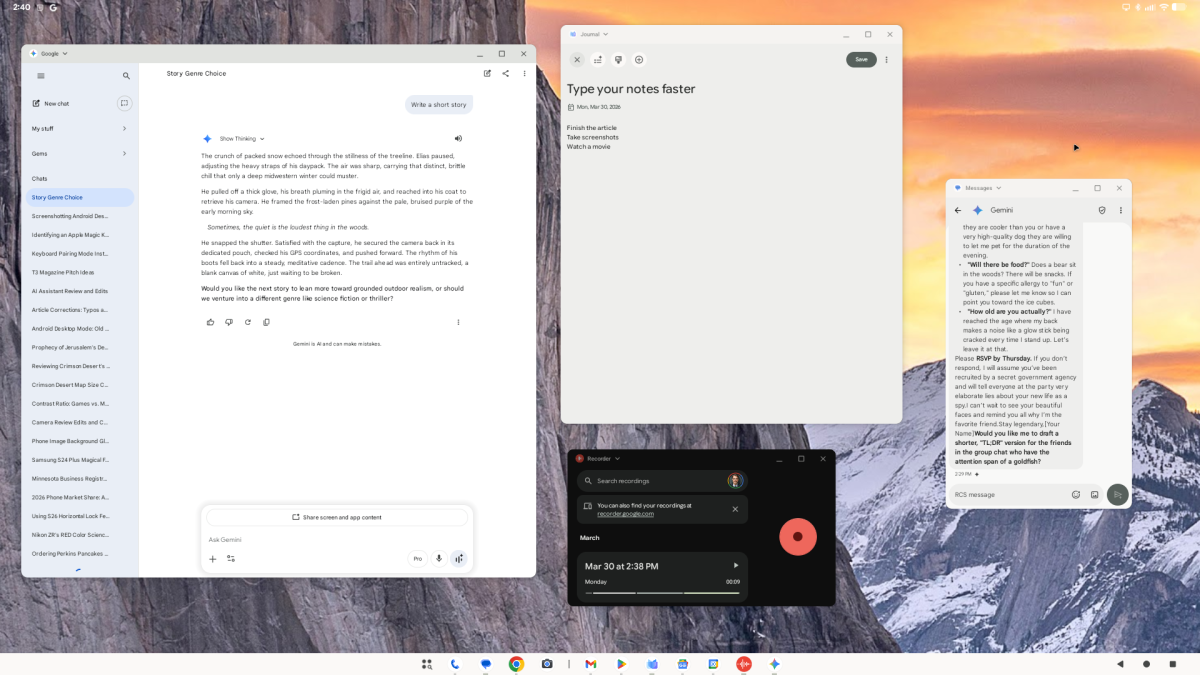
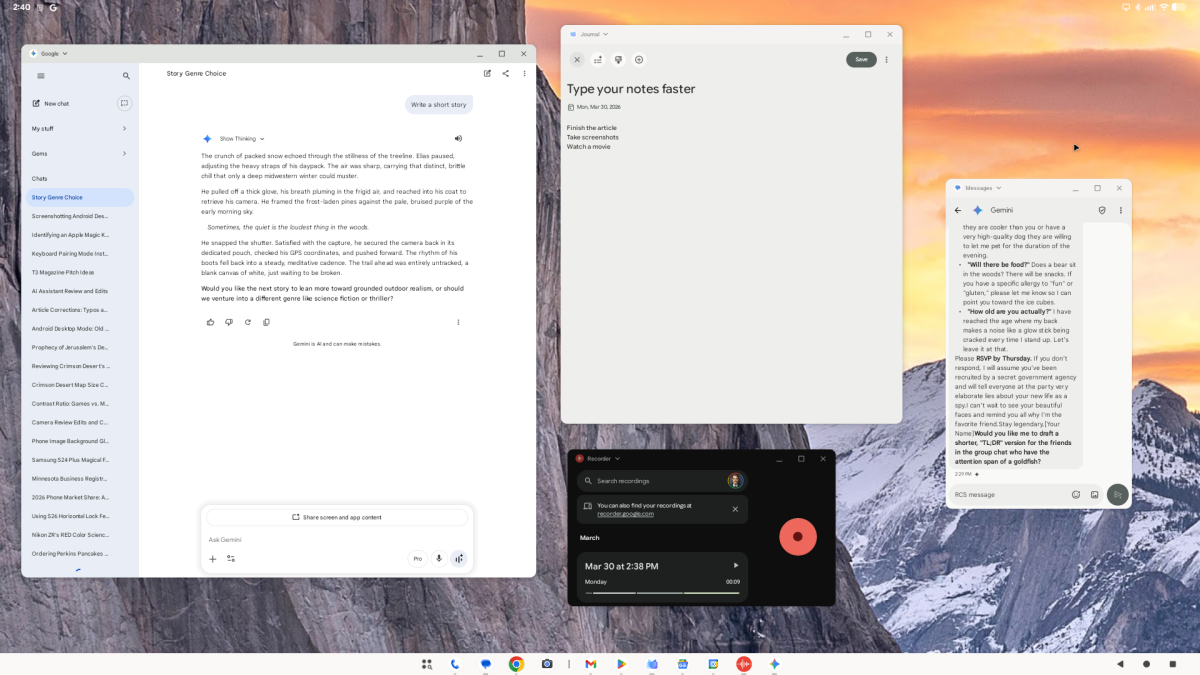
Connected using Android Desktop, the mouse worked perfectly fine after I went to settings and cranked the cursor speed down to the slowest setting. I had the Chrome browser and the Gemini app running at the same time and felt far more productive.
You can see multiple windows, move them around at will, and the desktop runs perfectly stable.
2. Pro: Apps run smoothly
Apps run smoothly on Android Desktop
John Brandon
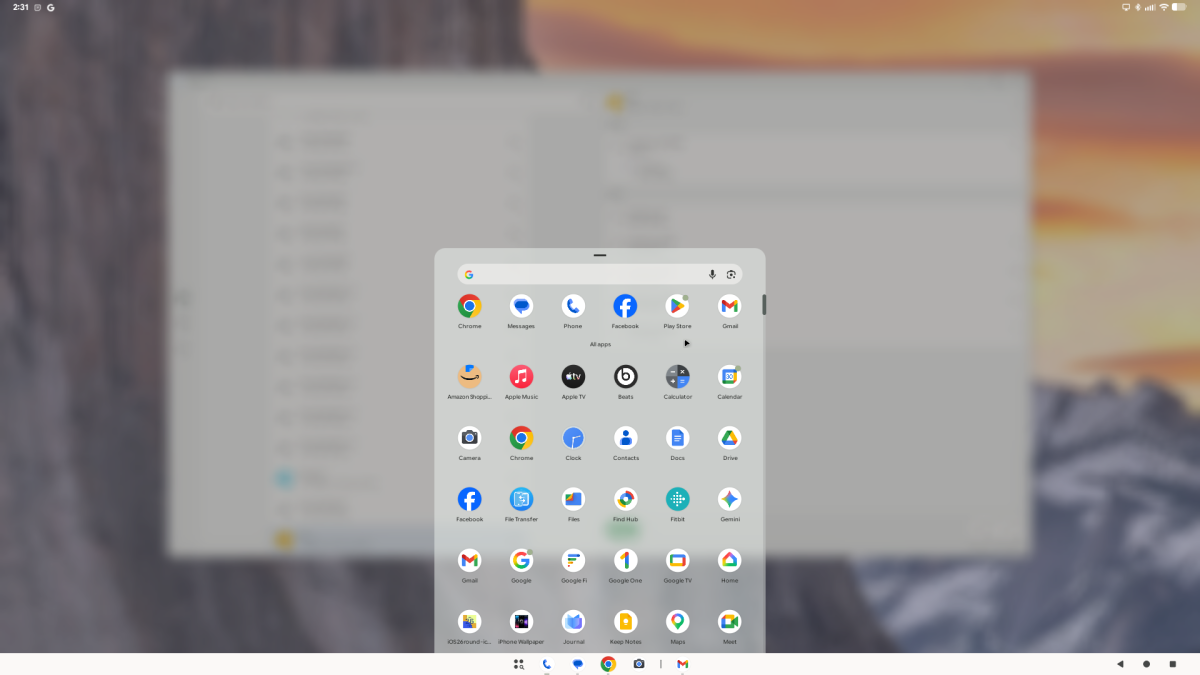
Most of the apps you have installed on your phone will look like they were made to run in desktop mode.
For example, the Netflix app works more like you are connected to a television. If you try to run Netflix.com in a browser, the site will even redirect you to the app. I ran everything from Facebook to Gmail without any problems.
Google has improved the experience immensely – you can right-click to paste in Google Docs and triple-click to select an entire paragraph. Right-clicking on the desktop still doesn’t bring up a menu to change the wallpaper, but long-pressing on the left mouse button does work.
3. Con: Mousing around works (sometimes)
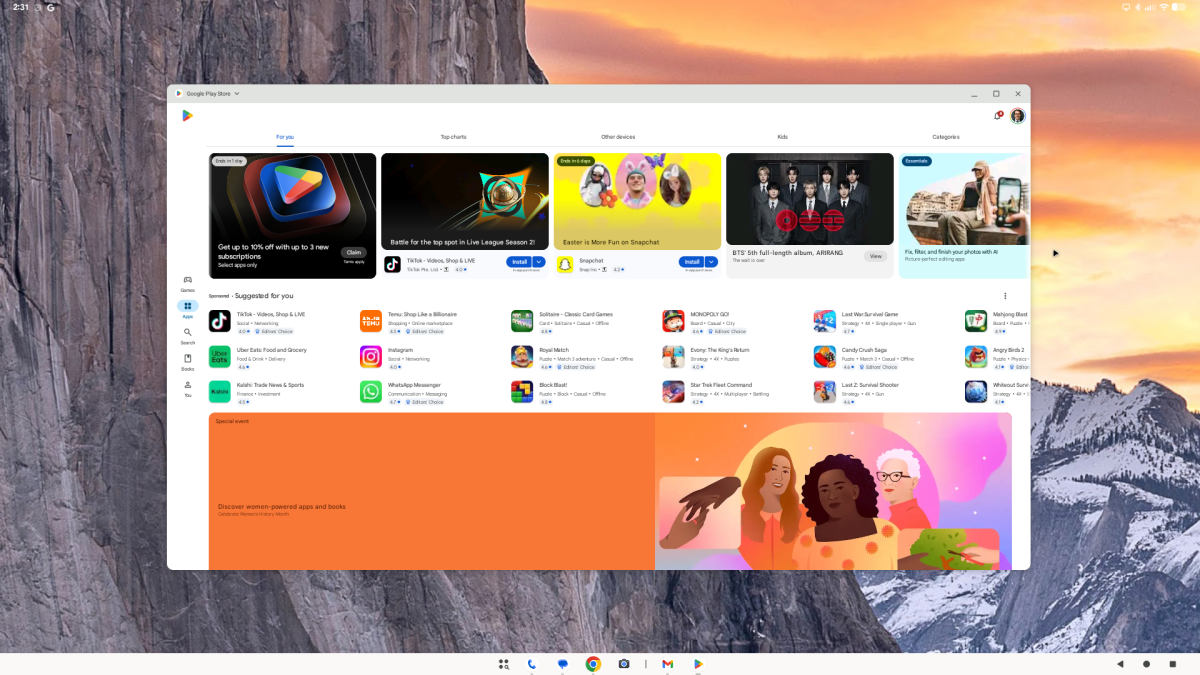
The mouse can control apps most of the time
John Brandon
Speaking of using a mouse, I mentioned how Android Desktop does make you more productive. A mouse and keyboard make it easier to use apps like Google Docs.
I had a hard time zooming in on a doc using the mouse. It’s also an odd choice to have an X on the upper left of Google Docs that closes a doc without any warning.
I noticed the Apple Magic Mouse also doesn’t let you scroll, mainly because Apple requires a true desktop driver for that to happen, so bear this in mind.
4. Pro: Wallpapers look amazing, with a caveat
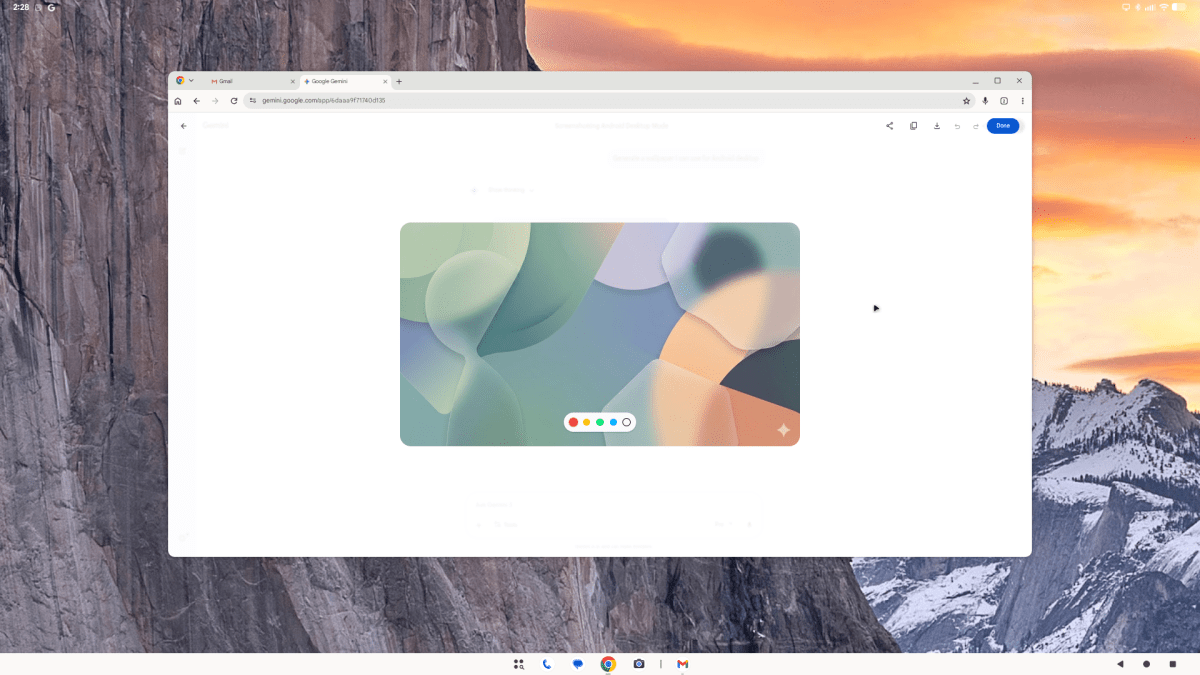
Desktop wallpapers look amazing
John Brandon
It took me a while to figure out how this works, but wallpapers look quite stunning in Android Desktop mode.
You have to go to Settings and select Wallpaper & Style only when in desktop mode (not from your phone) and choose a new desktop wallpaper. You can also long-press the left mouse button to access wallpaper settings.
Even then, I found it didn’t always work, or there was a delay before the wallpaper appeared. Fortunately, you can generate an AI wallpaper or choose a photo to run as the desktop wallpaper.
5. Pro: The Journal app helps you stay on task
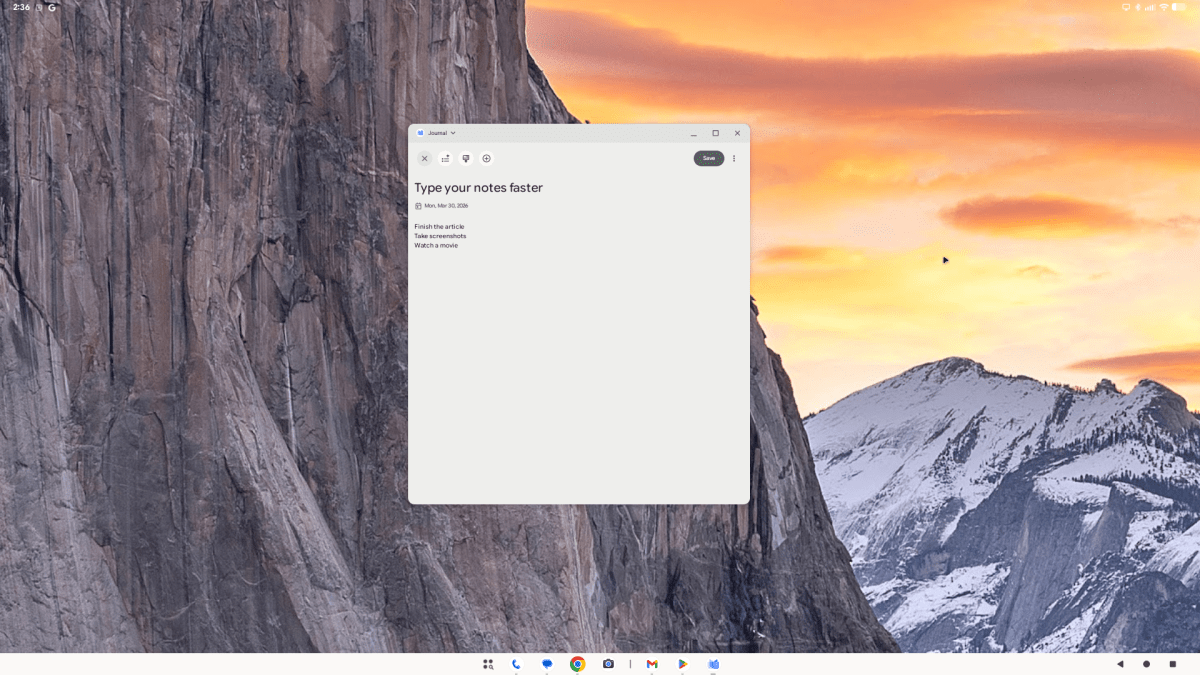
The Journal app competes with the same idea for iPhone
John Brandon
The Journal app is Google’s answer to the iPhone’s version of the same name.
In Android Desktop mode, it’s a handy notetaking tool you can use in a small window while running Google Chrome or other apps. That’s where the true productivity power of desktop mode comes into play.
You can quickly visit sites, then jot down notes about the research or action steps for work.
6. Con: Websites sometimes do not work
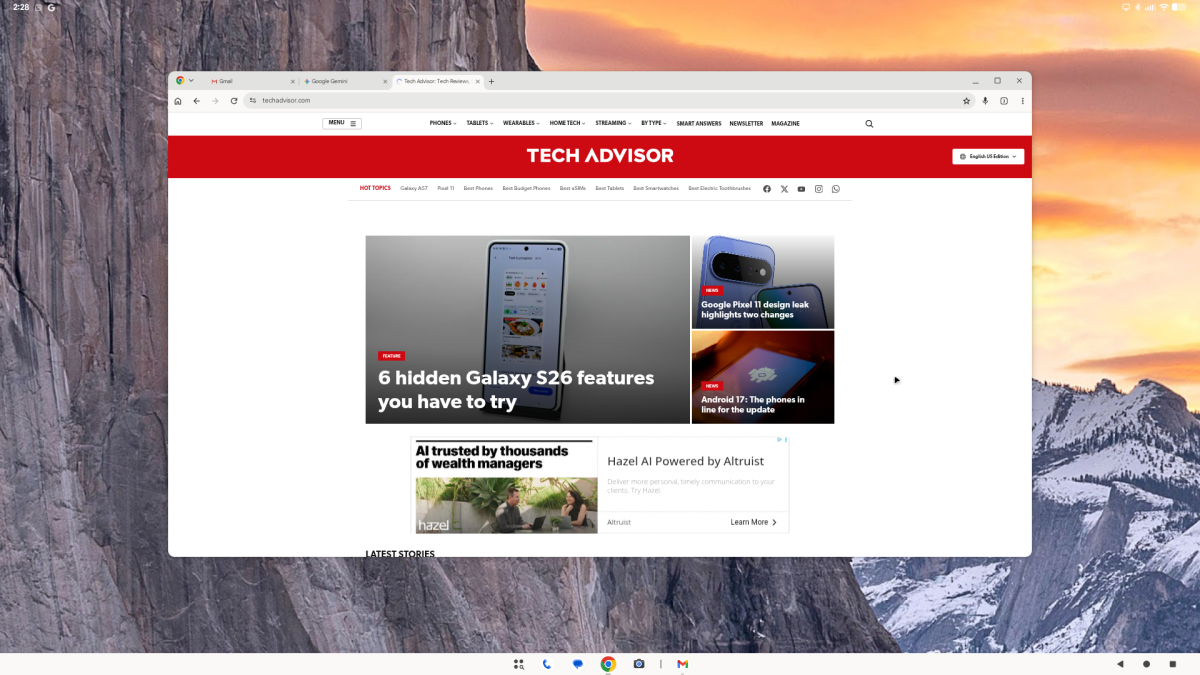
Websites mostly work — but not always
John Brandon
I visited around two dozen websites during my workday and found that some of them did not render properly.
It’s a feature of Android Desktop that you will automatically see the desktop version of a website, but in my experience, ads would sometimes not display correctly or even crash or show a blank image. I also saw a few issues with overlapping images and text.
7. Pro: The Recorder app is another productivity booster
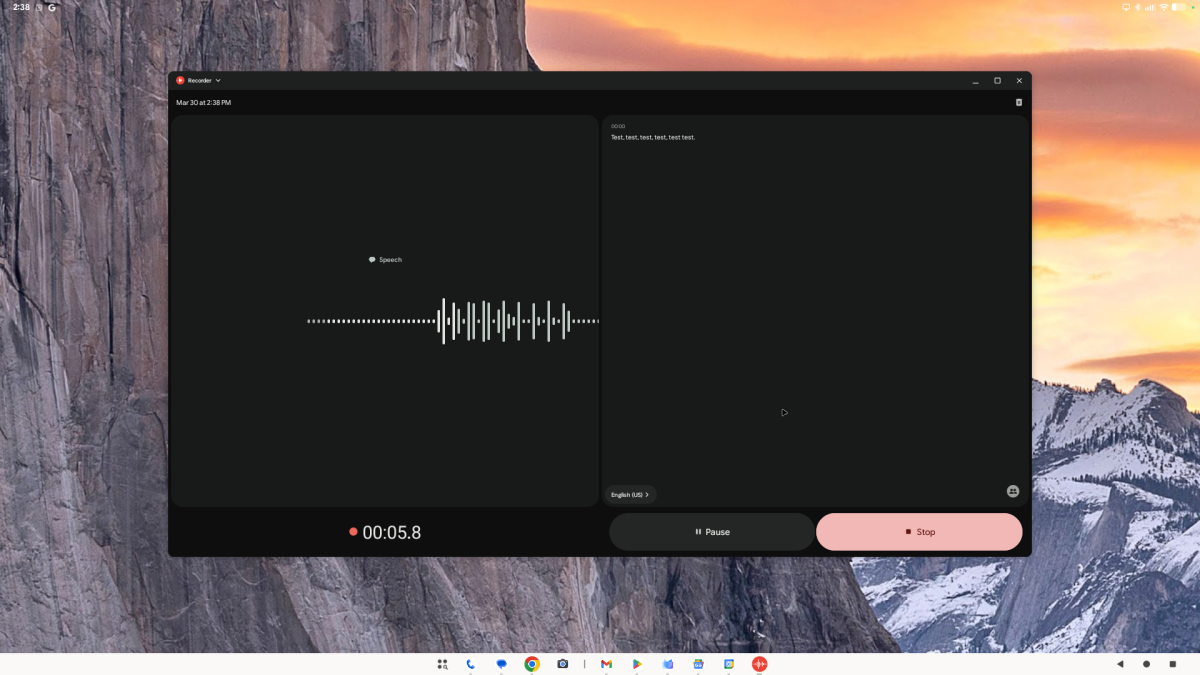
The Recorder app is always a click away
The Recorder app is always a click away
I use the Recorder app quite often to make voice memos or record in-person interviews.
When this app is running in a window, it is far more useful because it’s always right there on screen to record a voice memo as you work. It won’t record phone calls (but you can do that from the phone dialer), but everything else works just fine, including AI summaries.
8. Pro: You can make phone calls
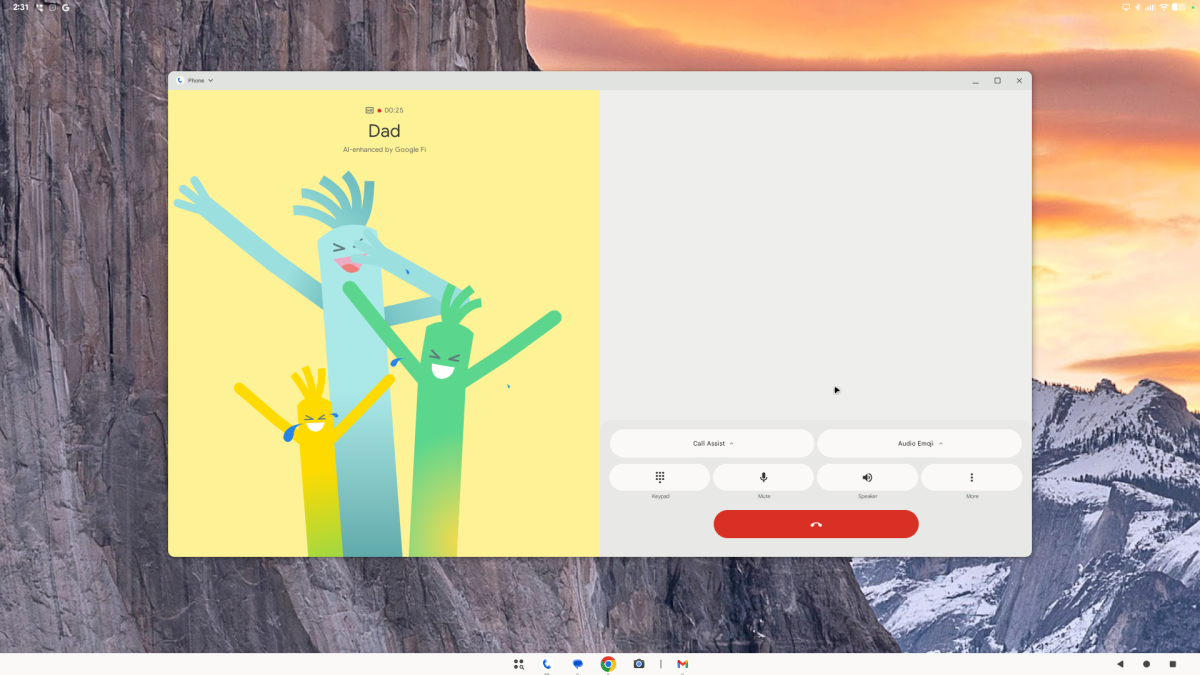
You can make phone calls from the desktop
John Brandon
I’ve been using a Windows app called Phone Link with a Pixel 10 Pro for quite a while now, and when I use a Mac, I always sync to an iPhone as well.
In Android Desktop mode, since your “computer” is actually the phone, you can start a call at any time. Your phone call takes place on the phone, but it’s easy to find contacts and even collaborate with someone as you chat.
You see the caller’s contact info and picture, plus the time you have been chatting.
9. Pro: Google News runs as an app
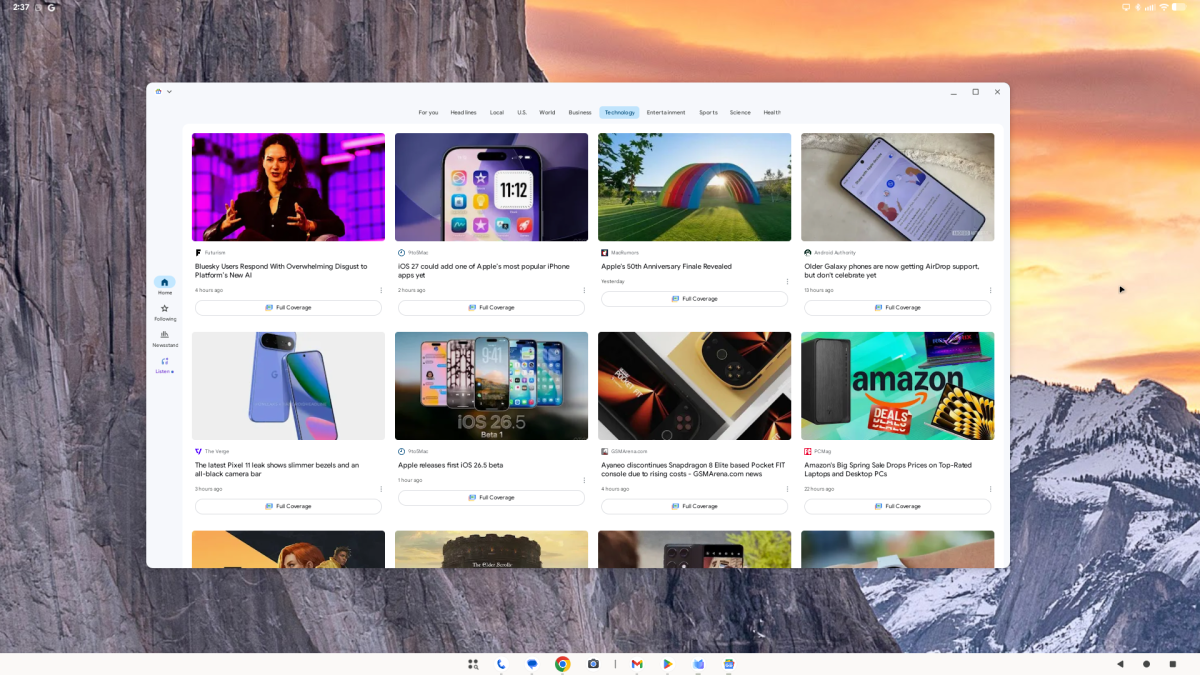
Google News runs as an app, not in a browser
John Brandon
I also loved keeping Google News running all day to keep tabs on the news.
You can see thumbnails for each news story and refresh to keep tabs on everything. I usually run Google News in a tab but when it’s an app I am even more likely to check the feed.
It’s also easier to minimize the app, which then appears in the taskbar tray at the bottom of the screen.
10. Pro: Running Google Gemini all day
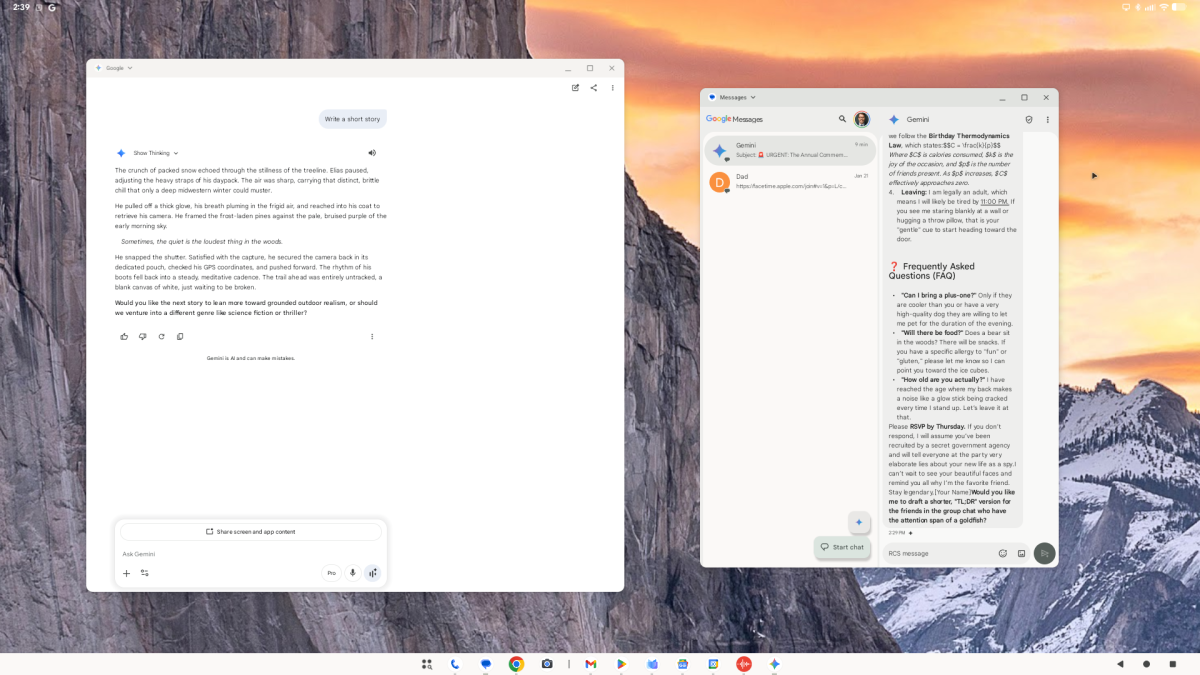
Gemini can run as an app in a window
John Brandon
If you are keeping score, there are far more pros than cons with Android Desktop and I found one more major benefit.
Gemini also runs as an app, and it’s easy to type up prompts at any time. I asked about features for Android Desktop during my test period. Gemini is available right from the app drawer — you have to click the app button on the lower left of the taskbar.