The average person spends around 145 minutes on social media every day—more than 2.5 hours. Among other issues, spending that amount of time on social apps can lead to feelings of anxiety or depression, according to UC Davis. There are several steps you can take to resolve this problem, including deleting the apps from your phone.
If you’re not ready to take that kind of step yet, there are other things to mitigate your doomscrolling. Instagram does offer in-app controls to limit the time spent using it. You can find those in the app’s settings under Time Management. This will show you how much you’ve used the app and give you controls to set time limits and sleep times.
If you’re an iPhone user, you can try Apple’s Screen Time controls to monitor your app usage and limit the amount of time that each app can be used. This is under Settings, Screen Time.
These are all good solutions worth exploring. But if constantly seeing an app on your homescreen is tempting you to tap on it, then you can delete it from your home screen and still keep it in your App Library. You’ll need to swipe left until you get to a library of all the apps installed on your phone to find it.
To go one step further, you can hide apps completely. This should stop you from inadvertently finding your way to them. This might be one way to get rid of constant reminders of the social feed, without needing to fully delete the app from your phone. Here’s how iPhone users can hide apps, and where to find them once you do.
How to hide apps on iPhone

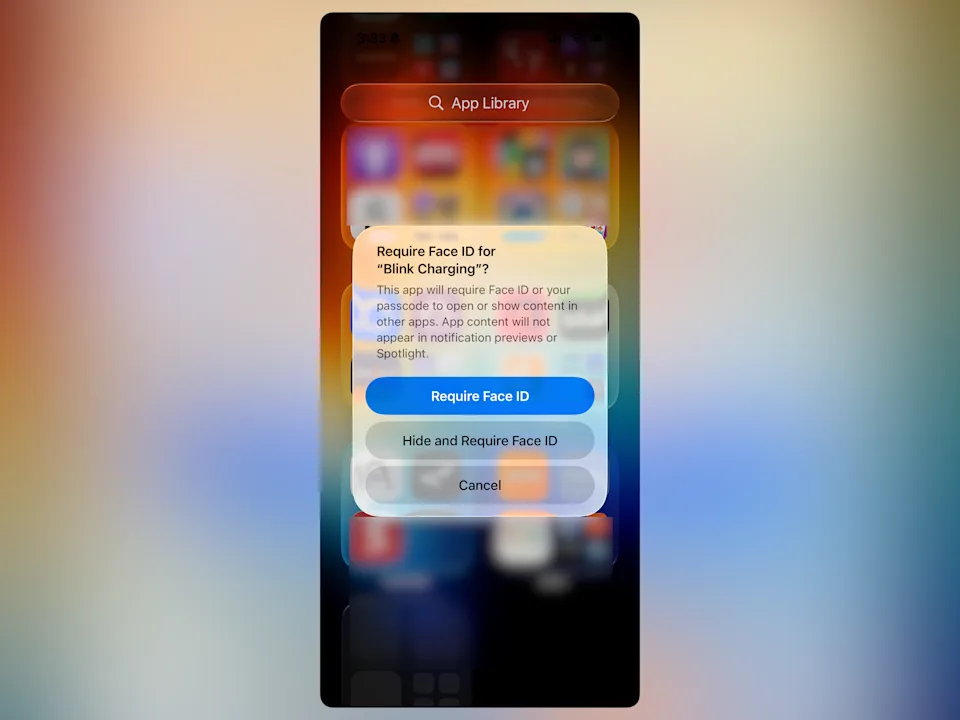
Hide and Require Face ID
(Tyler Hayes)
To hide and lock an app, you’ll need to be using iOS 18 or later. You won’t be able to hide apps from Apple that came on the phone, like Music or Camera. But any apps that have been downloaded from the App Store can be locked and hidden.
To get started, find the app you want to hide, such as Instagram, TikTok, or Facebook.
Long press on the app icon until you get the pop-up menu. Select Require Face ID.
On the next pop-up, select the middle button: Hide and Require Face ID. When you hide an app, you’ll also lock it from anyone else. You can just lock an app without hiding it, but that won’t remove it from your sight.
The app will disappear from your homescreen and App Library.
Hiding an app will make it a bit annoying to access, but that’s kind of the point. It won’t deliver notifications or appear in the app switcher. If you leave the app for a minute, then you’ll need to go find it again and unlock it. If it wasn’t hard to get to, then it wouldn’t be hiding.
How to find hidden apps and unhide them
Hiding an app will remove it from sight and put it in a black box. When you do want to use a hidden app, you can find it in the App Library. Swipe left on your homescreens until you see all your apps.
Scroll to the very bottom and locate the Hidden section. This will appear blank. Tap on it to unlock the hidden folder. Any apps you’ve hidden will then appear.
If you want to unhide an app, you can long-press on its icon and tap Don’t require Face ID.
Be aware that you will still see hidden apps mentioned in battery usage and a few other places in the Settings app.