When I first started tracking my daily screen time, I realized something needed to change. I was spending more than 10 hours a day on my phone, yet I could barely remember half of what I had done or seen.
What I did know was that most of that time went to scrolling through TikTok and Instagram. At the time, I was still in college, and trying to balance studying with being on my phone for most of the day felt impossible. That’s when I turned to screen time and productivity apps—tools that limit how long I can use my phone and help me stay focused. Over the years, I’ve tried many of them, and these are some of my favorites.
1. Brick

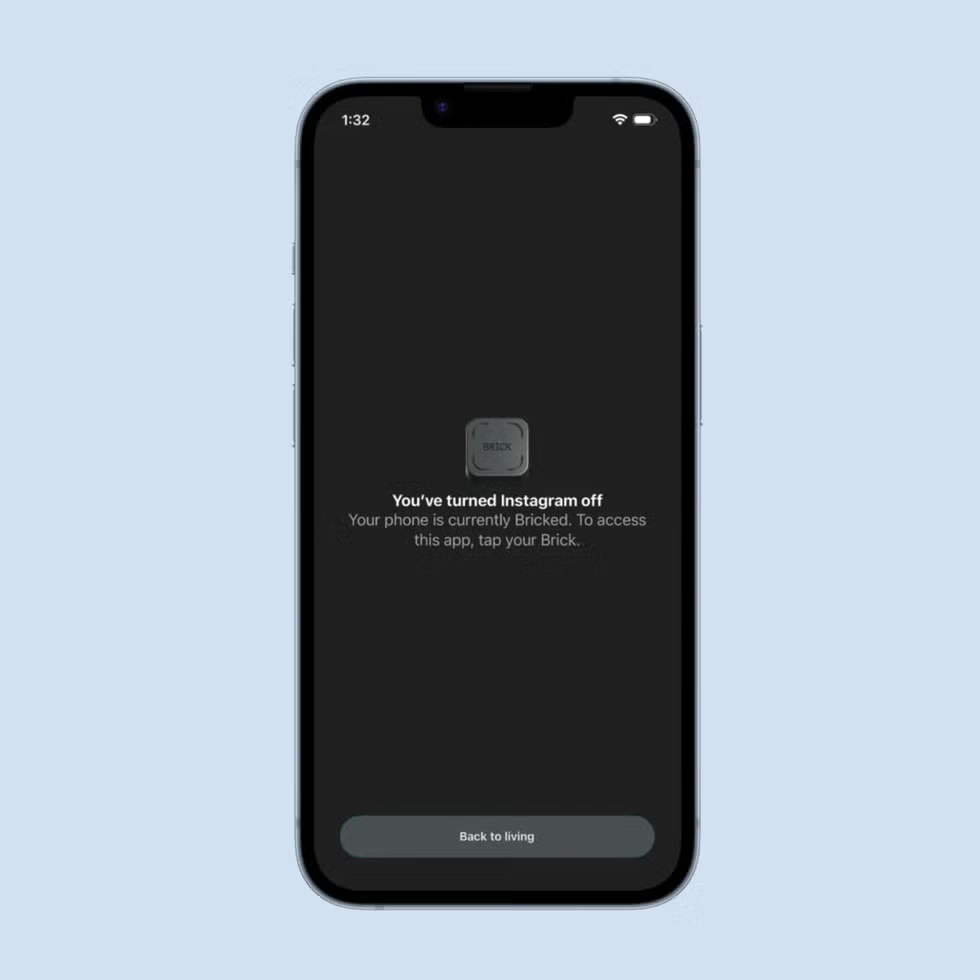
Brick isn’t just an app. To use it, you need to purchase a small, magnetic device you tap your phone on to block selected apps and then tap again to unblock them. What I like the most about Brick is that I can leave it far away from my room since that’s where I tend to “doomscroll.” I either put it on my fridge door or inside a bag with other small electronics that I will be too lazy to look for on most nights. You can either brick and unbrick your phone at will, or, like me, you can set up a schedule through the app so that your apps automatically brick and unbrick at a certain time. Personally, I have it set up so TikTok and Instagram brick at 8 p.m. every night and unbrick at 12 p.m. the next day. If I wanted to change that schedule or override it, I’d have to physically tap my phone on the brick first.
If you’re worried about having to use your phone or your blocked apps during an emergency, Brick lets you “emergency unbrick” your phone up to five times. Just make sure you don’t use this feature unless absolutely necessary, because you will need to contact Brick’s customer service to restore them once they’re gone.
2. Opal

Through Opal, you can also set up a schedule and block selected apps. While it doesn’t require you to purchase a physical device, it requires you to select how difficult you want opening your apps to be. Although the app itself is free, you can select the most difficult setting, which only gives you one emergency pass per week.
I used Opal’s free version and always had it set up so I could override my time limit if I chose to, in which case the app would start a countdown to delay opening it. The countdown increases after each time you override the app limit. During the countdown, Opal also plays soothing nature sounds and asks you to do guided breathing exercises to help regulate your nervous system and think about the choice you’re about to make.
RELATED: How to Grow Hydrangeas—and Why the Type You Choose Matters
3. Finch

What makes Finch special is that it helps you take care of yourself while also caring for a digital pet. Your Finch is an adorable bird that you nurture from the moment it hatches until adulthood. In the app, you can set daily self-care goals and tasks, and each time you complete one, your Finch gains energy.
Beyond that, you can pet it, change its outfits, decorate its room, and send it on adventures around the world. The more tasks you complete, the more coins you earn to buy clothes, furniture and even plane tickets for its travels. It’s a genuinely wholesome experience.
I used Finch the most during finals season—my Finch is a pink bird named Apple. The app also includes a timer feature that rewards you with coins and energizes your Finch after you spend a focused stretch of time studying. That feature helped me stay off my phone, concentrate better, and earn enough coins to send Apple to Sydney, Tokyo and São Paulo.
4. Flora

Similar to Finch, Floraalso gamifies focus. It lets you set a timer during which you grow a virtual tree. If you leave the app and use your phone before the timer ends, the tree dies. But if you stay focused the entire time, a new blooming tree is added to your virtual garden. Trust me—once you’ve built a beautiful garden, you won’t want to ruin it with a dead tree.
Another thing I love about Flora is that, with the Flora Care subscription ($3.99–$11.99 per month), your focus time can contribute to planting real trees: depending on the plan, every 8 to 24 hours of focused time helps fund one. I never subscribed myself, but I did use the penalties feature, which charges you only if you break your focus session by going on your phone. If that happens, the penalty fee goes toward planting a tree.
RELATED: The Simple Seed-Starting Trick Gardeners Swear By
5. Clearspace

Clearspaceadds a 60-second delay before you can open selected apps, encouraging you to be more intentional about the decision to scroll. It also offers challenges like “Step to Scroll,” which requires you to hit a certain step count before unlocking an app. With this feature, every 100 steps earns you one minute of app use.
Other challenges include “Push Up to Scroll” and “Squat to Scroll.” Although I only used Clearspace for a short time, I found it to be a great introduction to productivity apps, and it helped me realize how effective even a short delay can be in curbing mindless scrolling.
Rosamelia is a writer at Good Housekeeping, covering everything related to Gen Z, lifestyle, and online trends. She’s a graduate of NYU’s Magazine and Digital Storytelling program. In her free time, you can find her reading and reviewing books on her bookstagram: amelias_biblioteca.