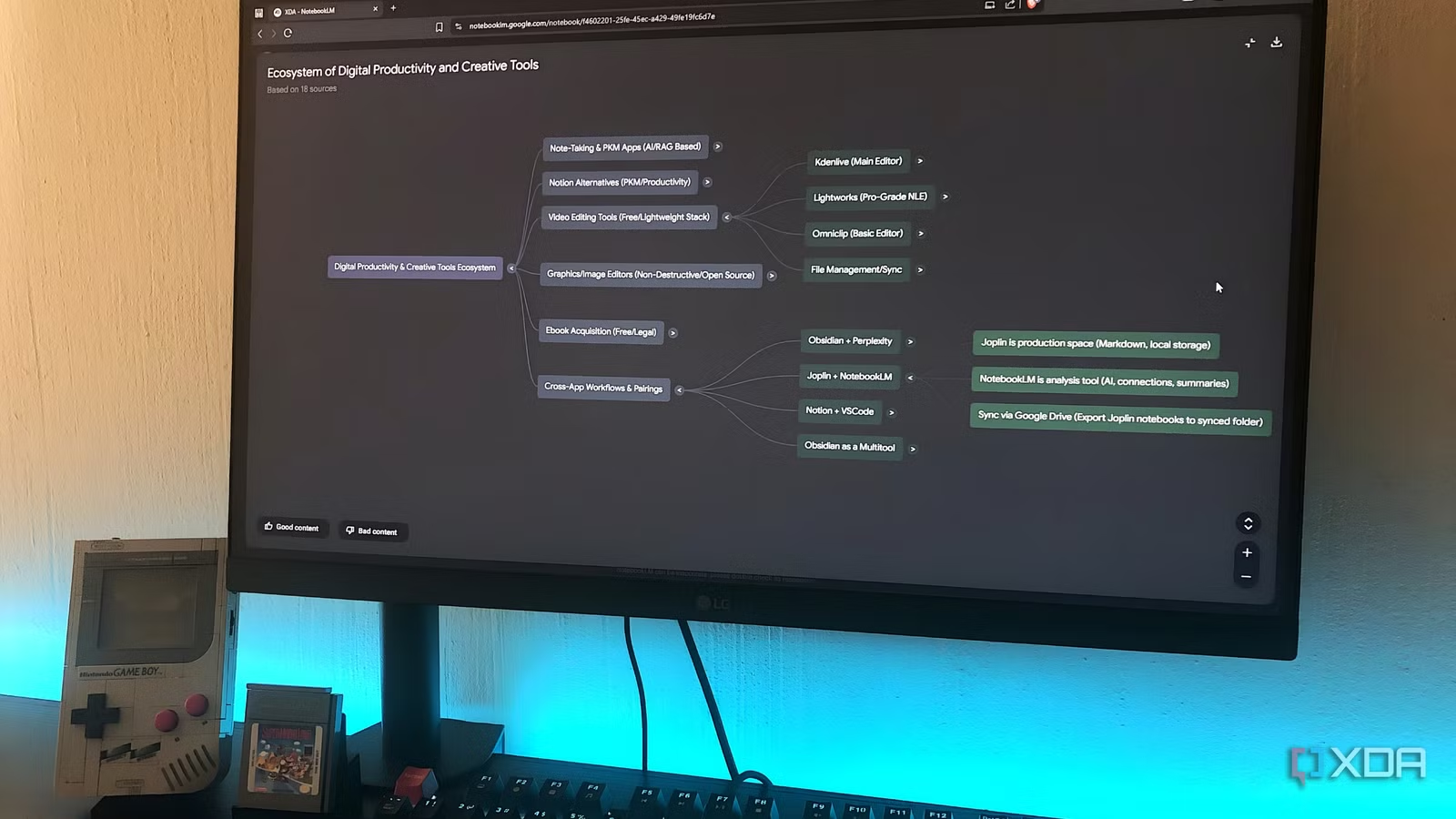
NotebookLM is really powerful on its own, but pairing it with your productivity apps makes it even more useful, in my opinion. I even use it alongside my graphics apps to boost my design skills. So lately, I started using it with one of my top note-taking apps, Joplin. It’s a weirdly solid combo, even though these two apps are from completely different planets and don’t have any official integrations.
Joplin stores everything locally by default, which is great for privacy but not so great when you want those same notes in an AI tool. Still, I wanted a way to pull my existing notes and project archives into NotebookLM without switching to a completely different note setup. The setup I landed on was pretty simple, and it allows me to quickly add my notes as sources in NotebookLM, then use it as a research engine to expand on my work.
What is Joplin?
And why pair it with NotebookLM?
Joplin is a free open-source note-taking and task management app that gives you markdown notes, notebooks, tags, and plugins if you want them. The structure is quite basic, but it’s clean and dependable. The real appeal is that everything lives on your device by default, unless you decide otherwise. So you can control exactly where your files go and how they’re stored.
Pairing Joplin with NotebookLM makes sense if you like Joplin for writing and brainstorming, but you want an AI for analysis and exploration in a way that Joplin isn’t built for. NotebookLM is excellent at making connections across documents, extracting key points or overarching themes, and just turning piles of text into something easier to navigate.
So I ended up with a bit of a split workflow, as is usually the case with these NotebookLM-type of pairings. Joplin is the production space where I write and store everything long-term, and NotebookLM is the tool that lets me interact with all my creations.

How I “sync” Joplin with NotebookLM
There’s no official integration, but the workaround is dead simple
If you’re a NotebookLM user, you probably already know about its seamless integration with Google Drive. This is actually what enables you to pair pretty much any app with NotebookLM, even when there is no official integration. All you have to do is export your files and documents to a folder on your device, sync that folder with the Google Drive app, then fetch those files from your Drive within a NotebookLM notebook.
In Joplin, you can export individual files, individual notebooks, or your entire workspace. I exported a notebook I use to write articles like these straight to my Google-synced folder on my PC. Then I created a new notebook in NotebookLM, and my files were instantly accessible through Drive. You can export in PDF and Markdown, both of which NotebookLM can read.

Putting this pairing to use
It’s more than just summaries
Most of us use NotebookLM as a summarizer – it’s one of the functionalities it was designed for after all. And it’s definitely a great way to study or get through large amounts of material quickly. But there’s much more to NotebookLM than getting summaries or extracting key points. For starters, I like to create a mind map in every new notebook before beginning any learning. This is because I’m a visual thinker, so being able to get a visual overview without needing a dedicated diagramming tool is invaluable. And these maps are interactive, too. It’s a great way to quickly spot patterns in the type of content I’m writing, or see in which areas my ideas are lacking.
Another angle I utilize is scenario testing. I’ll feed NotebookLM different drafts or notes from projects, then ask it to stress test decisions, compare approaches, or simulate outcomes. It’s basically a way to pressure check outlines or ideas before I commit – especially useful for those tasks that we tend to feel a little insecure about. I push it even further and ask it to generate alternative paths I didn’t consider, then evaluate the tradeoffs. It’s like a little rehearsal space, but for writing and notes. Anything useful NotebookLM gives me, I either save as a note or copy-paste into my Google Docs. Docs lets you export the files as Markdown, so I’ve been importing some of them back into Joplin.
This combo is ideal for anyone who works with text-heavy files – and of course, anyone who uses Joplin. I think it’s especially useful for writers, whether creative fiction authors or tech journalists, who need to weigh various scenarios before settling on an outline. You can pull early notes from Joplin into NotebookLM to test character arcs or argument flows, or get quick comparisons between different drafts you’re indecisive over. If your notes are about journaling, then you can even prompt NotebookLM for a timeline of your progress.

An unexpectedly useful combination
Joplin doesn’t have a NotebookLM integration, but as long as you have Google Drive, you can pair just about any app with NotebookLM. So setting this up is really fast and easy. And once your Joplin notebooks are in a NotebookLM notebook, the combo becomes a reliable way to offload some thinking, dig through old notes, and explore new angles.

