Summary created by Smart Answers AI
In summary:
- Tech Advisor explains how LineageOS 23 brings Android 16 to over 100 unsupported older devices, including Pixel, Samsung, OnePlus, and Xiaomi models that no longer receive official updates.
- This open-source solution offers improved performance, enhanced security features, and better data protection while eliminating bloatware and providing extensive customization options for aging smartphones.
- Installation requires technical preparation including data backup, bootloader unlocking, and following device-specific instructions from the LineageOS wiki to avoid potential soft-bricking risks.
A smartphone often remains usable longer than the manufacturer intends.
When official update support ends after a few years, the device still works – but without the latest software. However, security gaps remain open, new apps refuse to work, and eventually, everything feels outdated.
But there is hope for such devices, because the Android community never sleeps. LineageOS is a free Android-based operating system available at no cost. It allows you to update many older smartphones to the latest version – without any manufacturer updates.
The current version, LineageOS 23, is based on Android 16 (strictly speaking, on the initial version of Android 16: QPR0). It makes more than 100 devices which lost support fit for the future again.
The best thing about it is that users can expect not only a fresh system with modern features, but also regular security updates. Even if the old smartphone has long since been officially written off. In this guide, we show you how to install Android 16 via LineageOS, what requirements apply, and when you should steer clear.
Don’t fancy experimenting with third-party software? All of the handsets in our guides to the best budget phones, best mid-range phones and best phones overall are still supported by Android 16.
What is LineageOS – and why is it so popular?
Foundry
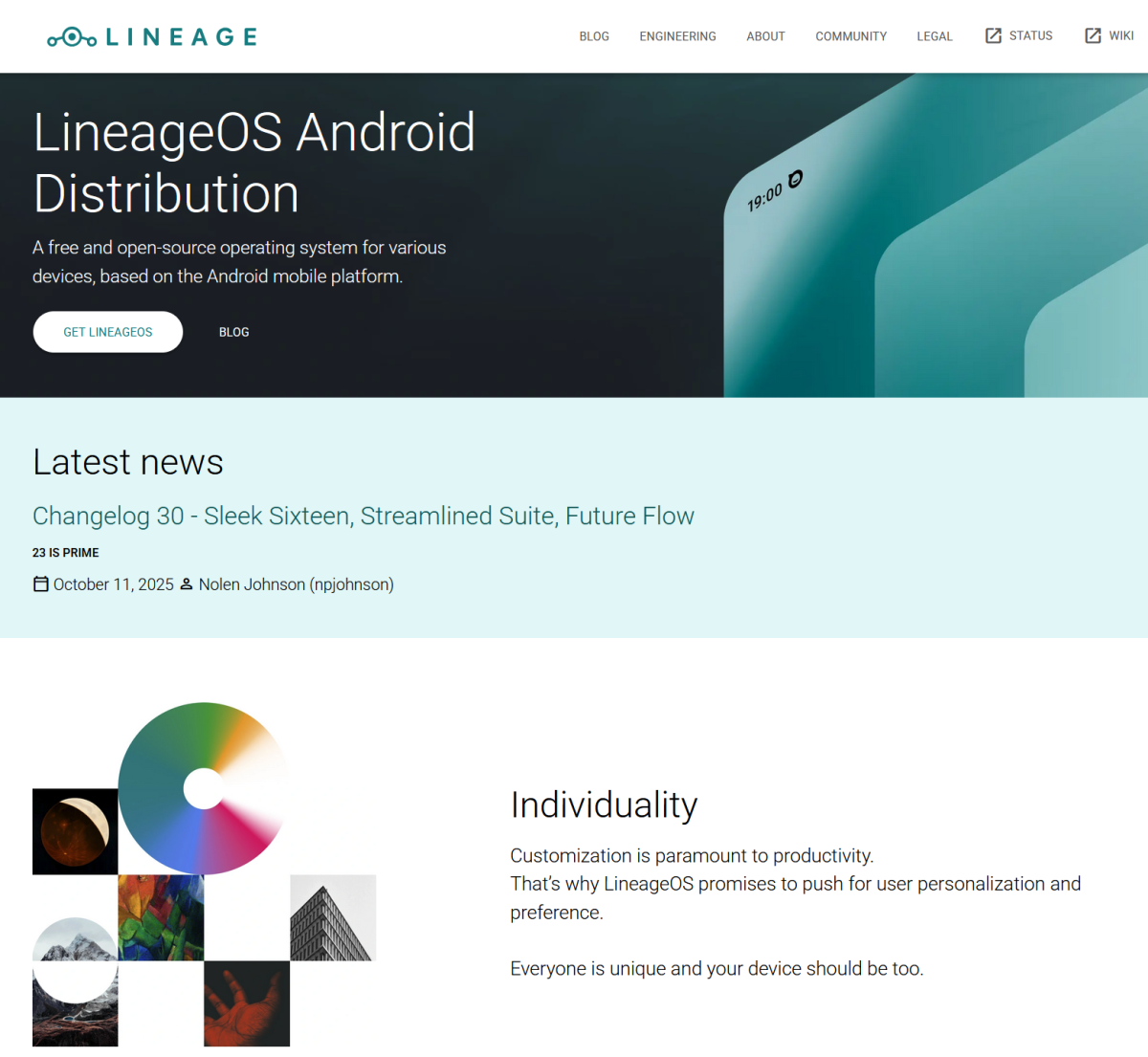
LineageOS is basically what Android always wanted to be – open, customisable and independent of major manufacturers. The system is based on the official Android source code (AOSP), but is further developed by a global community. The community’s goal is to provide older devices with the latest software.
LineageOS originally emerged from the legendary CyanogenMod, a custom ROM that thrilled millions of users in the early 2010s. When Cyanogen Inc. discontinued development in 2016, the community took over the project under a new name. LineageOS was born. Since then, the system has become a fixture in the Android community.
But the highlight is that LineageOS also runs on smartphones that no longer officially receive updates. This is ensured by a dedicated developer community that regularly releases new builds for hundreds of models. Whether old Samsung Galaxy handsets, Google Pixel models or OnePlus devices, many of them can be revived with LineageOS.
In addition to a new lease of life, LineageOS promises further advantages:
- The latest security updates – even for older devices
- No bloatware – only the essentials are pre-installed
- More data protection – many tracking services and manufacturer apps are not included
- Free choice – if you prefer, you can completely omit Google services
- Customisability – themes, gestures and energy management can be personalised
In short, LineageOS lets you revive older smartphones and gives you more control. You decide which services run, what the system looks like and when it’s time for the next update.
Android 16 with LineageOS 23: What is now possible
Foundry
With LineageOS 23, the community has made a huge leap forward: for the first time, the custom ROM brings the brand-new Android version 16 to over 100 older devices, from Pixel and OnePlus phones to popular Xiaomi and Samsung models. This means that many smartphones that have long since fallen out of the official update cycle can get a new lease of life.
Android 16: The most important advantages
The core of LineageOS 23 is Android 16. This current base offers a number of important improvements that particularly benefit older devices, such as efficiency and security. Android 16 has learned a lot under the hood. Among the most exciting new features are:
- Improved performance and energy efficiency: Many processes run more economically, which is particularly beneficial for older batteries
- More data protection and permission control: Apps must specify even more precisely what data they collect
- Expanded lock screen and widget support: More freedom in design, similar to iOS
- Revised desktop mode: Android 16 provides a more stable environment for use with a keyboard, mouse and large screen
- Updated security architecture: Google’s monthly patches are integrated directly, so you don’t have to wait months for manufacturer updates
LineageOS 23: Android 16 for older devices
The developers at LineageOS have adapted Android 16 to their own infrastructure and reactivated numerous older hardware drivers. This allows the new system to run on devices that Google has long since abandoned.
Key features of LineageOS 23:
- More than 100 officially supported devices, according to the LineageOS wiki
- Regular nightly builds, with bug fixes and security updates
- Integration of LineageOS Recovery, for easier flashing
- Revised “Trust” security feature, which warns when root privileges or unsafe apps are active
But not everything is perfect, at least at the time of writing. Some features, such as the new Material 3 Expressive mode or parts of the desktop setup, are missing because Google has not yet released the complete source code (QPR1). However, this only affects special functions and not normal everyday use.
The bottom line is that LineageOS 23 is currently the easiest and safest way to bring Android 16 to older smartphones. If you know a little bit about flashing, you can breathe new life into your phone – without sacrificing convenience or security.
Requirements: What you should know before installation
Foundry
Before you turn your smartphone into an Android 16 device, there are a few important points you should check. As powerful as LineageOS is, installation is not a simple app download, but a deep intervention within the system.
With the right preparation, however, the switch usually goes smoothly. In the following section, you will find important information that will help you later when installing LineageOS.
1. Check compatibility
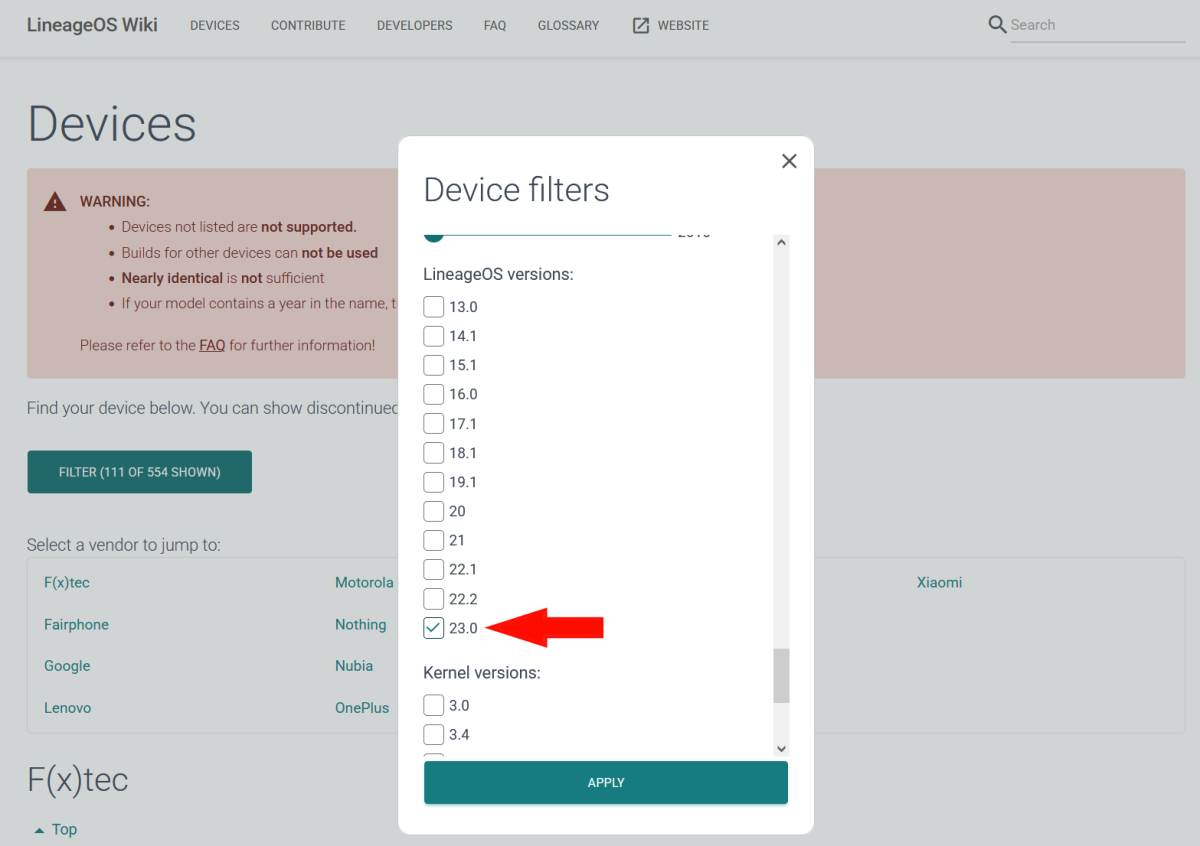
Not every device is suitable for LineageOS 23. You can find out whether your model is supported in the official LineageOS wiki. There you will find a list of all compatible smartphones, including code names, installation instructions and download links. To display only devices for which a current LineageOS 23 version is available, use the green ‘filter ‘Filter’ button.
Tip: Make sure that your device matches the listed model exactly. Even small differences in the name (e.g. Galaxy S10 vs. S10e) can be decisive.
2. Back up your data
Flashing will completely erase the internal memory. Therefore, back up all important content beforehand:
- Contacts, photos, videos, documents (e.g. via Google Drive or external storage)
- App data (via integrated backups or third-party tools)
- Wi-Fi passwords, settings and, if applicable, 2FA codes
Tip for maximum security: Create two backups. One in the cloud and one locally.
3. Unlock the bootloader
To install a custom ROM, the bootloader must be unlocked. This is a security barrier that is normally designed to prevent third-party software from being launched.
The unlocking process varies depending on the manufacturer – it is usually straightforward for Google and OnePlus devices, but may require a little more effort for Samsung or Xiaomi devices. You can find the exact, device-specific steps for unlocking in the installation guide for your model in the LineageOS wiki.
Important:
- Unlocking may void the warranty (might not be relevant)
- All data on the device will be deleted
4. Install recovery
LineageOS requires a custom recovery environment – such as TWRP (Team Win Recovery Project) or LineageOS’s own recovery. The new Android version is installed via this interface. You can also find the appropriate recovery file in LineageOS wiki. After installation, you can start recovery directly using your device’s key combination (usually power volume).
5. Basic knowledge & risks
Flashing a custom ROM is not technically difficult, but it is prone to errors. An incorrect image, an aborted attempt or an incompatible driver can render the device unusable. This is referred to as a soft brick.
Please read the instructions for your model thoroughly before you start. The LineageOS community offers a separate forum for each device where users can share their experiences and tips. You can find links to these in the instructions for individual devices in the wiki.
How to download the right version of LineageOS
Foundry
Now it’s getting specific: before you put Android 16 on your smartphone, you need to find the right LineageOS version. We advise you to take your time here, as this step is very important. The wrong file or an unofficial build can make the system unstable or, in the worst case, make it impossible to start.
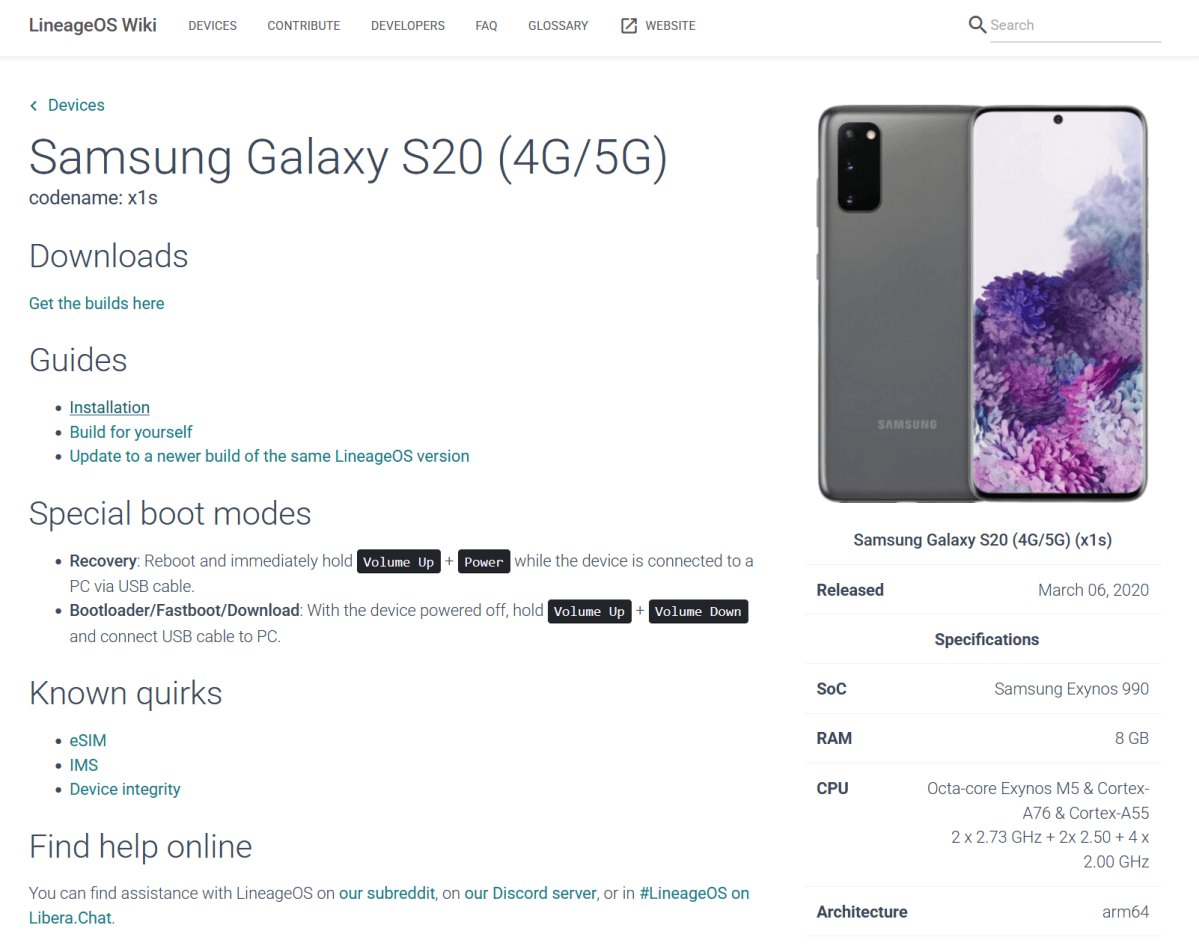
1. Find the official version in the LineageOS wiki
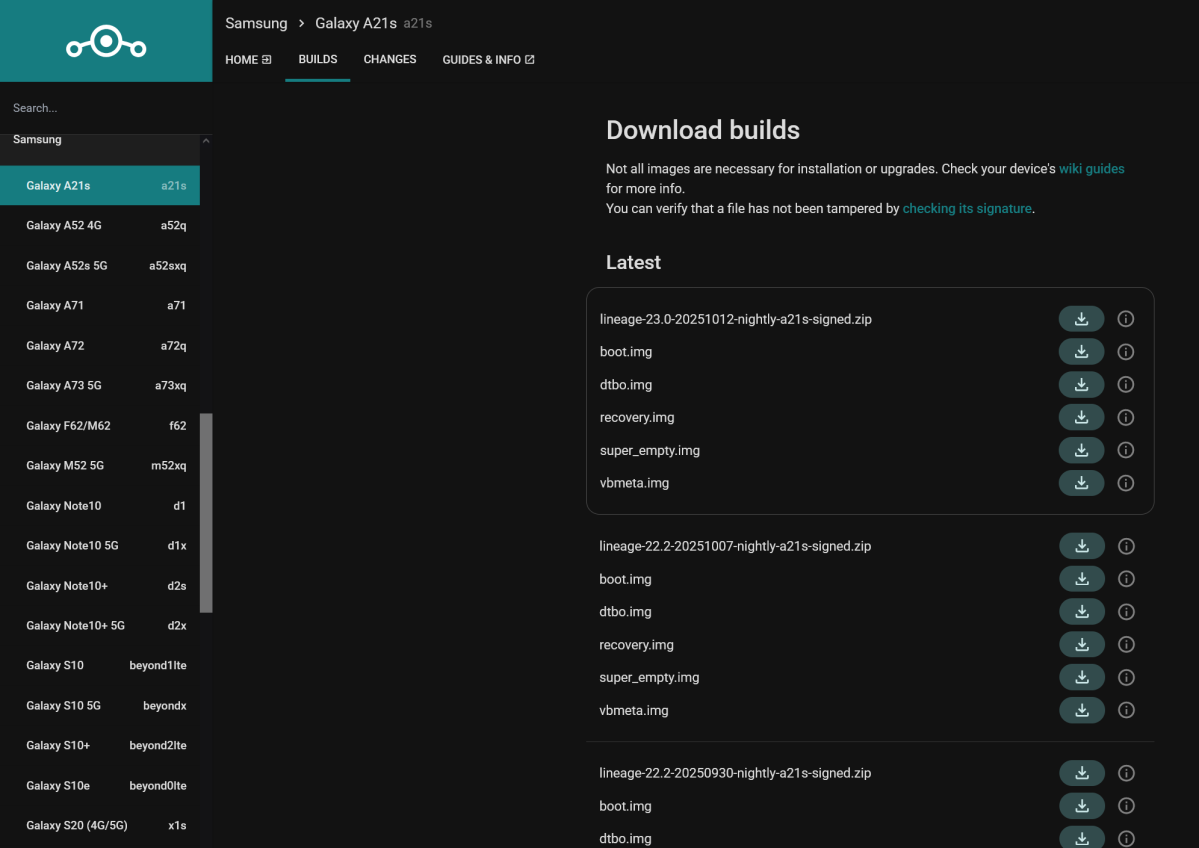
The official source is always the LineageOS wiki. Select your device from the list there – remember to use the green filter button to search specifically for LineageOS 23. On the respective device page, you will then find:
- The device code name (e.g. redfin for Pixel 5)
- The download link for the latest LineageOS 23 version (Android 16)
- Official installation instructions tailored to your model
The official builds are checked, signed and regularly updated by the LineageOS maintainers, including monthly security patches.
2. Nightly, Weekly or Stable – what’s the difference?
- Stable builds are tested, stable versions – intended for everyday use
- Nightly builds are automatically compiled every day. They contain the latest features, but also possible bugs
- Weekly builds are a compromise: updated more frequently, but mostly stable
Important note: The LineageOS project now offers nightly builds for most actively supported devices, often weekly. These builds are generally stable enough for everyday use.
3. GApps or MicroG – with or without Google
After installation, LineageOS initially runs without Google apps. This means no Play Store, Gmail or Google Maps. You then have several options:
- Install the GApps package: Contains the original Google services. The most common variant is MindTheGapps, which is specially adapted for LineageOS
- Use MicroG: An open-source alternative that replicates Google functions – ideal if you want more privacy
- Completely without Google: LineageOS also works entirely independently, with alternative app stores such as F-Droid or Aurora Store
Important: Install the GApps or MicroG package immediately after the ROM before starting the system for the first time – otherwise conflicts may occur.
4. Check the checksum
An often overlooked but important step: compare the SHA256 checksum of the downloaded file with the information in the wiki. This ensures that the image has not been damaged or tampered with.
In Windows, special checksum tools such as HashTab are usually used for this, while in Linux and macOS, you can use the terminal command ‘shasum -a 256‘ is used to verify the official value. Once you’ve have downloaded the correct version, you’re ready for the most exciting part: the actual installation of LineageOS 23 and Android 16.
How to install LineageOS on your phone
Foundry
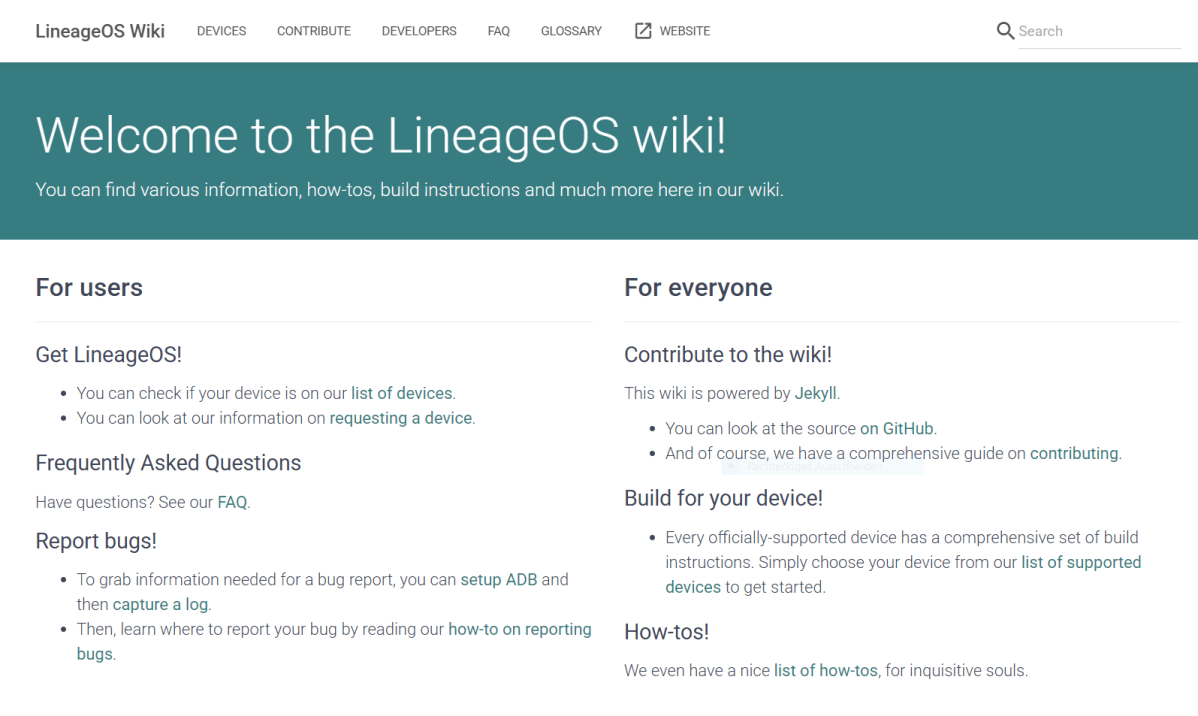
The actual installation of LineageOS is highly device-specific. While general steps such as unlocking the bootloader, flashing recovery or performing a wipe are often similar, the other commands and key combinations differ from model to model.
Therefore, the safest, official and device-specific instructions can be found directly in LineageOS wiki on your device’s page. Please follow the instructions there to the letter, as even the smallest deviations can lead to a soft brick.
Reminder of critical steps – make sure that:
- You have made a complete backup of your data.
- You have checked the checksum of the ROM and recovery files (not mandatory, but recommended).
- The optional GApps or MicroG package is installed immediately after the ROM, before you start the system for the first time.
Conclusion: A new life for old smartphones
Who says that an older mobile phone belongs in the technology graveyard?
With LineageOS, you can breathe new life into ageing devices. The system often runs even more smoothly than the original manufacturer software.
Instead of discarding your smartphone after a few years, the free Android system makes it ready for use again – including the latest security updates, new features and better control over your data. Flashing is not for absolute beginners, but it’s worth the effort. If you’ve already backed up and wiped your old devices and no longer rely on them, there’s nothing to lose.
Speaking of old smartphones, here’s what to know if you’re considering a flagship that’s not the latest model.
This article originally appeared on our sister publication PC-WELT and was translated and adapted from German.