It started with Doctor Strange in the Multiverse of Madness. I was watching it on my Samsung phone, enjoying the chaos of collapsing dimensions, until I looked up at my 50-inch Samsung Smart TV. It was turned off, like it had nothing to contribute, even with its better pixels and sound system. I knew the movie experience would be richer on that screen.
So, I decided I was going to cast my phone’s screen on my TV. I thought it would be simple. Instead, it turned into a mini tech expedition and a lesson in digital literacy.
Like any reasonable person, I googled it. It didn’t help. No one explained the experience: where to tap or what to expect. I changed tactics. I opened my phone’s manual and stumbled upon an app I had never paid attention to: SmartThings.
My first attempt with SmartThings (The long way in)
The SmartThings app was new terrain, and I wasn’t sure where to start. The interface didn’t help—tabs, icons, device categories—it was overwhelming. Still, I spotted a plus sign (+) at the top-right corner of the app to add a device. That made sense. Two categories appeared: Samsung Devices and Partner Devices. My TV is Samsung, so I tapped it. Then came a buffet of device options: air conditioner, air purifier, fridge, robot vacuum. I tapped “TV” and waited for it to find nearby devices.
Nothing. My TV didn’t appear, but only because it was turned off (rookie mistake). I turned it on, and finally, my TV popped up on the app. Then, I tapped on it for the connection to begin, and a PIN appeared on the TV screen. I entered it on my phone, and the app started installing a plugin. That plugin stalled at 100% for minutes. Eventually, it loaded. But not what I expected.
Instead of showing my phone screen on the TV, it opened a remote interface. I could turn the TV on and off, switch channels, adjust the volume, but I still couldn’t mirror my phone. It was cool, but it wasn’t what I wanted. Then I spotted the three-dot menu in the corner (always a good sign in apps). That’s when I found a buried option: Smart View. I clicked it. That was the key. My phone was mirrored on my smart TV.
Smart view (The shortcut I should’ve used all along)
Later, I learned that Smart View is a shortcut on most Samsung phones. If I had just swiped down from the top of my phone screen and tapped Smart View, I could’ve skipped all that journey through SmartThings. A simple tap on the feature will find a nearby device and request permission to connect. A PIN entry and some seconds later, my phone was mirrored on the TV.
I tried it on an iPad:
Seeing my Android phone connect so easily got me curious: would my Apple device connect to my smart TV too?
My first instinct was the control centre, because that’s where everything is, right? I swiped down and tapped the ‘Screen Mirroring’ icon—it looked like two overlapping rectangles, well, screens. After a quick scan, it found my Samsung TV.
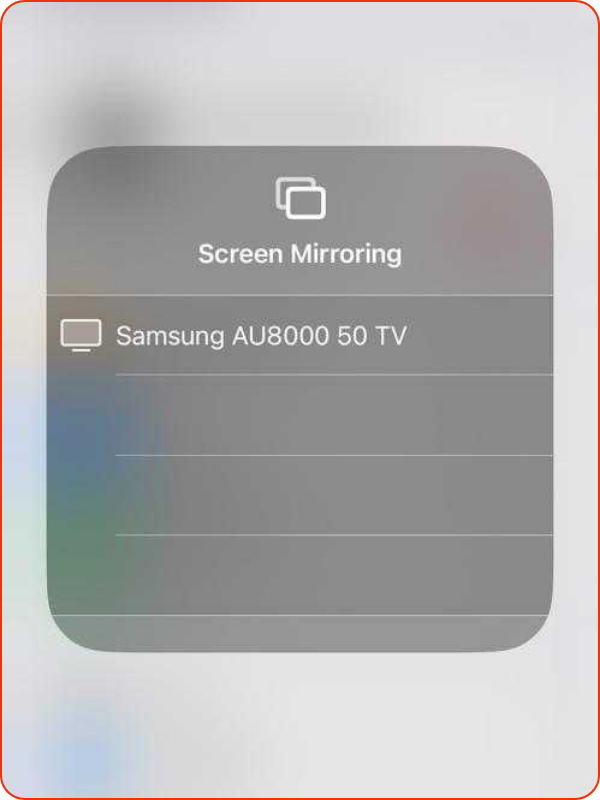
I tapped it, and a PIN appeared on my TV screen. I entered it into the empty field on my iPad, and it connected to my TV instantly. The Apple–Samsung rivalry meant nothing in that moment. What mattered was that the system worked.
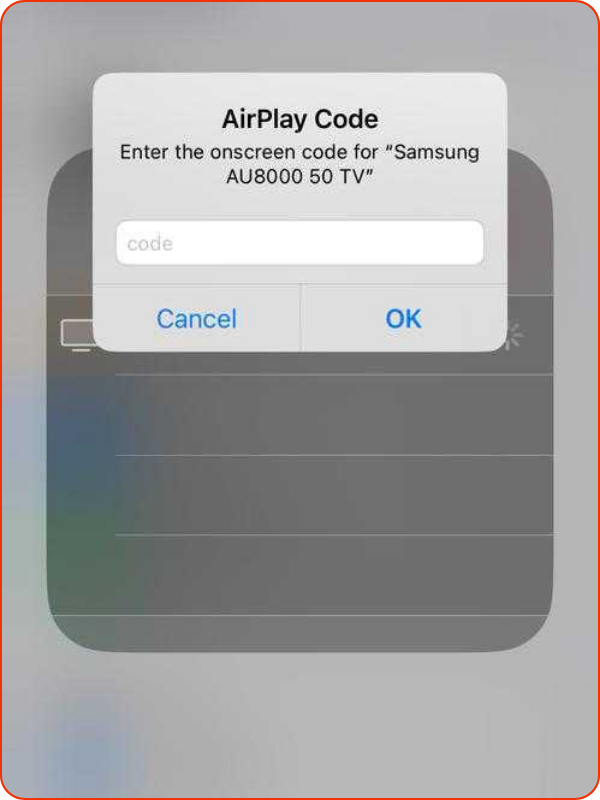
If your smart TV supports Apple AirPlay, you can mirror the screen of your iPhone or iPad on it. To do this:
- Swipe down from the top-right corner of your device to open ‘Control Centre’
- Tap Screen Mirroring
- Wait for your TV to show up in the list and select it
- Enter the PIN that appears on your TV screen
- Your iPhone or iPad’s screen will start mirroring
My journey through the maze of menus was a lesson, but yours doesn’t have to be. Here’s a simple, direct guide to get it done for other devices.
Connecting your Samsung phone to a smart TV:
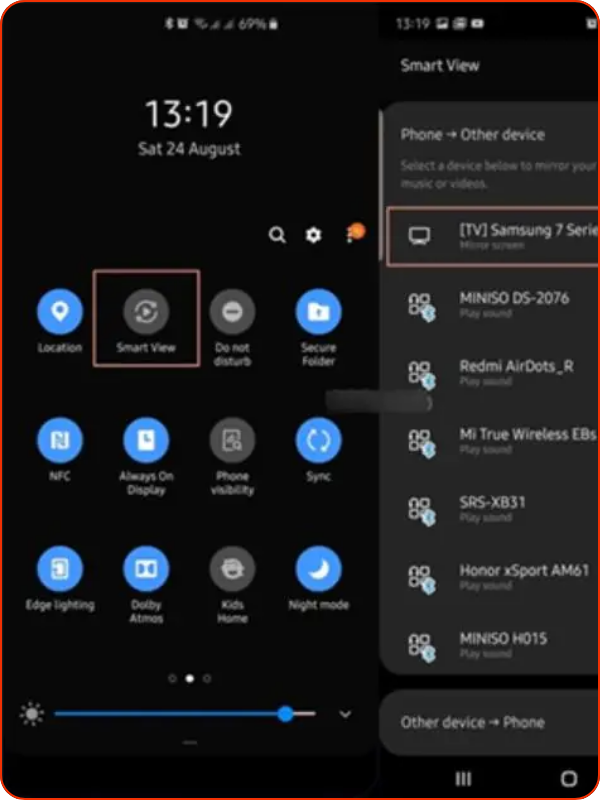
- Swipe down to open Quick Settings
- Tap Smart View
- Select your TV
- Enter the PIN displayed on the TV
- Confirm on your phone and accept on the TV
- You’re in
To connect other Android devices to a smart TV:
- Open settings > Hotspot & Connections
- Navigate to ‘Cast’ or ‘Wireless Display’. Toggle it on
- It will scan TVs on the same Wi-Fi network as your phone. Click on your TV
- If it is your first time, you will have to give permission. Use the TV remote to click ‘Accept’
- A couple of seconds later, you’re in!
Troubleshooting
If you can’t find your TV:
- Ensure that your TV is turned on
- Make sure your phone and smart TV are on the same Wi-Fi network
- Update your phone’s software
Connecting your smart TV to a Wi-Fi network:
For screen mirroring to work, you must ensure your mobile device and smart TV are connected to the same Wi-Fi network. That’s non-negotiable.
- On your TV remote, press ‘Home’ or ‘(icon)’
- Navigate to Settings or Quick Settings
- Go to ‘Network’ and select ‘Network Settings’
- You will have to choose whether you want a wired or wireless connection.
- For wired: plug in your Ethernet cable, and you’re good
- For wireless: choose your Wi-Fi from the list and input your password using the on-screen keyboard
Once your smart TV is online, you’re ready to mirror your phone.
This experience taught me not to overlook built-in apps. They might surprise you. Now, screen mirroring is part of my routine. Sometimes it’s movies or showing a room full of people with some photos from my gallery. Sometimes, it’s just that magical feeling of watching a tiny screen become big. Because when the tech works, it really works.
Mark your calendars! Moonshot by TechCabal is back in Lagos on October 15–16! Join Africa’s top founders, creatives & tech leaders for 2 days of keynotes, mixers & future-forward ideas. Early bird tickets now 20% off—don’t snooze! moonshot.techcabal.com