
Hands-on Run real Windows in an automatically managed virtual machine, and mix Windows apps in their own windows on your Linux desktop.
WinApps and WinBoat both deliver the same functionality: they run real Windows in a VM and export native Windows apps in individual windows onto your Linux desktops, integrated with your native Linux applications, via the wizardry of Microsoft’s Remote Desktop Protocol. RDP was Microsoft’s answer to X11, before the great minds of the Wayland project came along to tell us that we don’t need such things.
For all the abilities of modern Linux, there are some apps – especially paid commercial ones – that still require Windows. We outlined three ways to run Windows apps on Linux in May 2025. WINE is amazing and the current version can run a lot of Windows apps smoothly on Linux – but there are limits to its compatibility: for instance, there’s no Microsoft Store. The main alternative is to run a real copy of Windows inside a virtual machine, and when you need those specific tools, fire up the VM, and use the apps inside it. (Since late 1994, the desktop version of VMWare is free to use – and it both offers pretty good performance for Windows guests, and some helpful integration tools.) Even so, managing a VM does require some effort, and moving your files and data between host and VM inevitably means some extra legwork.
Both WinApps and WinBoat aspire to make this seamless and almost invisible, using a real copy of Windows running in a hidden virtual machine that uses Linux’s built-in native virtualization tools rather than add-on hypervisors. The goal is to offer better compatibility than WINE, near-native performance, and better integration between host OS and virtualized apps. The key differences are control and maturity. WinApps is quite mature and very flexible, but it needs you to either have some virtualization skills or to invest effort in learning and editing config files. WinBoat is new, hasn’t reached version 1.0 yet, but it automates as much as possible away to make life easy.
WinApps
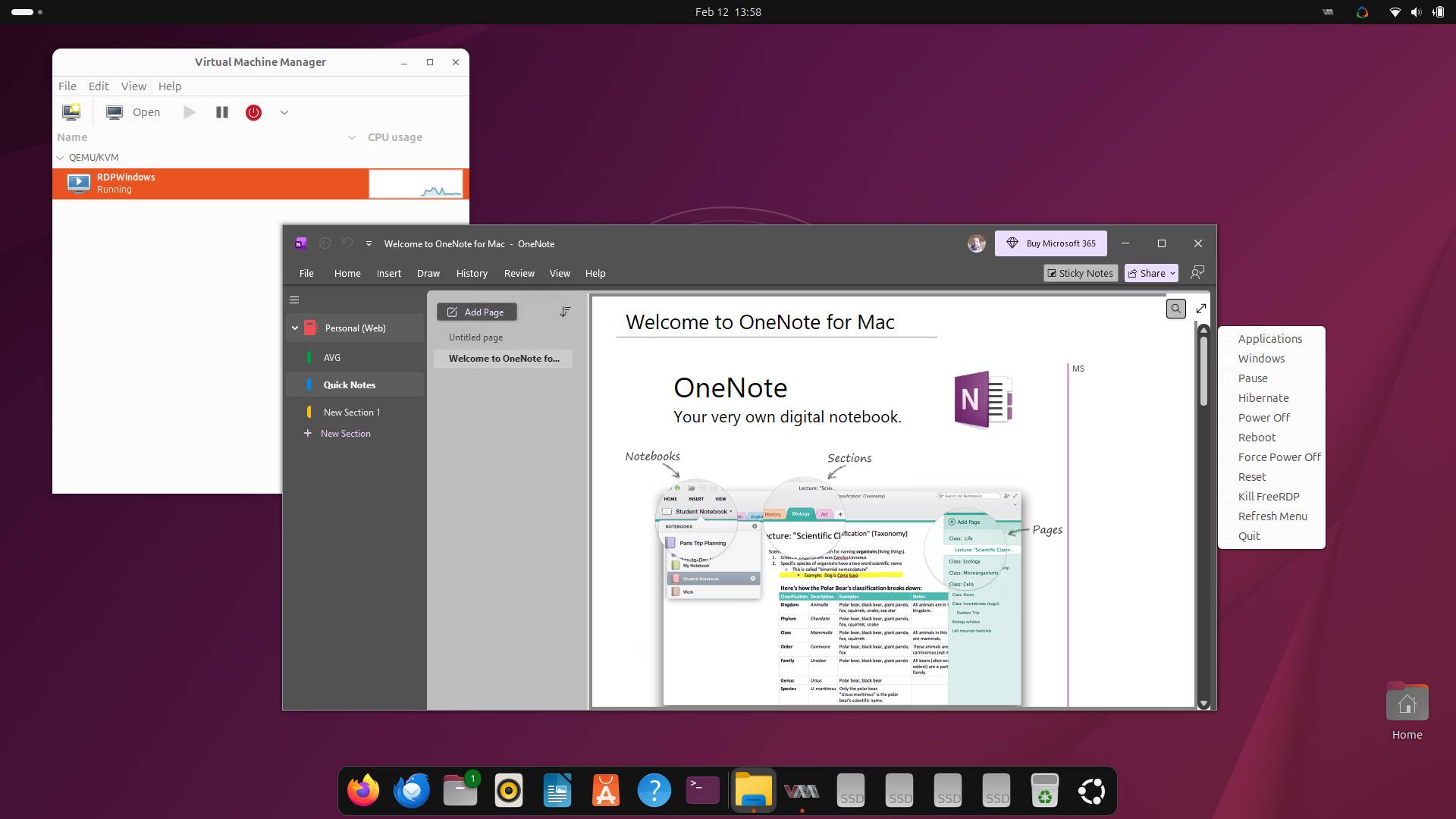
WinApps running OneNote 2016, complete with an old note synched from the Microsoft Cloud – click to enlarge
WinApps is by some years the more mature of the two. Its creator Ben Curtis started the original project in about 2020, but development went dormant a couple of years ago, leading to a “hard fork” that is actively working on a modernized version.
WinApps is very flexible, and boasts compendious documentation. It supports three different ways to run Windows: two flavors of container, or directly using the kernel’s KVM virtualization. If you’re comfy with using container tools, then that’s the easier way, and WinApps supports using either Docker or Podman. The main difference is that Docker requires root privileges, but Podman doesn’t. Alternatively, WinApps can directly control a Windows instance inside KVM using the libvirt API, but the docs do warn:
They are not kidding. The libvirt method is much more complex to install, but it’s also much more flexible – for instance, this way, the hypervisor can even run on a different computer. For example, if you have a well-specced laptop with a broken screen sitting around doing nothing, you could dedicate a whole PC to the Windows VM, separately from your desktop box.
We tried an initial test run using Docker containers, but even though we predicted the rise of containers 15 years ago, this vulture has little experience of deploying the things. Without custom config, the WinApps config for both Docker and Podman defaults to storing the Windows VM in /var/lib – much as we noted of the Debian FreedomBox blend earlier this year. That means you need a big Linux root partition: the docs suggest a minimum size of 32 GB for the Windows system disk, and 64 GB is more prudent. The entire root volume on our testbed machine is only 64 gig, so we didn’t have room for this approach.
The Reg FOSS desk is more familiar with KVM and its GUI front end, Virtual Machine Manager. As we’ve used it before – ironically, mostly for running experimental Kubernetes clusters – we decided to try that instead. The WinApps documentation is very good, too. We used virt-manager to set up a 64 GB VM with 8 GB of RAM and two CPU cores, running Windows 10 IoT LTSC.
We followed the steps to set up host/VM integration. We recommend following this carefully and closely – at several points, it is not enough to just accept the default settings. We had to download and edit scripts in places, entering the correct local IP address so the scripts could find the VM and so on. You’ll also need to know your way around Windows: you need to configure it, activate it, and so on. Helpfully, the docs tell you how to bypass Windows 11’s burning need to talk to the mothership, so you can configure an offline account. At least that’s less of an issue with Win10 LTSC.
Normally, you leave the Windows VM hidden and not logged in (which itself saves some memory in the VM, of course). When you open a Windows program, WinApps starts the VM if necessary, connects to it using the Linux FreeRDP client, and the app opens in its own window on your Linux desktop.
Setup is a long and complex process, though. It took us more than a day to get everything working. The final stage of setup integrates the apps in your new Windows VM into the Linux desktop’s app launcher, which left us with several superfluous icons for things like Microsoft Paint. Doing it at this point feels premature to us – it means that any apps you install in your new VM don’t get picked up.
Some of the steps require you to log out and log back in again to take effect. For an easy life, we treated it like many Windows installations: just reboot.
WinBoat
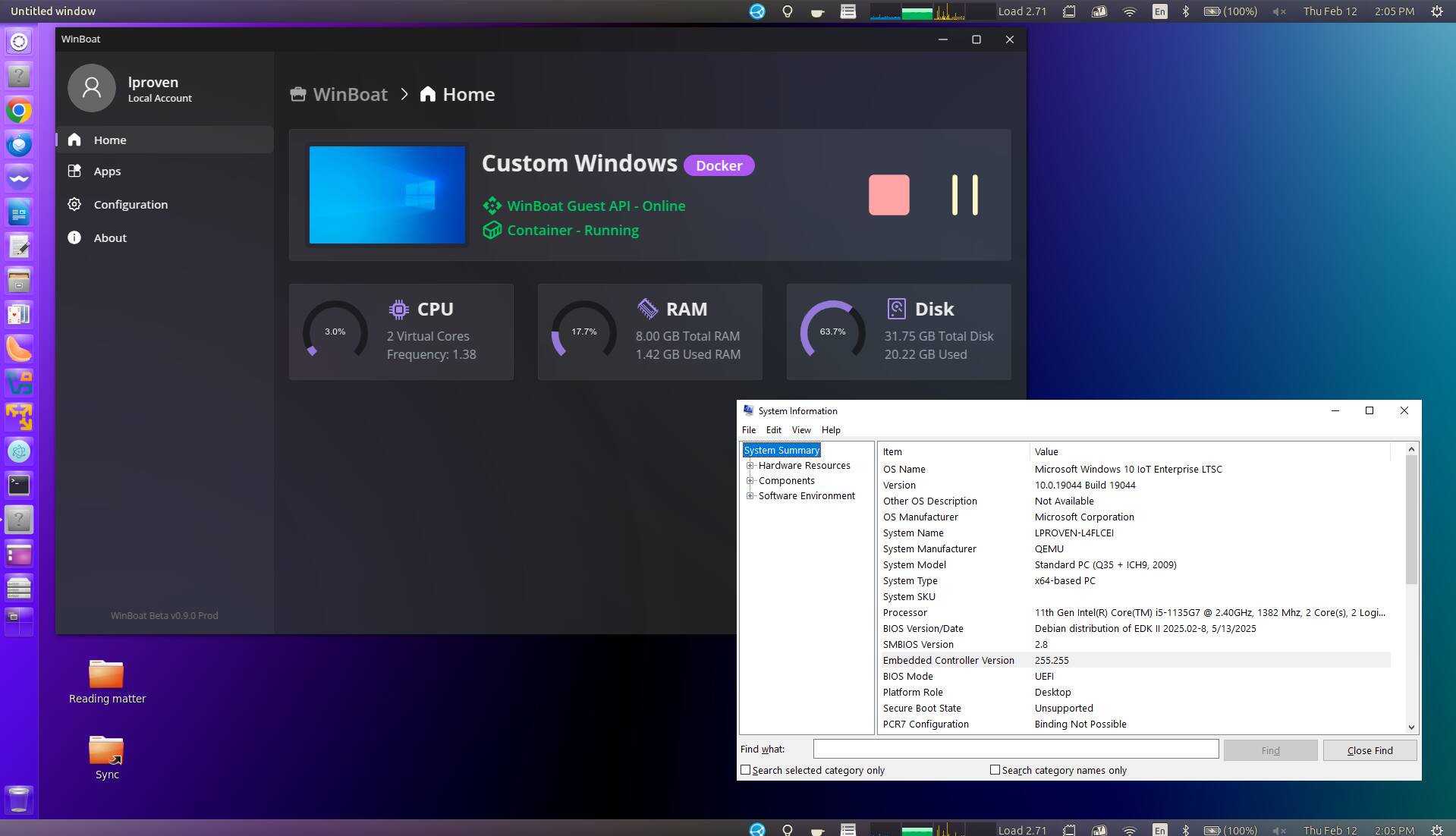
WinBoat running MS System Information and some very misleading specs, all on the Ubuntu Noble desktop – click to enlarge
Next, on a different machine, we tried the much newer WinBoat application. WinBoat is only about six months old and is only up to version 0.9.0 so far, and it’s implemented mostly in Typescript with a little bit of Go. It’s attracting attention, though – The Register‘s own Rupert Goodwins mentioned it just last month.
The project FAQ section covers many of the differences. The first question is How does it compare to WinApps? To which it says:
To be honest, when we first read this last year, our response was dismissive – but after getting WinApps working, suddenly this seems like a good and desirable objective.
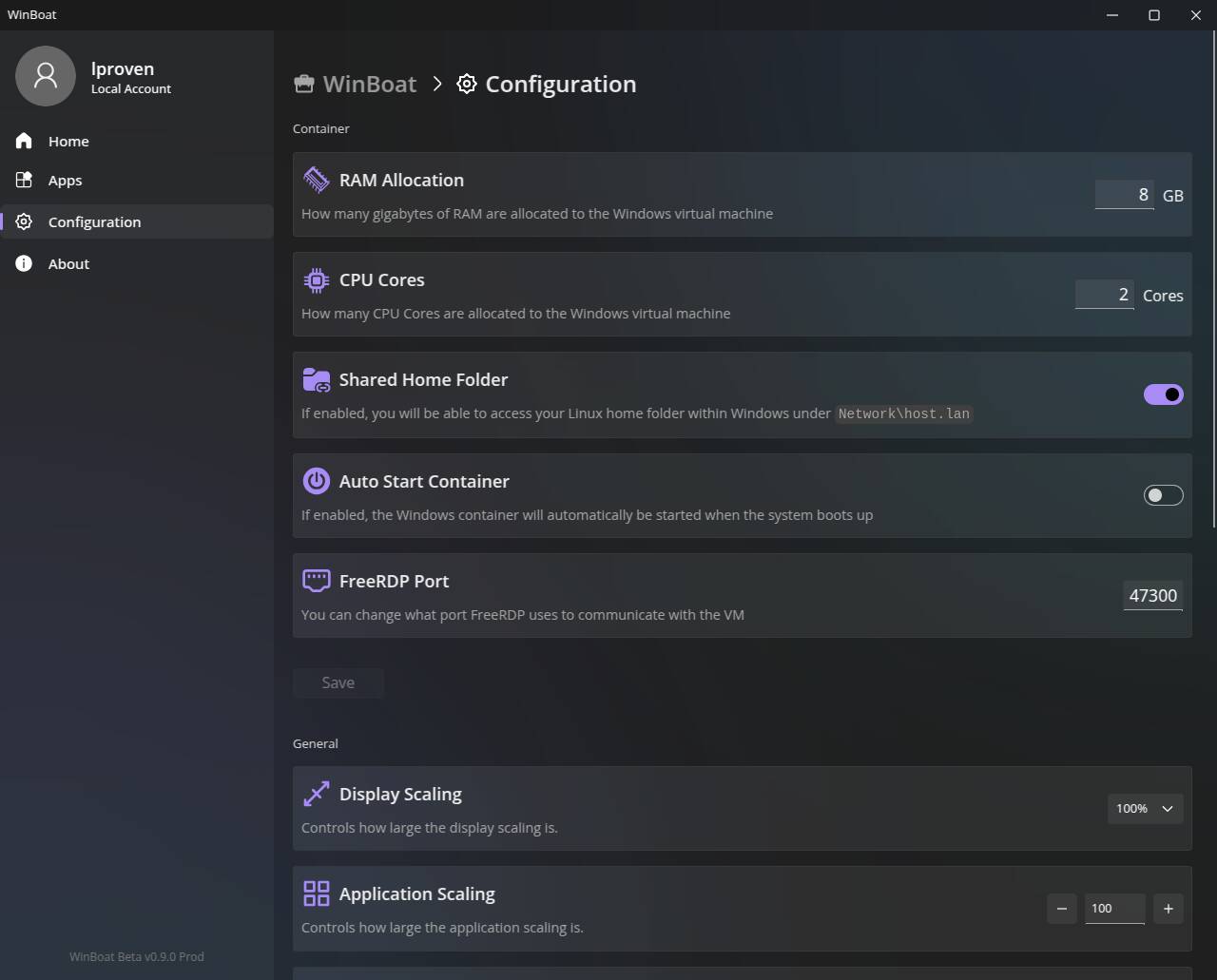
The WinBoat configuration tab has 13 or so options you can adjust, which is a lot easier than editing config files – click to enlarge
WinBoat offers few choices. It uses Docker (although v0.9.0 offers Podman as an option, with the drawback that USB passthrough no longer works). It doesn’t ask you to configure Docker, either: all you need is to install it, for which it points to Docker’s own instructions. You also need to install FreeRDP. The installation program links to FreeRDP’s own docs again, although we just installed the standard X11 version in Ubuntu Noble’s repositories and it worked fine.
WinBoat is available in various formats, including AppImage, native .deb and .rpm packages, and even a Nix version. For now, though, there’s no repository, updates are your own lookout – so we chose the AppImage. On Ubuntu 24.04.4, this threw the same error message as our preferred Panwriter app, so we just recalled this command from our history:
sudo sysctl -w kernel.apparmor_restrict_unprivileged_userns=0
The Appimage doesn’t include any external dependencies – it just halts and warns you if they’re missing. We installed Docker, rebooted, and tried again… then installed FreeRDP3 and rebooted… and it ran straight through. It can download a Windows evaluation .iso file for you, but we pointed at our local LTSC edition and it used it happily. It shows a link to open the Windows VM’s screen in a browser tab, which you might need to activate and update Windows – but almost everything else is done for you. Let it chug away for half an hour to an hour.
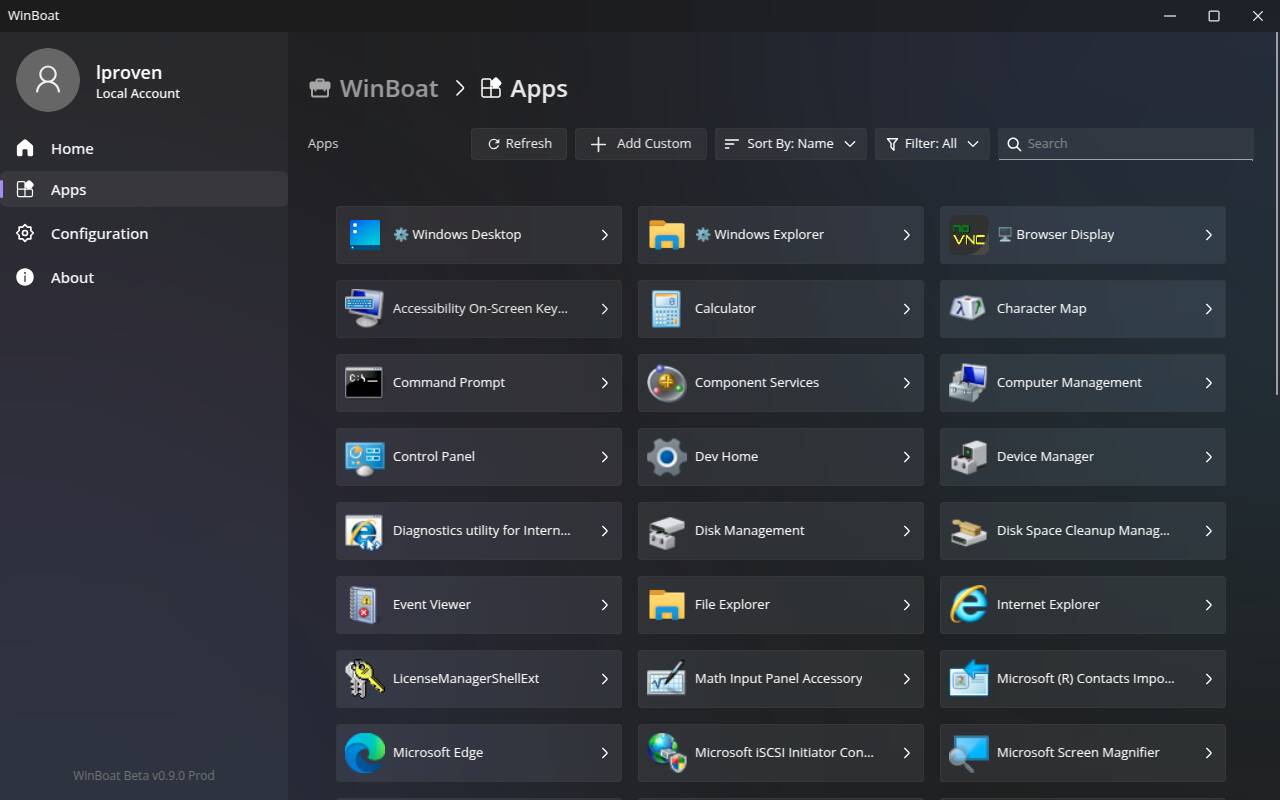
The WinBoat apps screen lists all the programs it can identify in your VM: simple, but effective – click to enlarge
WinBoat also avoids fancy integration with the Linux desktop: the main app window shows the status of the Windows VM with large friendly buttons to pause and stop it, and a list of apps it found inside the VM. Click an app, wait a few seconds, and there it is, running in a window on your Linux desktop.
Pros and cons
There is no simple answer to which is the better tool. WinBoat is much easier to get working, and it does the same job with little mess or fuss.
Like many power-user Linux programs, WinApps isn’t too intimidating if you’re happy to edit config files – especially if you’re comfortable and familiar with Docker or Podman. Saying that, using it with KVM/VMM definitely has advantages. For instance, it allows you to tweak KVM memory ballooning. This feature enables the hypervisor to reclaim unused RAM from the VM so the host can use it. Our WinApps testbed machine has 24 GB of RAM, and we gave the VM 4 GB but allowed it to balloon up to 8 GB.
Another benefit is that virt-manager can connect to a remote machine and manage its VMs as easily as local ones, which means you could, for instance, take an old box that doesn’t have a TPM 2 chip for Windows 11, configure a minimal text-only Linux setup on it. Then using VMM on your desktop, create a Windows guest instance with a fake virtual TPM, install Windows 11 in that, and allocate all but a gig or so of the machine’s RAM to that VM. You could also pass a real physical GPU through to the VM.
If you have a very high-end PC and a big Linux root partition, you might not care about this. On the other hand, WinBoat offers a simple dialog box that asks where to save the container with the Windows VM inside – so we were able to put it in our home directory, on a separate disk partition, with no problem.
At the end of the day, they both work and do the job. Although setup is lower-tech, WinApps has better integration, on both the Windows side and the host desktop. For instance, WinApps offers a little status-bar applet, which lets you start and stop the VM, pick apps from a list, and open a desktop session. In both, you can connect a Windows network drive to your Linux home directory, making file exhange easy. In WinApps, it’s \\tsclient\home, and in WinBoat it’s \\host\lan. Either way, map a network drive and it’s right there in a couple of clicks.
If you’re an experienced Linux techie, WinApps can do fancy stuff. This vulture is pretty experienced, and even so, its setup process had us swearing at several points. On the other hand, WinBoat makes almost all that just go away. To quote the late great John Brunner:
That button conceals a lot of black magic, but it hides the plumbing very well and it works.
Perhaps the best comparison is with the Windows Subsystem for Linux. WSL2 runs a Linux VM under Windows, integrated with the host OS; WinApps and WinBoat run a Windows VM under Linux, integrated with the host OS. If you are content and productive on your Linux desktop, but you constantly need certain specific Windows desktop apps and they don’t work fully under WINE, this is easier and better-integrated than firing up a Windows VM in a window. Both tools can run Windows software that still doesn’t work fully under WINE, such as current Microsoft and Adobe suites.
The downside, though, is that you are still running a full extra OS. You’ll need to license it, it needs antivirus, and like any other copy of Windows it will need regular maintenance. Also, your computer’s resources must be shared between both OSes. If you use this all day every day, you’ll want lots of RAM, lots of fast disk space, and a fast machine. We tried two of our testbeds: an elderly (if well-specced) Thinkpad W520 with Ubuntu Questing, and a rather faster Dell Latitude 5420 with Ubuntu Noble. Windows apps were slow to launch on the Thinkpad; the whole process felt much smoother on the newer machine, but it still wasn’t super-quick. On both, we saw display glitches when using two screens.
If your apps work, WINE is faster: apps launch quicker, integrate better, and because no copy of Windows is involved, there’s no ongoing maintenance – and no license. The WinApps approach is strictly for desktop apps, and ideally, ones which don’t want a fancy GPU or other dedicated local hardware. WINE and supplementary tools like Proton are better if what you want to run are Windows games. Most full-screen games won’t work well in a VM.
WinApps and WinBoat beat WINE on compatibility, though. If you need the Windows Store, or current Microsoft or Adobe programs, this is a great way to run them on your Linux desktop. And of course, both WinApps and WinBoat are free and open source. ®

