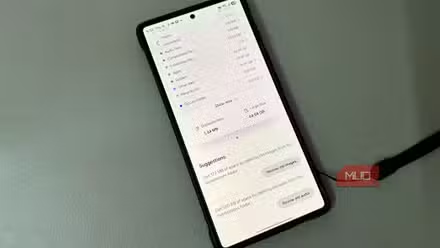
I turned Android’s auto-archive feature on a while ago after reading about it, then promptly forgot I had done so. Not long ago, then, I noticed that a new little cloud icon with a down arrow in it appeared next to my United app, which I haven’t opened since my last trip in May.
Apparently, Android decided to enforce the rule I had actually opted into and archived the app, not deleted it. In researching the feature to write up here, I found out that there are actually two separate systems that can do this for your apps, not just the one I turned on.
What actually happens when an app gets archived
Archiving trims the app, it doesn’t erase it

Archiving strips out the parts of an app that take up the most room, including its code, resources, and temporary files. It keeps your login details, settings, and saved data, according to Google. The icon stays on your phone, but gets the little cloud archive symbol. Tapping the app’s icon in this state will trigger a fresh download from the Play store.
According to Android Authority, the Uber app shrank to under 18MB in size when archived, which is around 95% smaller than the fully unarchived app. Of course, your savings will vary, since not all apps have the same weight in terms of code and amount of saved data.
Of course, this isn’t new territory for mobile phones. The iPhone has had a nearly identical Offload Unused Apps toggle since iOS 11 launched in 2017, which keeps an app’s documents and data while clearing out the app itself. It also shows a little cloud icon (the arrow is coming out the bottom of the cloud, though). Android just caught up to something Apple users have had for the better part of a decade.
The Google Play toggle isn’t the whole story
There’s another setting in the mix

Full archiving only happens when you opt in to the feature, either in Google Play’s Settings or after a low-storage prompt on your phone. There’s also a second, older mechanism that won’t ask your permission or wait for a toggle. Since Android 11, unused app permissions get revoked automatically for any app targeting that version or newer, with no opt-in involved, according to Google. This process, often called hibernation, clears temporary files and stops background activity on apps you’ve ignored for months, and it does that on your phone no matter what.
The two systems get confused easily because there’s a bit of overlap. An app that’s been hibernating is just the right kind of app that will end up getting archived. You can see the list of apps that Android classifies as Unused in Settings > Apps > Unused apps.
Paths may vary slightly depending on your phone’s brand.
How to turn this on, and how to keep it off for certain apps
The toggle lives in the Play Store, not your system settings
Open the Play Store, tap your profile icon in the upper right corner, and then go to Settings. Tap General and you’ll find the Automatically archive apps toggle. Once enabled, the Play Store will archive apps you haven’t opened in a while on its own. It can also do this when you’re installing something new and have just run out of room.
But not every app should be a candidate for archiving, right? Any app you need at a moment’s notice without having to re-download should be excluded from these rules, like a banking app or work tool. To protect an app from being auto-archived, long press that app’s icon, tap the info button, and then turn off Manage app if unused on that app’s info page. That toggle will keep Android from archiving it, even if you’ve left it alone for a while.
How to force an app to archive
This tactic works even with the toggle off

If you want an app to archive, and it’s not happening on your schedule, you’re not out of luck. You can’t make Google’s Play Store run the scan on all your apps, but you can force an archive, starting with Android 15 and up. Simply long press on any app’s icon, tap the info button, and then hit the Archive option at the top (next to Uninstall). Tap that button and the app drops to its lightweight archived state right away. Not all apps will give you the option, with Google’s own preinstalled apps the most likely to brush off your archiving attempts.
I went from a 225 MB Kindle install to 28.6 KB archived app, and the reinstallation process was fast — just as fast as downloading any app like that.
What I’ve noticed since
Honestly, I went from being curious and maybe a little annoyed at the weird cloud icon to basically forgetting about it altogether, which is probably the point. Android manages my phone’s storage and archived apps without any input from me. The apps that get archived are the ones I genuinely wasn’t using, and the ones I care about have all been exempted with a single toggle each.
If your phone has been cleaning up after you the same way mine has, it’s worth checking Settings > Apps > Unused apps at least once to see what’s already been flagged, and deciding for yourself what deserves a permanent exemption.