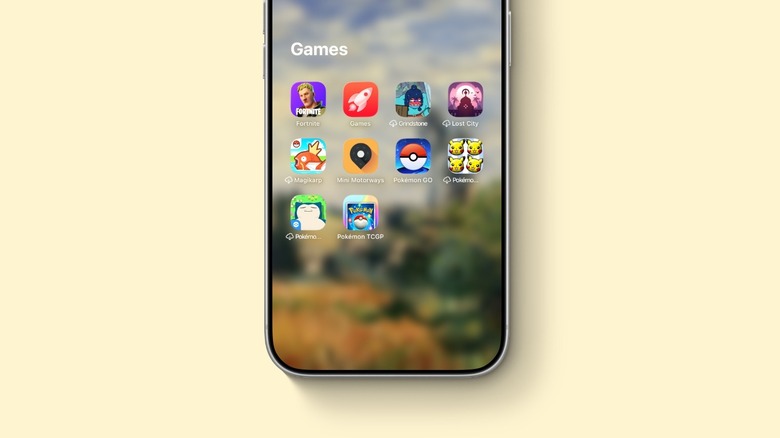
If you’ve downloaded several new apps but then forget to use them, then you might have seen a little cloud symbol next to one or more of your iPhone apps. This is a clever feature Apple introduced in iOS 11 that gives users the ability to offload apps without losing any data. iOS can even intelligently offload apps that you’re not using frequently. For example, if you downloaded a popular app everybody was using and then you forgot about it, your iPhone will eventually offload the app so it doesn’t occupy storage that you might need for photos, videos, music, or other apps.
While it can be annoying in a few situations, such as if you’re on a plane and want to play an Apple Arcade game that has been removed because you’ve not used it for some time. That said, once you have an internet connection, you can just tap the app, and it immediately redownloads everything. All new iPhone models sold by Apple in 2026 have at least 256GB of storage, which means it has become much rarer for users to run out of storage. But this feature, alongside many other storage-saving tricks introduced over the years, helps users to make the most of their iPhone without running out of storage.
How to manage offloaded apps
In iOS 26, Apple changed how users can manage unused apps. Head into your iPhone’s Settings app, then Apps, and App Store. You’ll see the Offload Unused Apps option, which Apple turns on by default. As your iPhone explains, the feature will “Automatically remove unused apps, but keep all documents and data. Reinstalling the app will place back your data, if the app is still available in the App Store.” In the same settings menu, you can also toggle on or off automatic downloads for apps, updates, and in-app content.
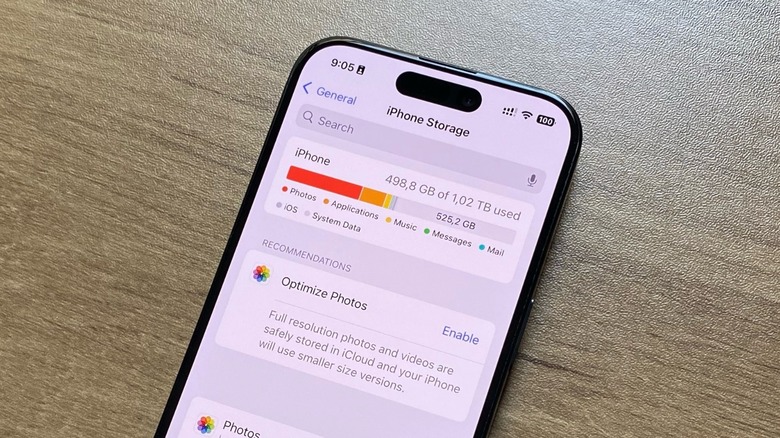
Besides that, if you head into Settings and then iPhone Storage, you can tap on apps and choose to offload the app to free up storage, instead of just deleting the app. It can be really useful when you’re trying to update your iPhone’s software or if you’re going to a concert, but you don’t have a lot of storage available. The next time you see a little cloud near an app, you don’t need to freak out; just tap it, and you’ll get your app up and running as it always has been.

