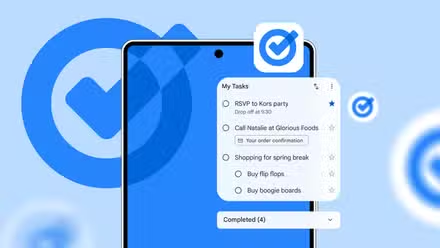
The ones that I used to spend the most on were productivity apps. The last one that I quit was a paid To-do app, and I replaced it with Google Tasks.
I wouldn’t have been able to jump ship without trying their free alternatives. I’m glad I recently tried some of the best productivity apps that cost nothing. Without them, dumping those paid productivity apps wouldn’t have been possible.
I’m finally breaking my expensive productivity app habit, thanks to these five free tools.

I finally ditched a paid to-do app for this Google alternative
Google Tasks has become a unified home for all reminders across the Google ecosystem
Google Calendar
It took me some time to realize that I don’t need fancy productivity tools to be more efficient in what I do. I never needed those advanced productivity features that I was paying for.
I also downplayed the power of Google’s productivity apps, which are free to use. I never looked at them because they seemed alarmingly basic. The Google Tasks app changed my mind.
The Google Tasks app encouraged me to try the Google Calendar app, and I was mighty impressed yet again with what the latter is capable of. I realized Google Calendar has enough goodies to keep me hooked.
I can use Google Calendar to plan what I’ll do in a day. It may not have a pretty-looking time blocking feature, but it works smoothly on my Samsung Galaxy S21, Motorola Edge 50 Neo, and even on my iPhone 16e.
I can tap to select a time range on Google Calendar, drag to expand it, and then choose what I want to do in that time frame. I can set a meeting, or an event, or even a birthday party in that time slot.
So, instead of planning to do things sometime in the day, it’s always better to plan your next day in advance. Not only that, I can add the Calendar widget to the Android home screen.
So, I don’t miss any upcoming events or tasks. Also, whatever tasks you add to Google Calendar, they’ll automatically appear on the Google Calendar app.
NotebookLM

I use NotebookLM daily for learning, and it’s one of the best AI tools that I have used in recent years. Instead of paying for multiple AI productivity tools, I use NotebookLM to consolidate what many of those paid tools offer into a single place.
NotebookLM can generate podcasts based on the sources I upload. I can listen to those podcasts when commuting or whenever it suits me. That’s the power of the Audio Overviews feature in NotebookLM.
It can also generate videos based on sources I add, thanks to the Video Overviews capability. You can download them to watch later.
Not only that, it can extract information from the added sources and make PowerPoint-style presentations using its Slide Decks feature. The higher the quality of prompts you use, the better the presentations the Slide Decks will create.
After adding sources, NotebookLM generates a summary. If you need more clarification on certain topics, you can ask more questions. This is often the right thing to do, as it can reveal hidden connections between ideas that you may have otherwise missed.
NotebookLM also supports mind mapping, which can dissect complex topics to make them easier for you to understand.
Since my style of knowledge management relies on searching and asking questions and has not much to do with organizing folders, NotebookLM is good enough to serve as my active “second brain.”
I don’t need to spend money on expensive PKM systems, thanks to the NotebookLM tool, which is available across all platforms.
Niagara Launcher

A few years ago, I was a big fan of Microsoft Launcher on Android. However, I stopped using it after switching to the Galaxy S21 for the first time.
I loved the One UI skin so much that I never thought of installing a third-party launcher on my phone. This was before I tried the Niagara Launcher app on my phone.
I never imagined that a launcher app could also help users be more productive until I started using the app. I have to thank some of my colleagues at Android Police for recommending it.
As for why I love using Niagara as a productivity tool, the launcher has a minimalist look, zero ads, declutters the home screen, and helps me get things done faster.
For example, if I swipe right on the WhatsApp widget in Niagara Launcher, it shows the latest contacts I chatted with. I can select one to open the chat and type messages.
I can use the same swipe gesture in several other apps to open specific pages of those apps. For instance, a swipe right on the YouTube widget can take me to the Subscriptions page.
You can use the same trick to type a post on X. This way, I don’t get distracted by posts from the people that I follow and the ones that appear on the For You page.
This feature alone saves me a ton of time throughout the day. It took me by surprise when I realized this feature is available to everyone, including those in the free tier.
Google Keep

I quit using numerous productivity apps after switching to Google Keep. I can rely on it whenever I need to jot down my thoughts without overthinking.
This is possible because Google Keep is a note-taking app with a touch of a focus tool. However, I rarely open the app on my Android phone.
Instead, I use a 4×3 pinned widget of the Google Keep app, which keeps my weekly notes front and center. I have also pinned a Quick capture widget to create a new note.
I can also pair it with Gemini and push an idea to Google Keep.
For someone like me who doesn’t need expensive note-taking apps that have features like databases, daily planners, and dashboards, Google Keep is more than sufficient.
Google Lens

Google Lens is a visual search tool, and what makes it especially convenient is that it’s embedded in the Google app. I don’t have to download Google Lens from the Play Store to enjoy some of its useful features.
The Google Lens app can detect and copy text from an image, translate text, and identify objects. You can capture an image of what’s in front of you or pick one from the Gallery.
You can also edit parts of an image conveniently using prompts. You can also use its Live functionality for a real-time camera interaction inside the app.
I finally stopped chasing complicated productivity apps
Productivity apps should not feel complicated, no matter how advanced the features they offer.
But we’re not living in an ideal world, so the app usually gets more complicated to use with the addition of advanced features, especially with productivity apps.
I don’t have to chase those complicated apps. I have easy access to the advanced features I need to boost my productivity with the above-mentioned free productivity tools.