Back in the early days of Android, it was common to root your phone so you could “hibernate” or “freeze” battery-killing apps. They wouldn’t be able to wake up the device’s CPU or consume any system resources. These days, Android has built-in features to stop battery-leeching apps, but you can still freeze apps, and you don’t even need root access to do it anymore.
The Ingredients
Two open-source tools, and how they work together
Usually, these apps require system-level privileges to work, which you can easily grant if you have rooted the device. Even without root access, you can use a service like Shizuku to give apps those elevated privileges.
Shizuku uses the Android Debug Bridge (or ADB), meant for developers. It’s a command-line interface that lets developers access settings and execute commands that aren’t possible in the normal, unrooted Android environment. Now you’re supposed to connect your phone to a PC (either through Wi-Fi or a USB cable) in order to access this ADB interface.

Shizuku uses the wireless ADB mode to create that privileged environment and runs it in the background without a PC. As long as it’s running in the background, apps connected to Shizuku get advanced access to the Android system. That’s what we’ll be doing.
There are three “hibernation” apps that work with Shizuku—Ice Box, FreezeYou!, and Hail. Only Hail and FreezeYou! are free and open-source. Hail is more general-purpose, while FreezeYou! is meant for scheduling and automating app hibernation.
“Do Not Disturb” on Android: What It Is and How It Works
Stop notification overload without missing what matters.
Setting up Hail using Shizuku
Installing and configuring Shizuku and Hail
Let’s start by installing Hail from F-Droid. You can also grab the installer from its official GitHub repo and manually install Hail using the APK file. I recommend installing via F-Droid because it’ll automatically update the app for you.

When it’s installed, we’ll get a Shizuku service up and running so we can grant the necessary permissions to Hail. You can install Shizuku directly from the Google Play Store, or download the installer from the Shizuku GitHub. Open Shizuku when it’s installed.
Enable Developer Options before proceeding, if you don’t already have them enabled. Go to System > About and tap Build Number 7 times until you see the “You are now a developer” message.
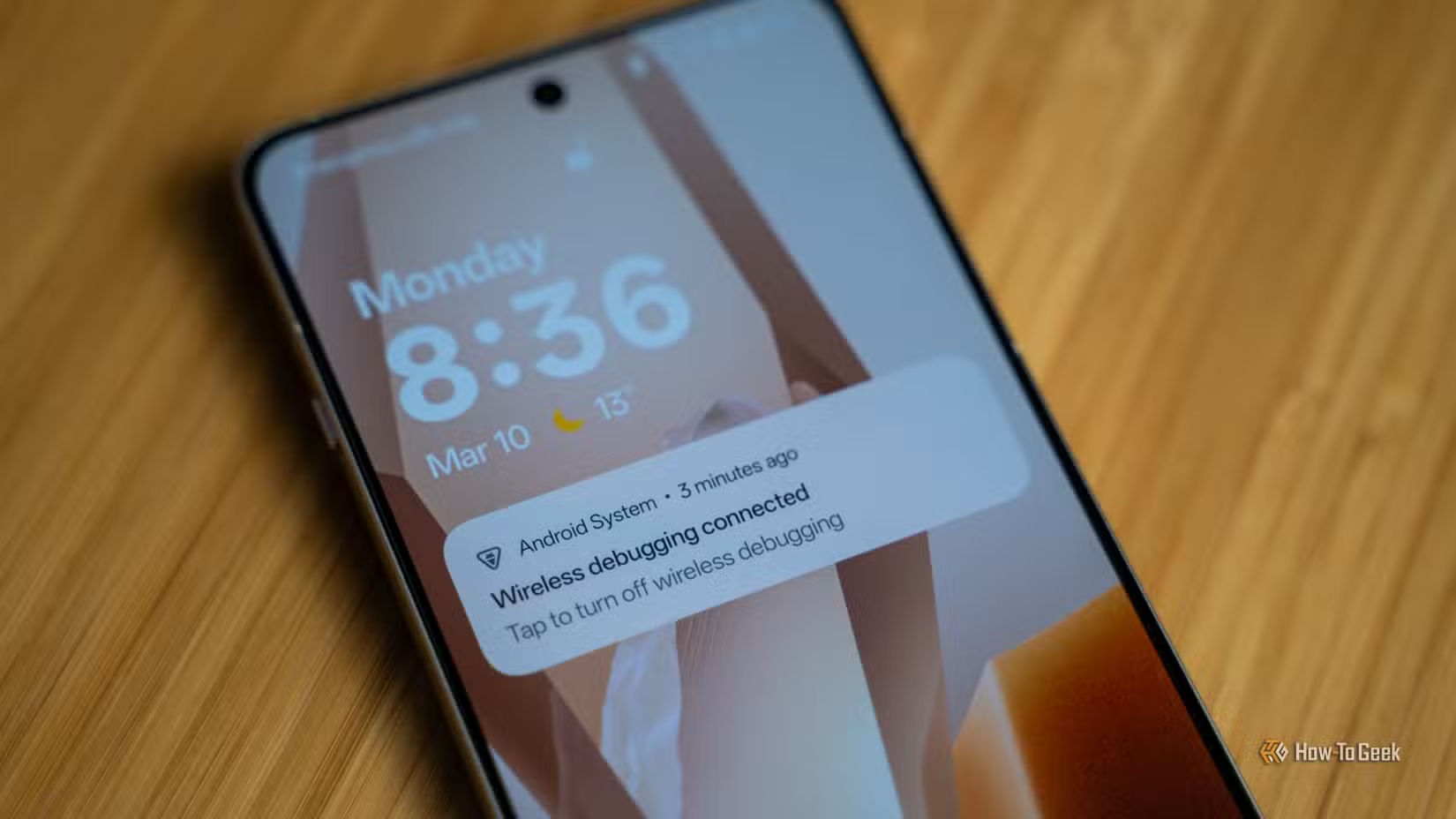
Tap “Pairing” on the Shizuku homepage. A notification from Shizuku will pop up to assist with the pairing process. Tap “Developer Options” and then scroll down to “Wireless Debugging.” Enable wireless debugging and then tap “Wireless Debugging” (the text, not the toggle) to expand the menu.
Under “Wireless Debugging”, tap “Pair device with pairing code” to generate a 6-digit code. Note the 6-digit code and swipe down from the notification shade. You’ll see a notification from Shizuku, requesting the code. Enter the 6-digit code here and wait for the “pairing successful” message.
This pairing was a one-time setup. Now back at the Shizuku home, tap “Start” to start the Shizuku service (a window will appear and disappear). You should see a “Shizuku is running” message at the top.
Shizuku will turn off when the phone reboots, and you’ll have to manually start it again. There’s no need to pair Shizuku all over again. You only have to press the “Start” button.
Tap “Authorize applications” and enable Hail.

Now open Hail and go to the “Settings” tab. Tap “Working mode” and select “Shizuku – Suspend.” This mode effectively “freezes” the app and keeps it from waking up the device or consuming any system resources. If an app sends annoying notifications or if you want to stop an app’s background activity, this is the mode you want. You can still tap the app icon and use it whenever you need.

You can also choose “Disable,” but this mode turns the app off entirely, and you can’t even use it until it’s re-enabled. The “Force Stop” mode just momentarily turns the app off, but it can turn back on again.
Freezing apps using Hail
Hail can freeze apps with a single tap
Now that Hail is set up, we can hibernate some apps using it. Tap the “Apps” tab on Hail to see a list of all your installed apps. Select the apps you want to freeze. Now go back to the “Home” tab, and you’ll see your selected apps have appeared there.
Tap the snowflake button to instantly freeze the selected apps. Frozen apps will appear grey.

If you don’t want to manually freeze apps while you’re using the phone, you can set Hail to auto-freeze apps when you lock the screen. Open Hail settings and enable “After screen locked” under Auto freeze. You can also skip freezing while the phone is charging. And you can even add action shortcuts to the home screen for quickly freezing and unfreezing apps.


9/10
- Battery
-
4700 mAh
- Ports
-
USB-C
- Operating System
-
Android 14 (at launch)
- Front camera
-
10.5 MP Dual PD, ƒ/2.2 aperture, 95° field of view
Stop annoying apps with one tap
You can now stop apps from draining the battery, secretly running in the background, or sending annoying notifications with just one tap.