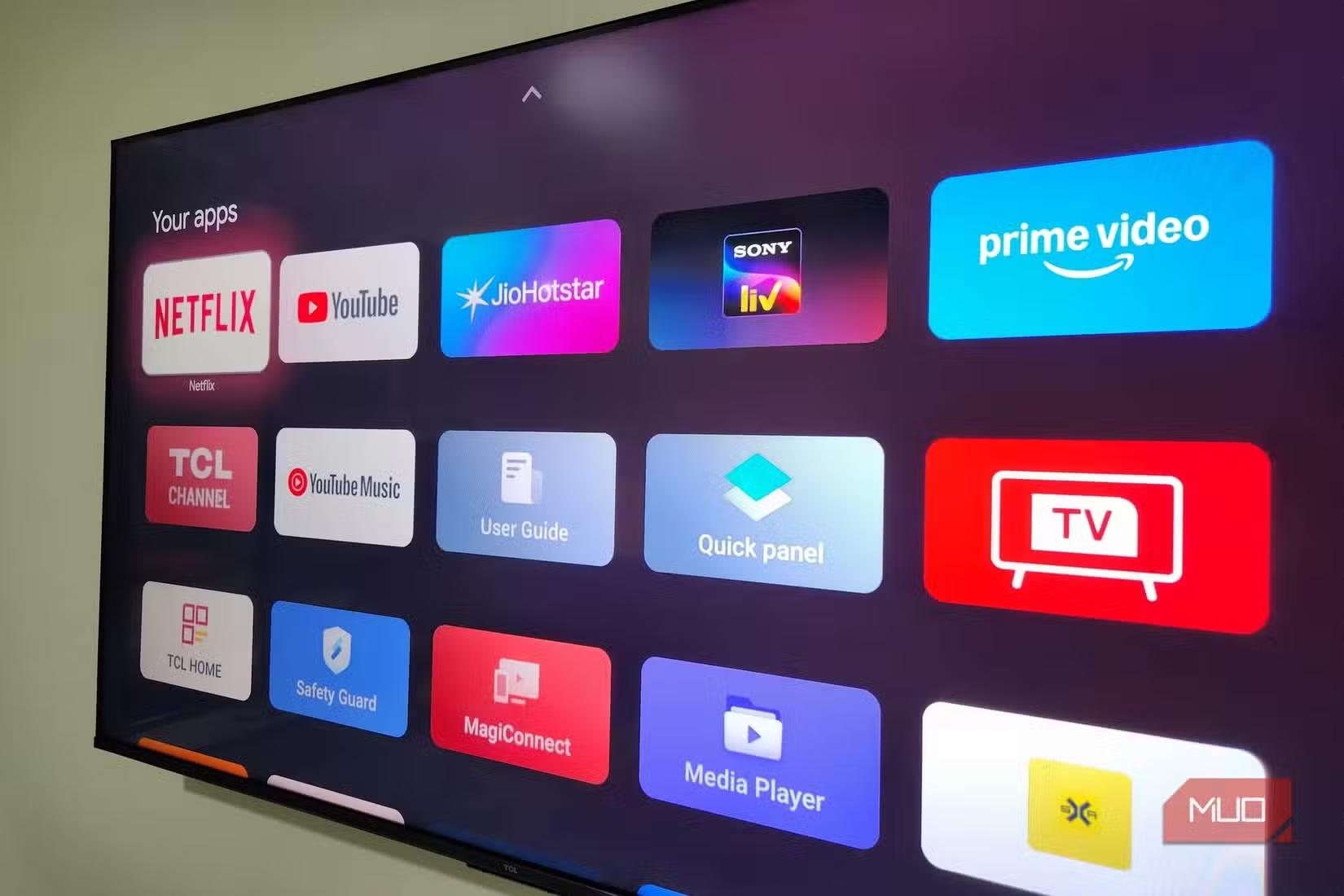
The Google Play Store on your Android TV offers hundreds of apps for all kinds of uses. And most of the time, those apps are enough. But that’s not the end of the story. Android TV is all about flexibility, which means you can also go beyond what’s available on the Play Store and install apps that aren’t listed.
This is referred to as sideloading. It might sound technical, but it’s actually quite easy to do. It’s a simple trick that can dramatically expand what you can do on your Android TV.
Sideloading apps on Android TV changes the game
Go beyond the Play Store

Sideloading is the ability to install apps manually, and it opens a door that most users don’t even realize exists. The obvious benefit here is that you can install niche apps that aren’t listed on the Play Store. This could be a lesser-known streaming service, a launcher, or a specialized media player.
But that’s not all. Sometimes, even if an app is listed on the Play Store, it may not be available for your specific region or model. In such cases, sideloading becomes a practical workaround.
Sideloading is essentially a two-part process. First, you need to get the APK file of the app you want to install. Once you have that, you simply need to install it manually using a file manager. After that, the app appears on your TV’s home screen, and you can use it as usual.
What you’ll need to get started
It’s a one-time thing

Sideloading apps on your Android TV or Google TV is fairly straightforward. But on certain models, like Chromecast with Google TV, you first need to enable Developer Options.
Developer Options is a hidden menu on your TV that unlocks several useful features, including sideloading. To enable it, head to Settings > System > About > Android TV OS Build. Now, press OK on your remote seven times, and you’ll see a “You’re now a developer!” message.
Again, this isn’t necessary for all TVs. Also, you are free to turn off Developer Options once you’ve sideloaded your app.
Getting apps onto your TV is easier than you think
Just two simple steps
Sideloading apps on TV works much like it does on Android phones. The first thing you need to do is get the APK file from the internet. You need to head to a trusted APK website and download the latest app file for your TV. “Trusted” is the keyword here, as downloading from unknown sources can expose you to security risks or modified apps.
Now, there are two ways you can go about it. You can either use a web browser on your TV to download the APK file directly, which is the quickest method if you don’t want to involve another device. Or, you could download the APK first on your phone or computer and then transfer it to your TV’s storage. Apps like Send Files to TV and LocalSend are ideal for this.

- OS
-
Windows, macOS, Android, iOS, Linux, and Google TV
- Price model
-
Free
Once you’ve got the APK file on your TV, you’ll need a file manager app to install it. Most TVs don’t come with a file manager app out of the box, but you can grab one from the Play Store for free. File Commander or FX File Explorer are great choices here.

- OS
-
Android
- Pricing model
-
Free, Pro version available
Finally, open the file manager, locate the APK file, and select it. While doing this for the first time, you’ll need to allow the File Manager to install apps on your TV. Once that’s done, hit Install and your app will be ready to use.

Why Android TV Is the Best Smart TV Platform on the Market
There are so many smart TV options, but Android TV tops the list.
Apps that make sideloading worth it
Spoiled for choices

Sideloading apps on your TV is easy enough, but the real question is which ones make it worth the effort. Well, there are quite a few, but you can start with SmartTube. It’s a free, open-source YouTube client that doesn’t show any ads. There are also features like SponsorBlock, HDR compatibility, picture-in-picture mode, extra video quality settings, and more. Also, you don’t need to connect your Google account to use it.
Then there is Aptoide TV, which is essentially an app store that gives you access to hundreds of apps that aren’t available on the Play Store. This is great if you want to discover new apps but don’t want to go through the hassle of finding their APK files and transferring them to the TV manually.
AdGuard is another solid app you can sideload. It can block banners, popups, and even ads on your Android TV’s home screen. It also offers malware protection and secure DNS.
Sideloading breaks you out of the Play Store bubble and gives you freedom to explore some amazing apps. And as long as you stick to trusted sources and are mindful of what you install, it’s completely safe to do. The only thing is, you’ll need to update these apps manually. But other than that, you should be able to use them as usual.