It wasn’t that long ago that I wrote about using Photoshop for the web on Linux, and how it seemed like the best solution for a raster graphics editor on Linux. But I’ve already been proven wrong.
Last week, Canva released the brand-new, free Affinity app, unifying the previous Affinity Photo, Designer, and Publisher apps into one. In doing so, the app was also made free to download, with a subscription service unlocking some additional features that are mostly unnecessary.
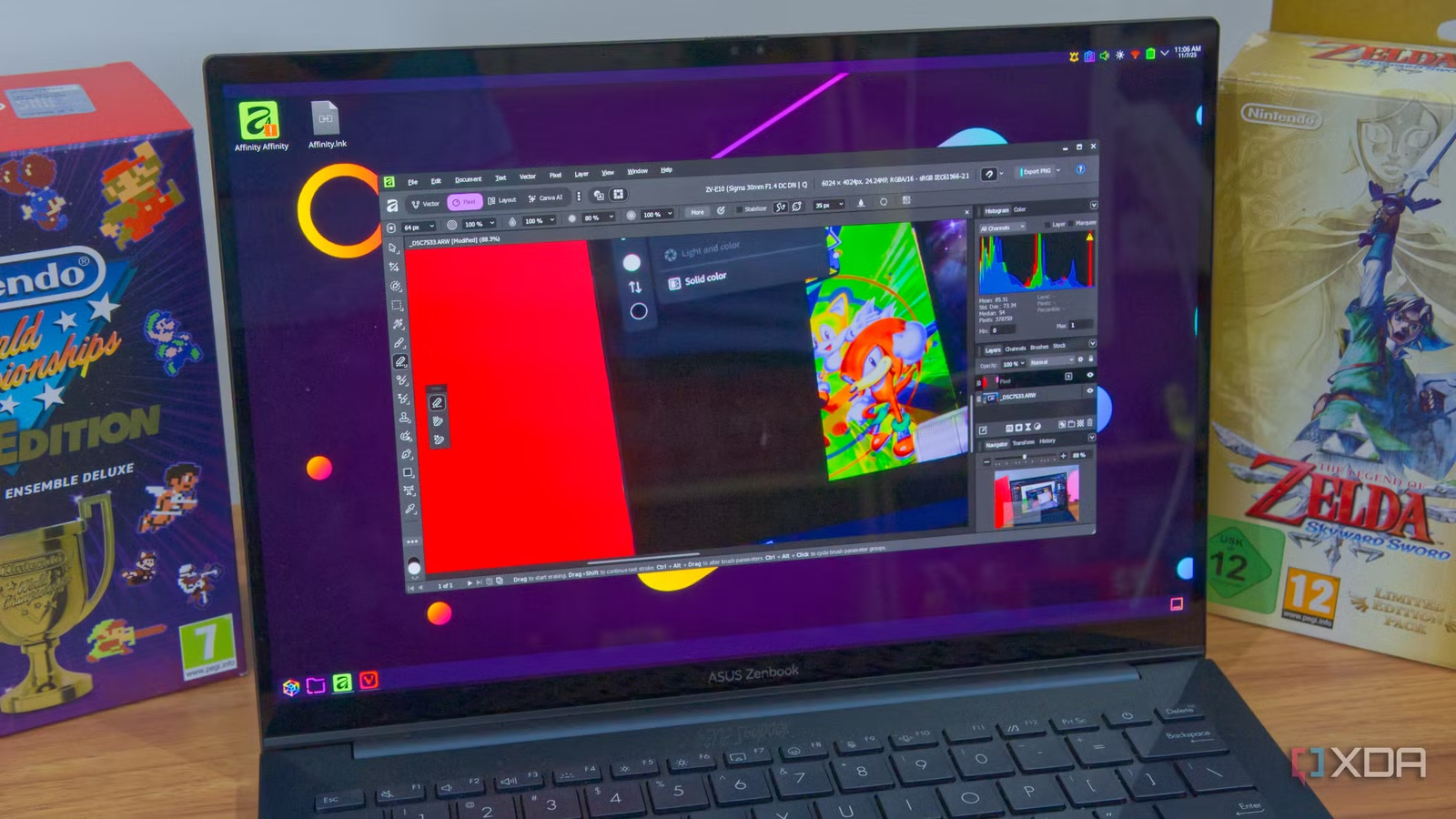
The app was made available for Windows and macOS officially, but this is when I discovered the Affinity on Linux project. This is a community effort to bring the Affinity apps to Linux through Wine, with some additional tricks to get things working as intended. The project predates the unified Affinity app, but with the launch of this new version, it felt like the right time to give it a shot. And as it turns out, this may be exactly what I needed to satisfy my Photoshop needs.
Setting up is easy
A script makes it all simple
The Affinity on Linux project offers a few methods for setting up the Affinity app on your Linux PC, including through apps like Lutris, Bottles, or even the Heroic Games Launcher. These methods work completely fine, but they are a bit more manual and involved than some might prefer. Thankfully, a fork of the project exists on GitHub which gives you all the same goodies with a slightly easier setup with a GUI installer.
You can get started pretty easily by running this terminal command, which will download the Python-based GUI installer:
curl -sSL https://raw.githubusercontent.com/ryzendew/AffinityOnLinux/refs/heads/main/AffinityScripts/AffinityLinuxInstaller.py | python3
How well this goes may still depend on your Linux distro and what dependencies and requirements you already have installed. I had some issues with some of the packages not being found in Arch’s package manager, so I had to install a couple of them manually, but once I sorted out those packages, I could use the one-click setup button to get things going fairly quickly. This script installs ElemantalWarrior’s Wine, which is a custom implementation of Wine designed to improve support for Affinity and other Windows apps. That could explain why I wasn’t able to run Affinity Photo 2 under the standard version of Wine, yet it works fine here.
Once Affinity was running, my only other issue was increasing the display scaling, because things looked too tiny on my laptop. That’s a setting that can be changed in the Wine configuration itself, which you can also access through the Affinity on Linux installer, so it’s relatively painless to get done. You can always run the command again to launch the installer even if you’ve already installed Affinity, and you can use that for changing settings and updating the app.
It works surprisingly well
Affinity on Linux is surprisingly solid
Getting through all of that, Affinity on Linux is truly, and surprisingly, solid. I’m running these tests on a 2024 Asus Zenbook 14 OLED, meaning it has Intel Core Ultra series 1 (Meteor Lake) processors, and there’s no discrete GPU, so that’s already a bit of a barrier to performance. But even through the real-time translation layer of Wine, Affinity works surprisingly well.
I was able to do most of the actions I regularly do in Affinity this way, including selecting objects, creating clipping masks, and developing RAW photos, all without too much in the way of issues or even frustrating slowdowns. Using machine learning-based object selection did feel a bit slower to process the information from the segmentation model compared to my Mac Mini, but to be fair, comparing a Meteor Lake processor to the Apple M4 is very unfavorable in the first place. It wouldn’t be as much of a difference if I were trying this on Windows on the same computer. Similarly, developing a raw photo also took some time longer than I would like, but again, I can’t say that it wouldn’t have been the same if I tried using the same hardware on Windows.
The important part is that nothing here really feels like it makes the experience unbearable or not worth it. I did experience on notable hiccup where the program took a few seconds to respond after using the gradient tool. Otherwise, though, if I need to do photo edits on the go, I feel like I can rely on Affinity to do a fine job, even if it’s running on Linux through Wine, and that’s huge. It’s the first time I’ve felt like I didn’t have to make a huge sacrifice by working on image editing on my Linux PC, which is always where I’d rather be if possible. Of course, I haven’t spent countless hours with Affinity on Linux yet, so my opinion could still change, but this is extremely promising.
And remember, it’s free. While I wouldn’t necessarily put Affinity significantly above the web version of Photoshop I covered before, the fact that it runs locally, for free, and works on almost the same level means this is something that’s very easy to recommend for anyone to at least try.
Affinity is not perfect, though
I realized I’m missing something

One thing I do want to mention in regard to Affinity, and not specifically the Linux port, is that it’s not really great for photo development. It’s not a problem with the feature set, as that’s totally fine, even though there’s a bit of a learning curve coming from Adobe Lightroom.
The problem lies in the fact that Affinity is not designed with photo development as the primary goal. It’s made in a way that expects you to use the developed photo in a Photoshop-like project, and that means there isn’t a great way for just developing photos in bulk. If you want to do color and lighting corrections to develop a photo, you need to open each file as a separate project, and trying to open them all at once is going to hit Affinity hard. Even on the Mac Mini, when I tried to do this with 20 or so photos at once, the app simply wouldn’t open any of them in a reasonable amount of time.
It would be nice if Affinity added a more development-focused mode where you can browse a folder and edit each of the files in it, similar to how Lightroom works. That would speed up my workflow significantly in certain cases where I need to handle a lot of photos at once.
I still wish there was a native app
You can’t beat native performance

As cool as the Affinity on Linux project is, I do still wish there was a native version of the app for this operating system. When rumors started swirling about a big announcement from Affinity, I had truly hoped that would be part of the suite of announcements, considering Affinity already appeals to an audience of Adobe escapees, who are likely to avoid platforms like Windows which are heavy on data collection.
Performance is always going to be better with a native app, and even though real-time translation like what Wine does is honestly pretty solid and better than emulation performance-wise, it’s not ideal. I’ve heard reports of some visual bugs (and I experienced one myself, but it was very minor), and that kind of thing is going to be very hard to avoid with a translation layer. It’s especially hard to account for different hardware when you’re running things through a layer like this, so even though this works pretty well on my Intel-powered laptop, that may not be so much the case with AMD, or you may not be able to make full use of a discrete GPU.
There’s a severe shortage of user-friendly apps for this kind of task on Linux, so I do feel like Affinity could fill a huge niche. No matter how many times some might try to tell me to use GIMP, it’s not going to happen because it’s not that good.
Affinity on Linux is a good stopgap
While the wait for a good, user-friendly, native Linux app that can replace Photoshop continues, the Affinity on Linux project is serving up a very solid experience considering the roadblocks. Developing a dedicated version of Wine to improve performance and reliability has yielded some impressive results, and it’s certainly going to become my default app for editing photos on Linux. I’ll keep my fingers crossed for that native version, though.