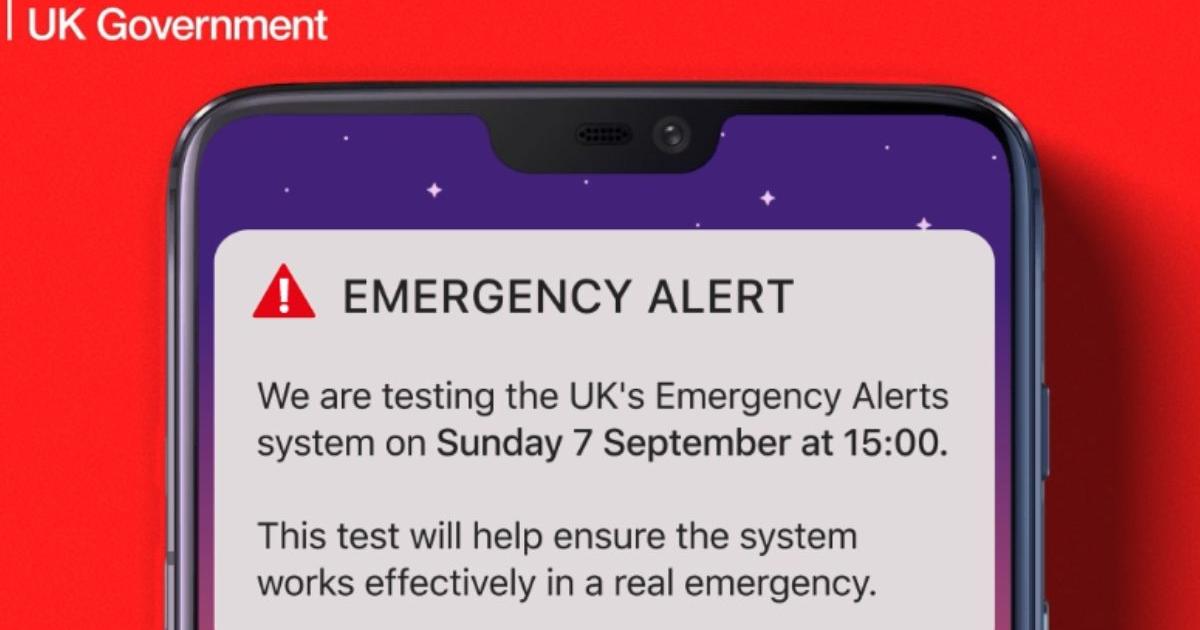
At around 3pm today, mobile phones connected to 4G and 5G networks will vibrate and emit a siren sound for up to 10 seconds.
Mobile phone users will also receive a message making clear that the alert is a drill.
This is a system that provides warnings and advice in the event of a life-threatening emergency, with the last test having taken place on April 23, 2023.
What is an Emergency Alert? Swipe through to find out.
🚨 There will be an Emergency Alerts test on Sunday 7 September at 3pm across compatible mobile phones and tablets in the UK. pic.twitter.com/q1XunMfY0J
— GOV.UK (@GOVUK) September 3, 2025
Emergency planners in the Cabinet Office Briefing Rooms (COBR) Unit have carefully chosen the time for the largest UK public safety exercise of its kind to minimise disruption.
Emergency Alerts have been used in five real emergencies, including Storm Éowyn this January, when 4.5 million people across Scotland and Northern Ireland received one.
In Plymouth last year, it was used to evacuate more than 10,000 residents after an unexploded Second World War bomb was discovered.
How to turn off Emergency Alerts on UK phones
If you do not wish to receive an emergency alert message as part of the national training, you can opt out.
At 3pm Sunday, 7 September, the government will test their Emergency Alerts system. It’s designed to get urgent messages to people when a nearby emergency happens. If you need to avoid the alarm going off for any reason, turn your phone off. Share this post to spread the word. ⚠️ pic.twitter.com/CtuYXTRjZY
— British Red Cross 🧡 (@BritishRedCross) September 4, 2025
Android phones
To opt out on Android devices:
- Search your settings for ‘emergency alerts’.
- Turn off ‘severe alerts’ and ‘extreme alerts’.
If you cannot see them in your settings, the Government website says to:
- Opening your phone’s calling app
- Using the keypad to enter *#*#2627#*#*
- Search your settings for ‘emergency alerts’ and turn off ‘test alerts’, ‘exercise alerts’, ‘operator defined’ and ‘operator alerts’
iPhones
If you have an Apple iPhone, head to settings, notifications, messages, and then slide the ‘Critical Alerts’ toggle to off.
Recommended reading:
Other mobile phones
Depending on the manufacturer and software version of your phone, emergency alert settings may be called different names, according to the Government website.
The settings can usually be found in one of the following ways. The government website says to go to:
- ‘Message’, then ‘message settings, then ‘wireless emergency alerts’, then ‘alert’
- ‘Settings’, then ‘sounds’, then ‘advanced’, then ‘emergency broadcasts’
- ‘Settings’, then ‘general settings’, then ‘emergency alerts’
“Then turn off ‘test alerts’, ‘exercise alerts’, ‘operator defined’ and ‘operator alerts’,” it adds.