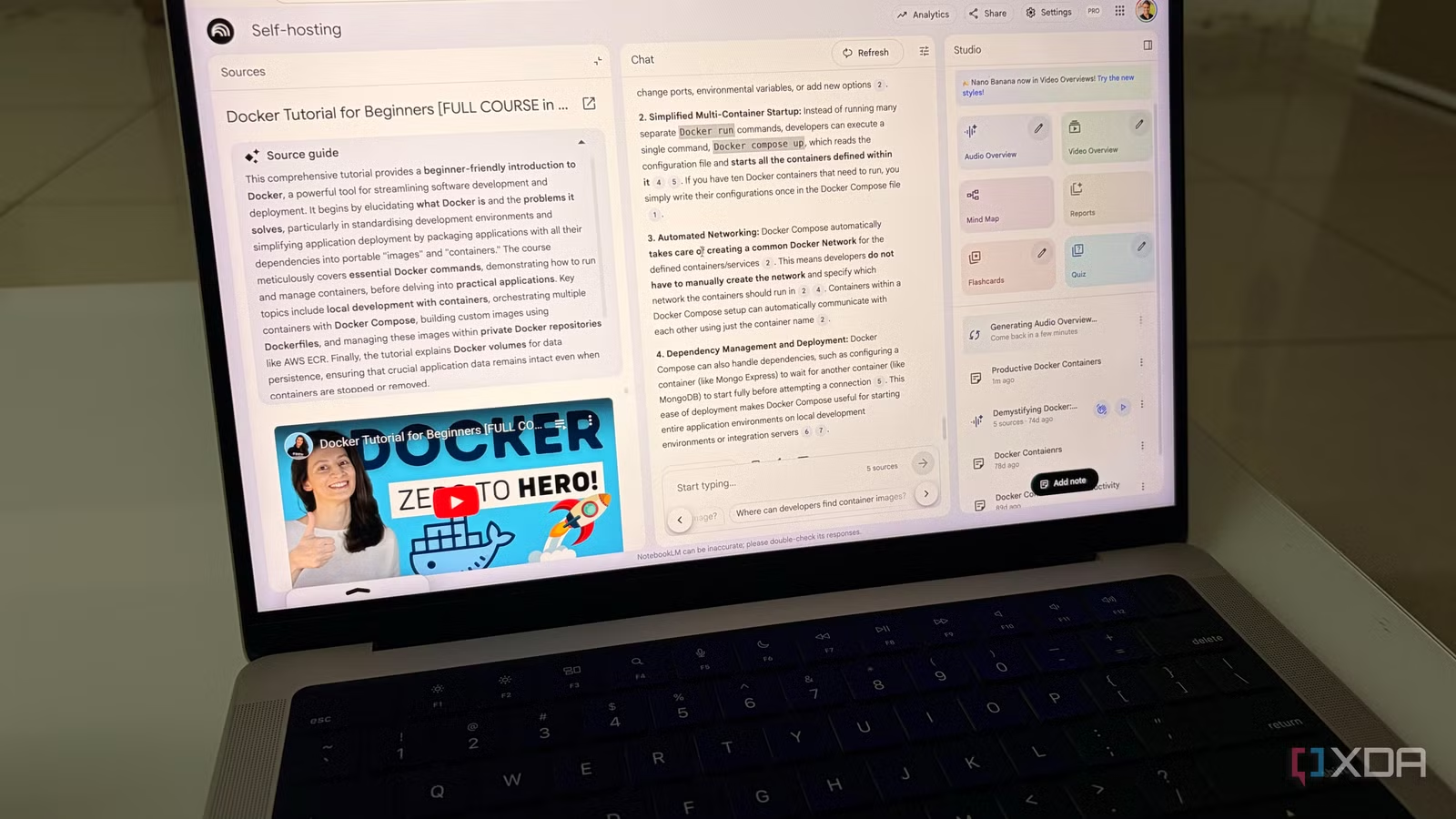
Google’s NotebookLM is easily the most exciting research tool of the year, but out of the box, it has a major flaw. You have to manually feed it everything, and once it generates those brilliant insights, they often die inside the chat window. To turn NotebookLM from a fun toy into a serious productivity engine, you need to build an ecosystem around it.
I use a system that uses Grok to hunt down fresh sources, Chrome extensions to instantly bridge the gap between your browser and notebook, and Obsidian to permanently capture the gold. Here is the exact tech stack I use to make NotebookLM effective.
Grok
An ideal AI partner
Here is the biggest limitation of NotebookLM: it is static. It only knows what you upload to it. If I want to research a developing story or a niche topic, I usually have to spend 30 minutes on Google, open tabs, save several PDFs, and them upload them to NotebookLM.
It’s too much friction. So, I replaced Google search with Grok. It cuts the research time in half because I don’t need to visit the websites myself – I just need the core data to feed into my notebook.
Here is my exact workflow: I launch Grok and give it a specific instruction like: Find the top five technical reviews of the new M4 iPad Pro, specifically focusing on thermal throttling. Summarize the key findings and include the URLs.’
Grok gives me links, reads the content, and acts as a web scraper to clean up the internet for me. I don’t bother clicking the links. I simply hit Copy on Grok’s entire text response.
I hop over to NotebookLM, click Add Source, select copied text, and paste the whole thing in.
In seconds, I have a source inside NotebookLM that contains the information from five different articles.
Forget Notion and Obsidian, 5 reasons Google’s AI note-taking tool is the future of productivity
NotebookLM is your next productivity powerhouse
Obsidian
A robust Markdown tool

NotebookLM does have a ‘Save to Note’ function, but I refuse to use it for anything important. It’s because NotebookLM traps that knowledge inside that specific notebook. If I’m researching ‘The Future of AI’ in one notebook and ‘Productivity workflows using Docker’ in another, those two brains never talk to each other.
When NotebookLM gives me a golden answer – like a perfect summary of a complex topic – I don’t just leave it there. I copied the text directly from the NotebookLM chat.
I launch Obsidian and create a new note. I usually tag it with #notebooklm so I know exactly where this insight came from.
Once the text is in Obsidian, three features completely change how I use that information. The first one is a graph view, I can instantly see how this new piece of research connects to a book I read three years ago or a blog post I wrote last month.
NotebookLM shows me the answer; Obsidian shows me where that answer fits in my life. Aside from that, I also use Canvas for brainstorming ideas and rely on backlinks to connect relevant information across the entire vault. Now, let’s go over a Chrome extension that rhythms perfectly with my NotebookLM notebooks.
NotebookLM Web Importer
The title says it all

Before I found the NotebookLM Web Importer extension, my workflow was painful. I would find a great article or a long YouTube video, and I would have to manually add them to a relevant notebook in NotebookLM. This extension kills that friction completely.
Whether I’m reading a dense technical blog on Docker or staring at a 2-hour YouTube lecture, I just click the extension icon. It instantly scraps the content and shoots directly into the specific notebook I choose.
Bulk import is where it gets crazy. If I’m doing a deep dive and have 15 tabs open, or if I want to add an entire YouTube playlist on ‘Self-hosting,’ I don’t have to do them one by one.
I can feed the extension a list of links or a playlist URL, and it pipelines all of them into NotebookLM in one go.
Another sleeper feature I love is the ability to sync NotebookLM’s Audio Overviews to a podcast RSS feed. This means I can turn a folder of research papers into a podcast episode and listen to it on my phone while I’m at the gym, without manually transferring files.
The free plan does the job just fine, and it supports bulk import for weblinks as well. However, if you want to import YouTube playlists and unlock other features, be prepared to pay for the Premium plan at $19 per month. There is a lifetime plan for $29 as well.

The power user NotebookLM workflow
NotebookLM is a brilliant processor, but it’s a terrible manager. With Grok handling the hunt and Obsidian securing the knowledge, you are no longer just chatting with a PDF – you are building a lasting library of insights. So what are you waiting for? Throw in a couple of Chrome extensions, give this setup a try for a week, and I’m sure you will never go back to the ‘drag-and-drop’ life again.
Once your NotebookLM tech stack is complete, check out these unique ways to get the best out of it.
