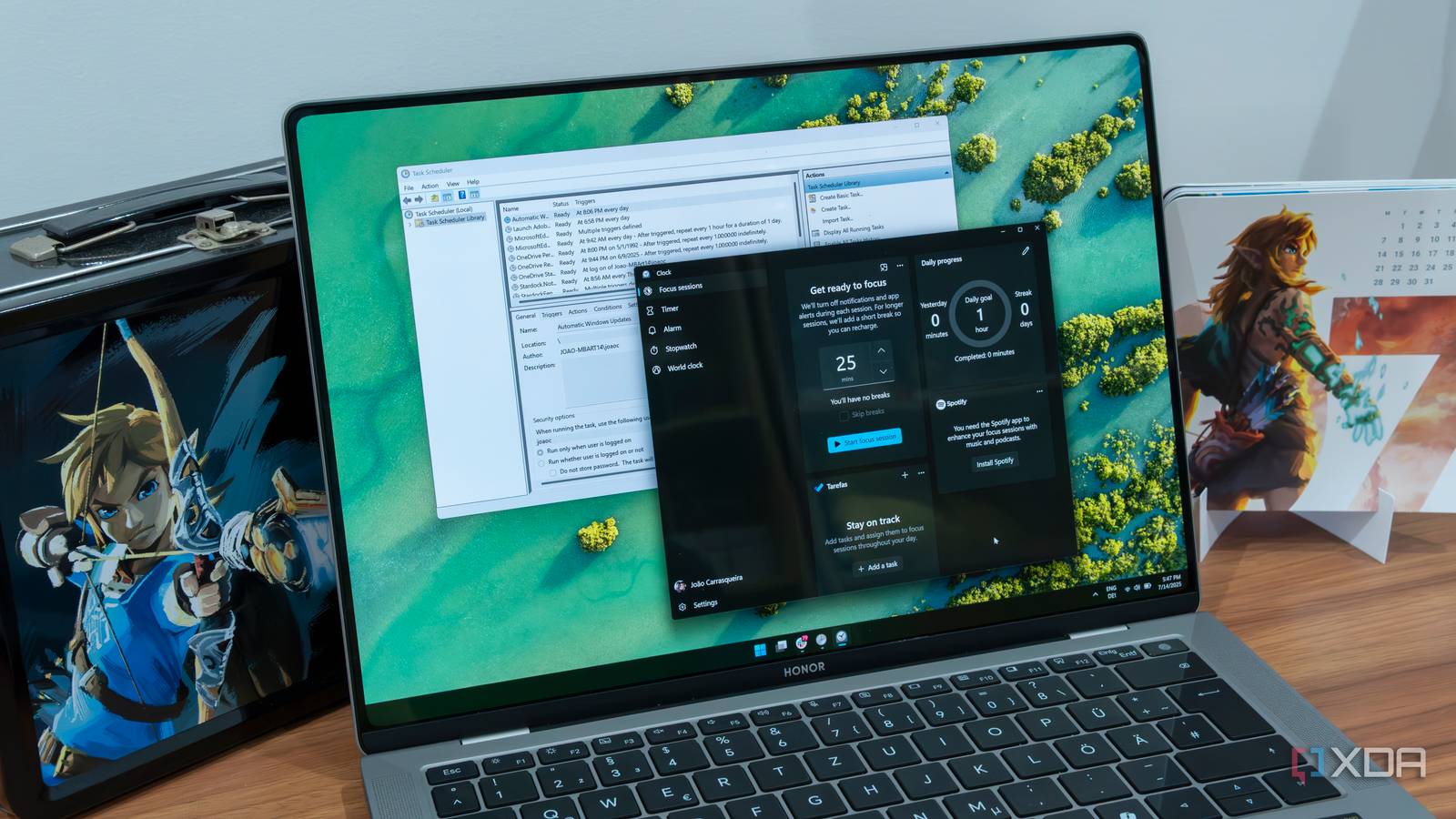
Windows Task Scheduler is an underappreciated powerhouse that can automate more processes than most people ever realize — no third-party nonsense required. It’s a smart and oddly satisfying solution to juggling super-specific software utilities just to maximize productivity or keep your PC running efficiently. The thought of wrangling yet another alarm app or system cleaner makes me groan, but I’ve inadvertently seen Task Scheduler in action much more than other Windows utilities. Most third-party software I might use for setting alarms for meetings, running maintenance scripts at ungodly hours, or firing off reminders when a backup finishes uses the Task Scheduler under the hood anyway.
Cutting software from the experience may seem detrimental, since you lose well-designed GUIs and a few features, but most power users know their requirements well. I was willing to spend a few minutes configuring Task Scheduler for sustained efficiency because it quietly executes background processes, from system updates and driver warnings right down to application notifications—without demanding you install a dozen separate utilities to handle things like reminders, cleaning, or automated backups. It reduces the CPU load and the number of installed programs in one fell swoop. Like any automation tool, the Windows Task Scheduler watches for triggers, such as system status changes, before launching preconfigured programs, running scripts, or performing system maintenance routines. These are my favorite local automation use cases that rely on this Windows utility rather than proprietary software or premium upgrades.
Reminders and notifications
One tool to rule them all
People continue to install To-Do reminder apps, alarm programs, or system notification utilities even though Task Scheduler is well-suited to handle such requirements. I just opened it, clicked Create Basic Task, named it, and chose a trigger. This can be a specific day, date, or time, or even a one-time event you set in Google Calendar. The Basic Task option is great in that it limits the tool’s full scope to the simple and frequently used options. I pick actions like Start a program to launch the meeting client, or play a sound. In Windows 10 or 11, you can specify a message box to pop up, or even run your favorite reminder script.
Sure, Task Scheduler may not send push notifications like my precious phone apps, but this simple automation renders tools like Task Till Dawn, System Scheduler Free, and even Windows’ own Sticky Notes all redundant. The setup uses a dated UI and feels clunky, but the tradeoff is clear: power, flexibility, and no unnecessary background processes eating your RAM. Plus, your reminders don’t vanish if you uninstall an app. Task Scheduler is omnipresent until you reset the OS. It’s completely ad-free and uninterested in selling you on a Pro tier as well. Note that message display is now a redundant feature in Windows Task Scheduler, and your automation may not save. Instead, you could try displaying the message using a custom script.
Cleaning and maintenance utilities
Sweeping the floor with tools that just do the same
Most people install cleaning utilities like CCleaner with the expectation of scheduled disk cleanup, defragmentation, or storage optimization. Task Scheduler can do all of this at the OS level and is often better if it isn’t already invoked by this software to execute the actions. I prefer setting up a calendar-based recurring trigger in Task Scheduler and mapping the action to run a custom cleanup profile like cleanmgr.exe /sagerun:1. I could also invoke the disk defragmenter this way if I used HDDs. The trigger can also run utilities like Storage Sense using the command line.
This trick replaces scheduled cleaning routines found in CCleaner, CleanMgr, and Z-Cron with fewer moving parts and more granular control. Importantly, you tweak the schedule down to the minute instead of suffering mini panic attacks every time a software tool says cleaning is due. I agree that these cleaning-focused software tools have a target market that values user-friendly automation, but they all rely on the same Windows APIs, and their scheduled features are usually just wrappers for Task Scheduler entries. By using Task Scheduler directly, not only do you keep your PC lean, but you also get error reporting and logs so you know exactly what happens when a cleanup fails without all that cloak-and-dagger nonsense.
Automated backups
Rely on the OS, not random utility vendors
Microsoft built Task Scheduler to do the lifting for you gratis, so you won’t need to rely on paid backup apps. Professional backup programs like EaseUS Todo Backup, AOMEI Backupper, and BackUp Maker are great — if you need enterprise-grade solutions. In my home setup, I schedule file copies and backup scripts directly in Task Scheduler. I create a task to run Robocopy, xcopy, or any other script, pair it with a time-based trigger or when the system is idle, and set up an advanced notification or sound when complete. The last step isn’t mandatory, but anything scriptable is fair game. Archive your documents folder and sync it to a network share nightly with a quick batch or PowerShell script, and let Task Scheduler run it without your intervention.
This effectively rids you of EaseUS and AOMEI tools. I’d use Task Scheduler for home backup needs because reliability is baked into the OS, with error logging, retry logic, and even the ability to wake the machine for critical jobs.
Script and command automation
The automator’s playground

While we are on the subject of scripting, Task Scheduler makes its single biggest argument against apps like AutoHotkey, Advanced Task Scheduler, or Windows Macro Recorder. It makes automating scripts dead simple. Process automation enthusiasts will love how this hidden feature can launch any script in PowerShell, batch, Python, or whatever your poison. You can even configure whether the script runs hidden or with a visible window, and set privileges. For maintenance tasks, I’d suggest setting conditions like running only on AC power or after the computer’s been idle for 30 minutes.
Such versatility lets me automate practically anything here, replacing a smattering of rather specific programs like VisualCron. I could launch custom apps, process log files, keep daily backup scripts humming, all without them. Yes, there’s a drag-and-drop simplicity with VisualCron workflows, but using an OS-level utility for execution reduces debugging headaches to the script alone, since the execution is fairly straightforward. There would be fewer compatibility headaches at the next Windows update and no lost routines because a third-party developer got bored and abandoned their project.
Event-based automation
The final boss of productive workflows

At the outset, I mentioned how several programs silently use Windows Task Scheduler behind the scenes to send notifications and execute routine tasks without disturbing the user. Such flows are primarily reliant on event-based triggers. It is how Windows magically launches your VPN client at boot, or runs a diagnostic when you sign in. It easily replaces System Scheduler Free, ActiveBatch, and Z-Cron with a lighter footprint. To create my own system event-triggered task, I can choose between simple triggers such as system startup and user logon, or a custom log event. Then, per usual, the executed action can be anything from a script to a program launch or a notification, and even a combination of these things if you’re feeling particularly daring.
Using Task Scheduler like this is perfect for running cleanups after reboots, launching monitoring tools at logon, or kicking off batch jobs when the system is idle. It sure beats paying for enterprise-grade management features in some third-party tools. The built-in event-based triggers satisfy most needs, sans the worries of disconnected cloud dashboards or web triggers not firing.
Custom power management
More power to you

For a long time, simple tools like shutdown timers seemed like gimmicks to me because they’d inadvertently fail when I needed them. Task Scheduler covers this base too, and with graceful ease. I can create tasks that run shutdown, restart, or hibernate commands at specific times, or just automate a Night Light schedule beyond the built-in options. Sure, Windows has its own Night Mode and Dark Mode settings, but only a few programs you might use every day respect those settings or offer direct integration with Windows. A task would help you force a change in these oddities, too.
Tasks like shutdown /s /t 0 or running a utility that dims the display are trivial here, and you can set conditions, such as only on weekdays or after hours. Laptop users can trigger a litany of other power-saving scripts when switching to battery power. There’s immense untapped power to throw out apps like BatteryCare and Battery Meter. Moreover, third-party power managers tout features that Task Scheduler already offers, for free. It truly is a native and scriptable power manager baked into Windows if you need one.
One tool that automates it all
In a world obsessed with apps for every conceivable micro-task, Windows Task Scheduler is the secret weapon for process automation enthusiasts and everyday users alike. Quit juggling five specialty programs — all riddled with ads and redundant notifications. The lion’s share of basic automation can — and should — be handled at the OS level, right where reliability and simplicity win the day. If Task Scheduler’s interface feels stuck in the Windows Vista era…well, that’s the price of liberation.